> ## Documentation Index
> Fetch the complete documentation index at: https://docs.visual-layer.com/llms.txt
> Use this file to discover all available pages before exploring further.
# Enrich Your Datasets with AI Models
> Select AI models to enrich your dataset with labels, captions, and metadata using Visual Layer's enrichment flow.
Dataset enrichment in Visual Layer is a two-step process:
1. Select an enrichment model
2. Run enrichment to generate new metadata for your dataset
This process adds structured metadata (e.g., labels, captions) to help improve dataset quality, enable better filtering, and power downstream automation.
***
### Verify Dataset is Ready
To ensure your dataset is ready for enrichment:
1. Navigate to the **Dataset View** and confirm the status is **READY**.
2. Alternatively, check the dataset status in the **Dataset Inventory**.
***
## Step 1: Select Models
Go to your dataset and click the **Enrich** tab.
Select a model from the list and click **Generate Models Preview**.
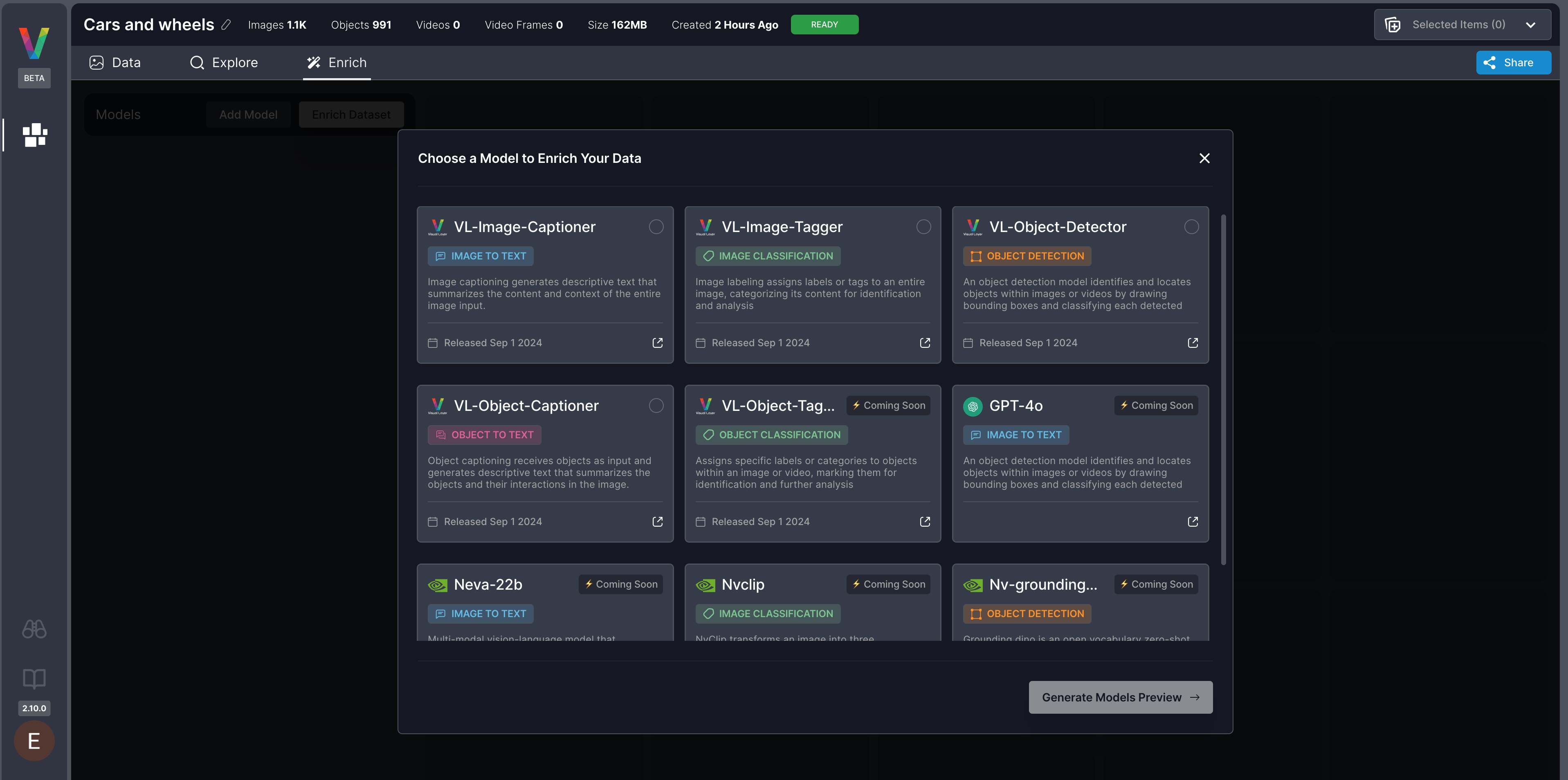 Click **Add Models** to include additional enrichment models.
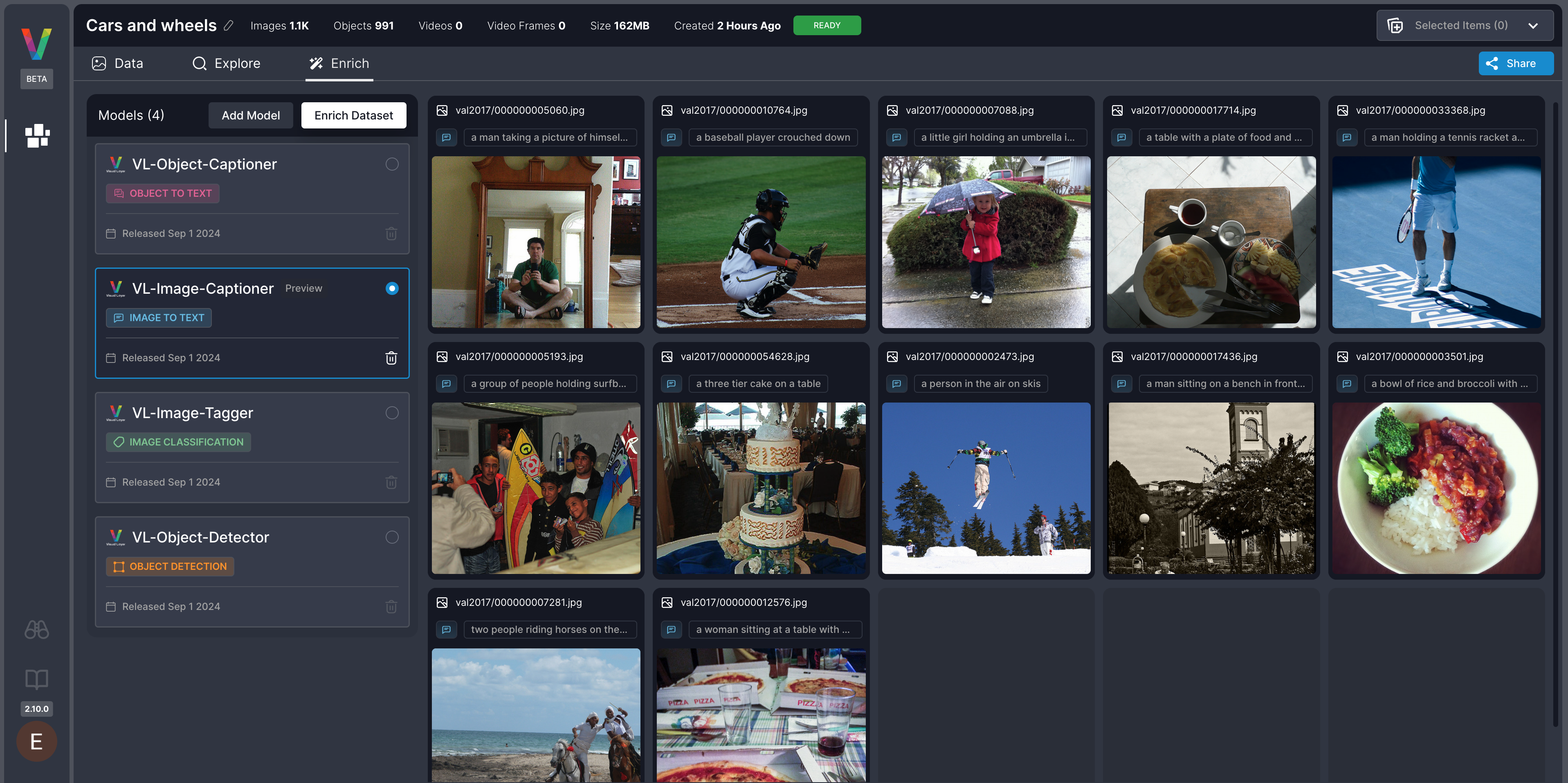
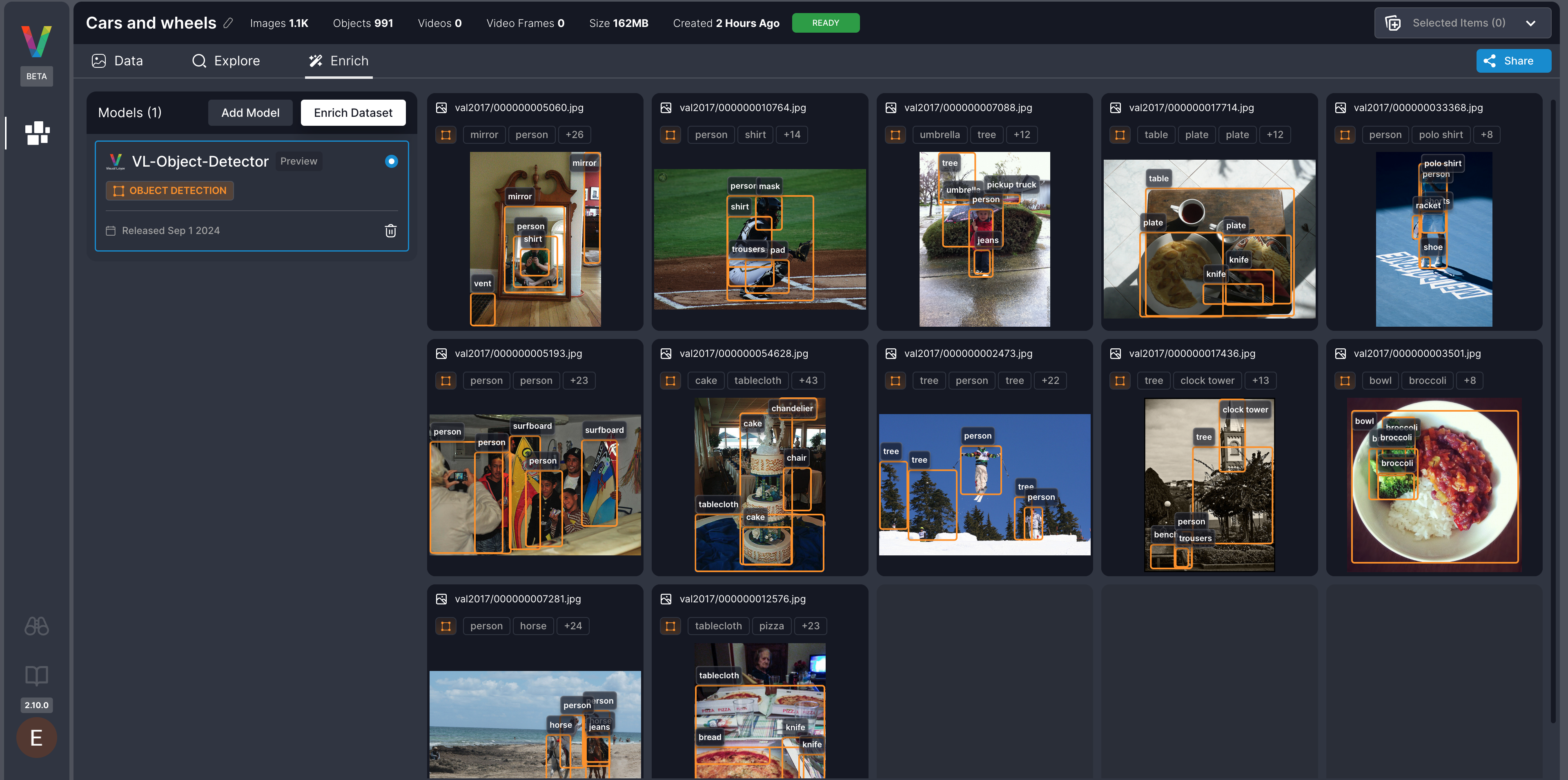 Switch between selected models to preview their metadata output before enrichment.
 ***
## Step 2: Enrich the Dataset
Click **Enrich Dataset** to run all selected models on the dataset.
* All images or frames will be enriched.
* Processing time varies based on dataset size.
You can monitor enrichment status in either location:
* **Enrich tab** inside the dataset view
* **Notifications panel** in the Dataset Inventory
***
## Step 2: Enrich the Dataset
Click **Enrich Dataset** to run all selected models on the dataset.
* All images or frames will be enriched.
* Processing time varies based on dataset size.
You can monitor enrichment status in either location:
* **Enrich tab** inside the dataset view
* **Notifications panel** in the Dataset Inventory
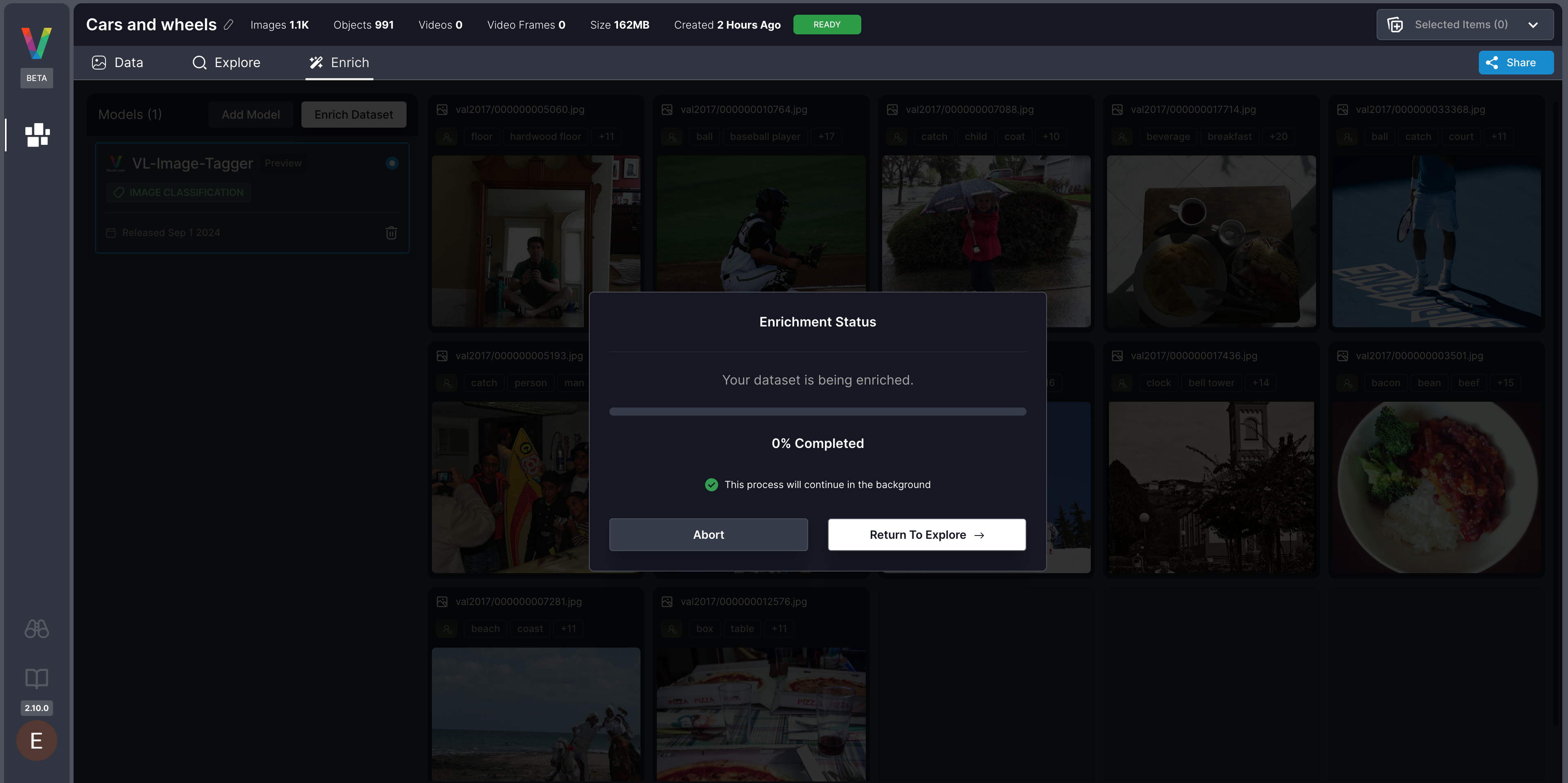
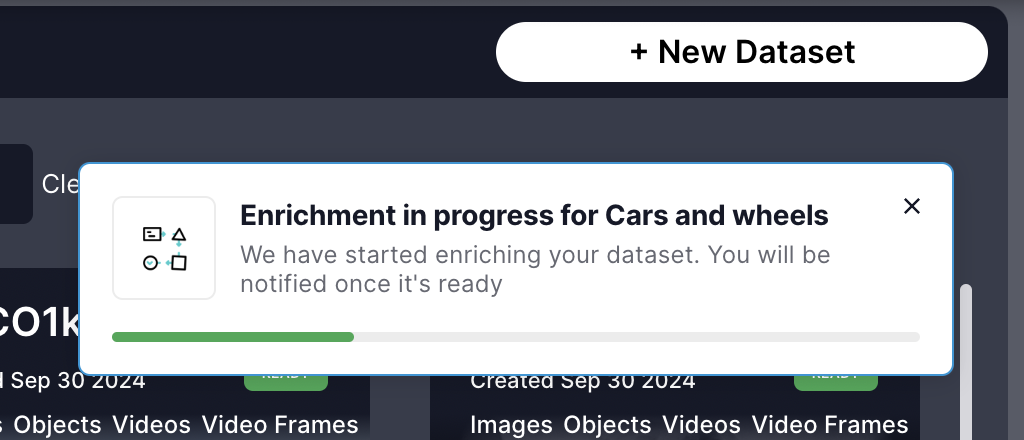 You can continue exploring and interacting with your dataset while enrichment is in progress.
***
Now, you are ready to explore your enriched dataset [here](/docs/quick-start/dataset-exploration-ux)
You can continue exploring and interacting with your dataset while enrichment is in progress.
***
Now, you are ready to explore your enriched dataset [here](/docs/quick-start/dataset-exploration-ux)