> ## Documentation Index
> Fetch the complete documentation index at: https://docs.visual-layer.com/llms.txt
> Use this file to discover all available pages before exploring further.
# Saved Views
> Create, monitor, share, and manage named filter queries that dynamically track matching results across your dataset.
Saved Views are persistent, named filter queries attached to a dataset. Each view captures a complete set of filters — search terms, labels, quality issues, tags, metadata, and thresholds — so you can return to the exact same data slice at any time. The underlying data stays current: views always reflect the latest results matching your criteria.
Use Saved Views to:
* Preserve complex filter combinations for repeated use without manual reconfiguration
* Track how result counts change over time as new media enters the dataset
* Receive alerts when new data matches your filter criteria
* Share filtered perspectives with collaborators for coordinated review workflows
Key characteristics:
* Views do not duplicate or store data. They act as persistent filter definitions.
* Views are dataset-specific and visible to all collaborators with access to that dataset.
* Views are immutable. To change the view filters, delete it and create a new one.
* Monitoring tracks result changes over time. Alerting notifies you when new matches appear.
***
## Creating a View
Save any active filter combination as a named view.
1. Open a dataset and apply filters, search queries, or similarity conditions in the **Explore** tab.
2. Click **Save View** in the **Filter Panel**.
3. Enter a descriptive name for the view.
4. Click **Save**.
The view is created and appears in both the **Filter Panel** dropdown and the **Views** tab.
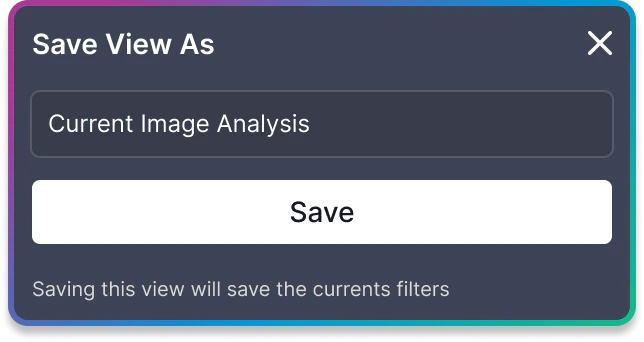 View names must be unique within a dataset. If a name already exists, an error message appears and the **Save** button is disabled.
### What Gets Captured
A saved view records the complete filter state at the moment of creation:
* Text and semantic search queries
* VQL (Visual Query Language) filters
* Label and tag selections
* Quality issue filters (duplicates, outliers, mislabels)
* Entity type (images, objects, or video frames)
* Similarity thresholds
* Metadata source filters
* Folder path filters
The view also captures a snapshot of the current result counts (images, objects, and video frames) at creation time.
***
## Accessing Saved Views
Saved views are accessible from two locations.
### From the Explore Tab
Click **Save View** in the **Filter Panel** to open the views dropdown. The dropdown lists all saved views for the current dataset. Click any view name to load its filters into the current exploration session.
The currently active view appears first in the list. Click it again to clear the view and return to unfiltered exploration.
A **See all views** link at the bottom of the dropdown navigates to the **Views** tab for the full views list.
### From the Views Tab
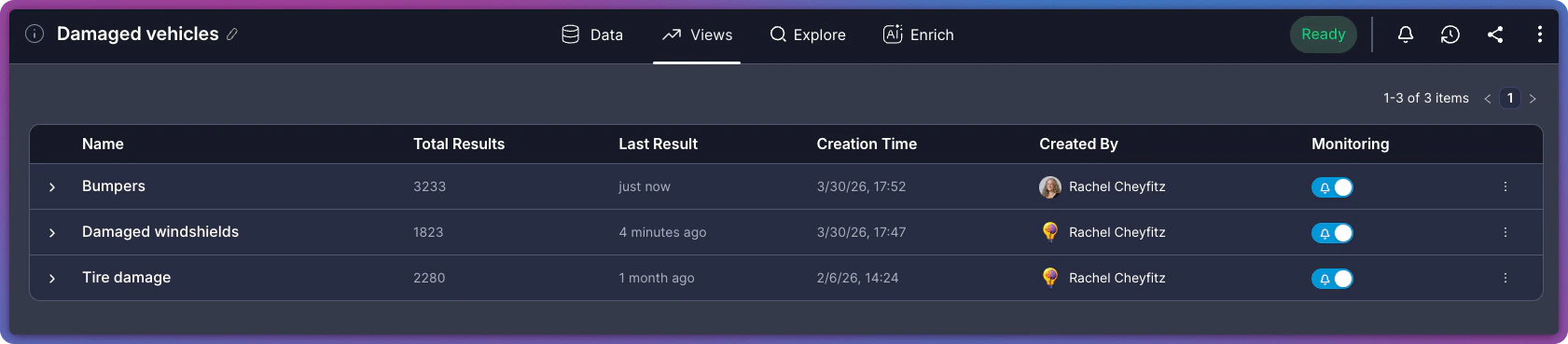
Navigate to the **Views** tab from the dataset header. The **Views** tab displays all saved views in a table with detailed information and management options.
View names must be unique within a dataset. If a name already exists, an error message appears and the **Save** button is disabled.
### What Gets Captured
A saved view records the complete filter state at the moment of creation:
* Text and semantic search queries
* VQL (Visual Query Language) filters
* Label and tag selections
* Quality issue filters (duplicates, outliers, mislabels)
* Entity type (images, objects, or video frames)
* Similarity thresholds
* Metadata source filters
* Folder path filters
The view also captures a snapshot of the current result counts (images, objects, and video frames) at creation time.
***
## Accessing Saved Views
Saved views are accessible from two locations.
### From the Explore Tab
Click **Save View** in the **Filter Panel** to open the views dropdown. The dropdown lists all saved views for the current dataset. Click any view name to load its filters into the current exploration session.
The currently active view appears first in the list. Click it again to clear the view and return to unfiltered exploration.
A **See all views** link at the bottom of the dropdown navigates to the **Views** tab for the full views list.
### From the Views Tab
Navigate to the **Views** tab from the dataset header. The **Views** tab displays all saved views in a table with detailed information and management options.
 ### Views Table Columns
The **Views** tab table displays the following information for each view:
### Views Table Columns
The **Views** tab table displays the following information for each view:
| Column | Description |
| ----------------- | ------------------------------------------------------------ |
| **Name** | The view name. Click to expand the row and see full details. |
| **Total Results** | The cumulative count of items matching the view filters. |
| **Last Result** | How long ago the most recent matching result was detected. |
| **Creation Time** | When the view was created. |
| **Created By** | The user who created the view, shown as avatar and name. |
| **Monitoring** | Toggle to enable or disable alerts for this view. |
***
## Exploring a View's Results
Open a saved view to see its matching results and trend data.
1. Navigate to the **Views** tab.
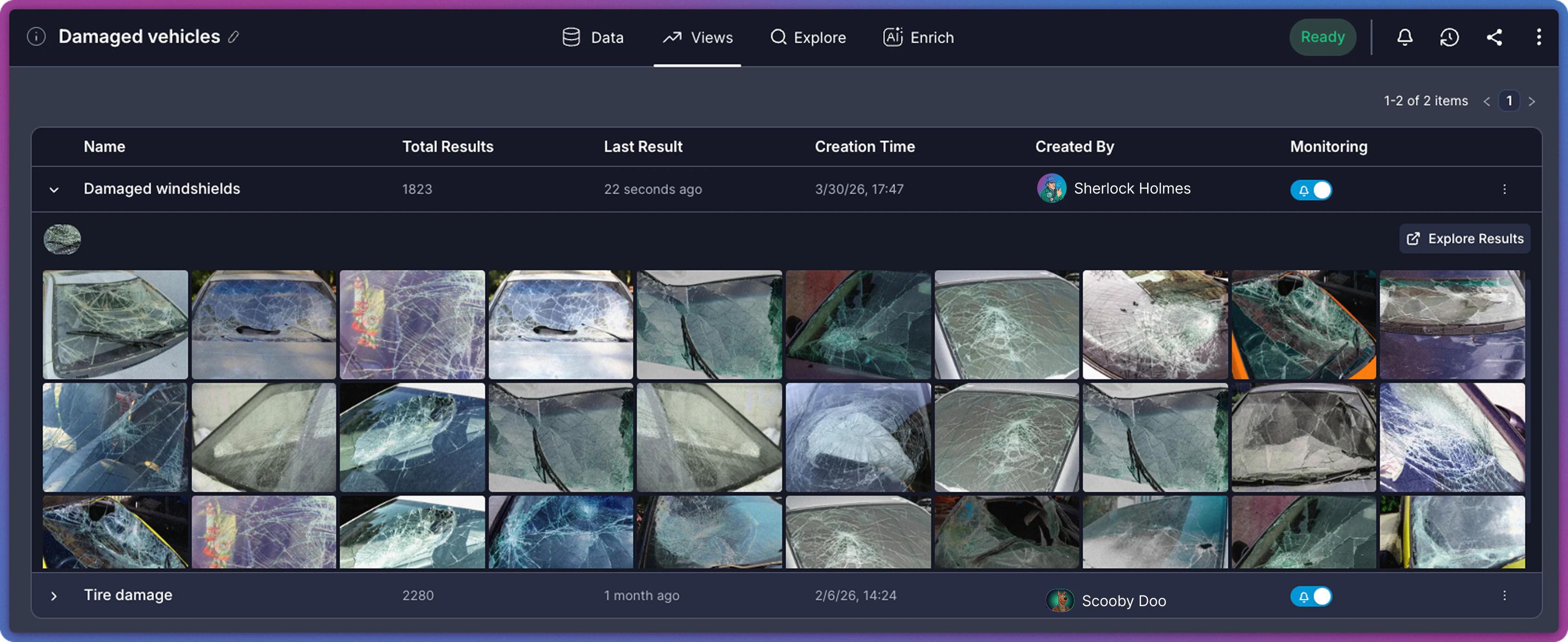
2. Click a view row to expand it.
The expanded row displays two sections:
### Query Details
A read-only display of all filters captured in the view, shown as filter badges. Click **Explore Results** to navigate to the **Explore** tab with these filters applied.
### Trend Results and Preview
The expanded view displays a split panel:
* **Trend Results** (left): A bar chart showing how the result count has changed over time. The chart displays the last 8 data points with timestamps and counts. Hover over any bar to see the exact date and count.
* **Preview** (right): A scrollable grid of thumbnail images from the matching results.
 ***
## Monitoring and Alerts
Every saved view automatically tracks how result counts change over time. Each time new media is added to the dataset, the monitoring system evaluates all views and records how many new items match each view filter criteria. This builds a trend history visible in the expanded view row.
Alerting extends monitoring with real-time notifications. The **Monitoring** column in the **Views** tab controls whether a view sends alerts when new matches are detected. Click the toggle to enable or disable alerts for any view.
***
## Monitoring and Alerts
Every saved view automatically tracks how result counts change over time. Each time new media is added to the dataset, the monitoring system evaluates all views and records how many new items match each view filter criteria. This builds a trend history visible in the expanded view row.
Alerting extends monitoring with real-time notifications. The **Monitoring** column in the **Views** tab controls whether a view sends alerts when new matches are detected. Click the toggle to enable or disable alerts for any view.
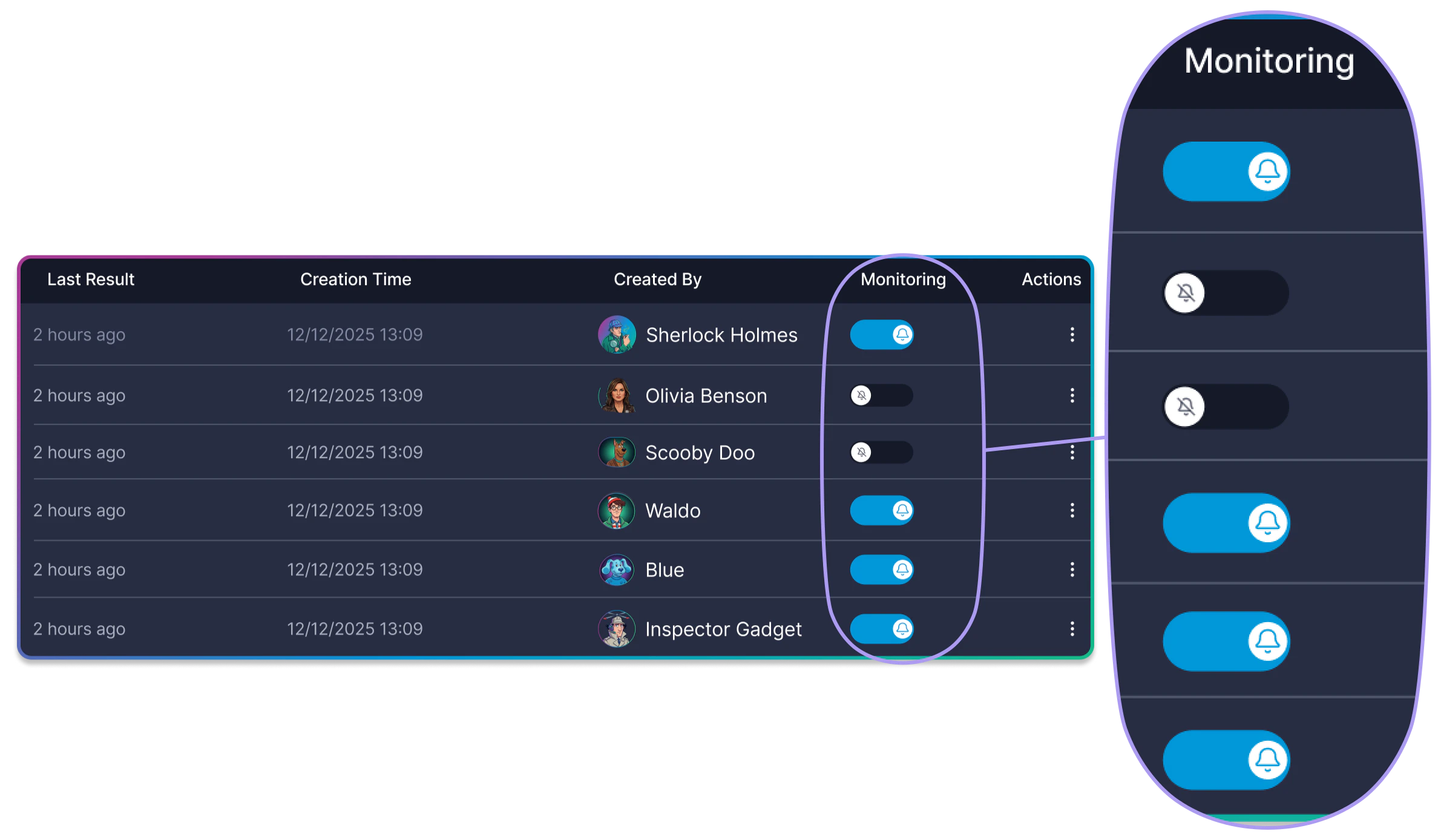 When alerts are enabled, all users with access to the dataset receive a notification through the bell icon in the dataset header whenever new results are detected.
For a full explanation of how monitoring works, trend data, alert delivery, and alert management, see [Monitoring and Alerts](/docs/advanced-features/notifications).
***
## Sharing a View
Share a saved view with a collaborator by email. Sharing sends an email with the view details and a link to open it.
1. Navigate to the **Views** tab.
2. Click the **Share** icon on the view row.
3. In the **Share this View** panel, optionally enter a personal message (up to 250 characters).
4. Enter the recipient's email address.
5. Click **Invite**.
The recipient receives an email with the view context and a direct link.
When alerts are enabled, all users with access to the dataset receive a notification through the bell icon in the dataset header whenever new results are detected.
For a full explanation of how monitoring works, trend data, alert delivery, and alert management, see [Monitoring and Alerts](/docs/advanced-features/notifications).
***
## Sharing a View
Share a saved view with a collaborator by email. Sharing sends an email with the view details and a link to open it.
1. Navigate to the **Views** tab.
2. Click the **Share** icon on the view row.
3. In the **Share this View** panel, optionally enter a personal message (up to 250 characters).
4. Enter the recipient's email address.
5. Click **Invite**.
The recipient receives an email with the view context and a direct link.
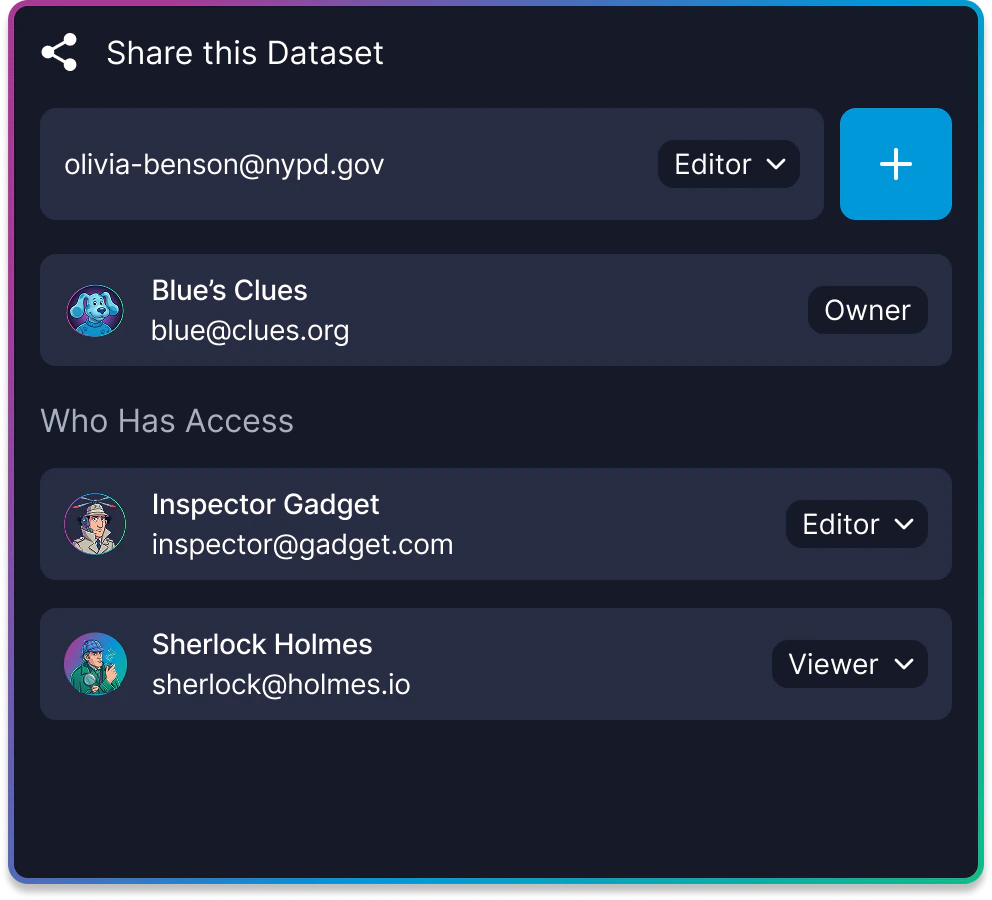 Views are accessible to all collaborators on the dataset. The share feature sends an email notification to draw a specific person's attention to the view — it does not grant additional access.
***
## Deleting a View
Remove a view that is no longer needed.
1. Navigate to the **Views** tab.
2. Click the three-dot menu on the view row.
3. Select **Delete**.
4. Confirm the deletion in the dialog that appears.
The view and its trend data are permanently removed.
Views are immutable. To modify the view filters, delete the existing view, apply new filters in the **Explore** tab, and save a new view.
***
## Related Resources
Track result trends and receive real-time alerts when new data matches your views.
Build the filter combinations that drive your saved views.
Add new media to trigger monitoring updates on saved views.
Create, list, and delete saved views programmatically.
Views are accessible to all collaborators on the dataset. The share feature sends an email notification to draw a specific person's attention to the view — it does not grant additional access.
***
## Deleting a View
Remove a view that is no longer needed.
1. Navigate to the **Views** tab.
2. Click the three-dot menu on the view row.
3. Select **Delete**.
4. Confirm the deletion in the dialog that appears.
The view and its trend data are permanently removed.
Views are immutable. To modify the view filters, delete the existing view, apply new filters in the **Explore** tab, and save a new view.
***
## Related Resources
Track result trends and receive real-time alerts when new data matches your views.
Build the filter combinations that drive your saved views.
Add new media to trigger monitoring updates on saved views.
Create, list, and delete saved views programmatically.