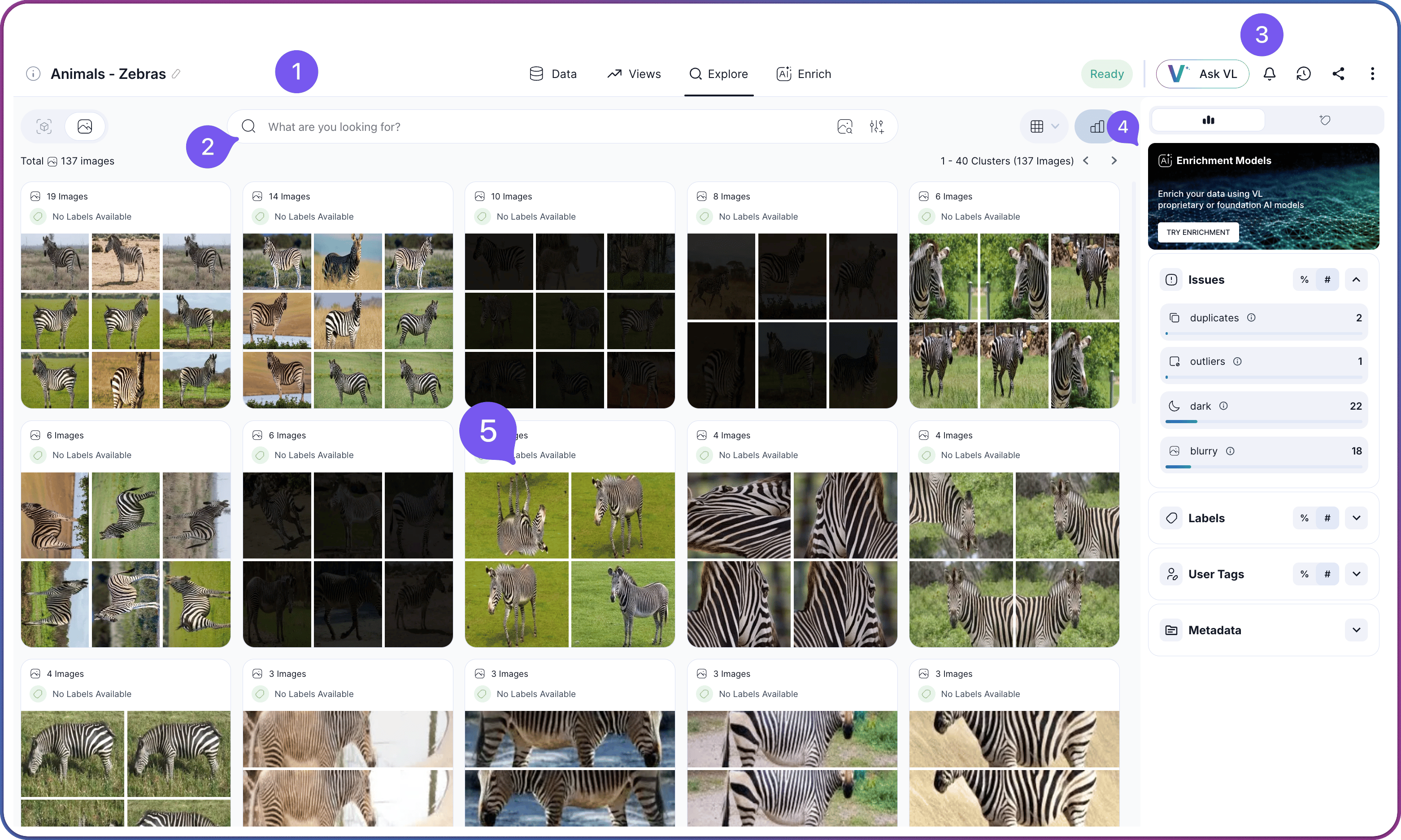
| # | Region | Purpose |
| ----------------------------------------------------------------------------------------------------------------------------------------------------------------------------------------------------------------------------------------------------------------------------------------------------------------------------------------------------------------------------------------------------------------------------------------------------------------------------------------------------------------------------------------------------------------------------------------------------------------------------------------------------------------------------------------------------------------------------------------------------------------------------------------------------------------------------------------------------------------------------------------------------------------------------------------------------------------------------------------------------------------------------------------------------------------------------------------------------------------------------------------------------------------------------------------------------------------------------------------------------------------------------------------------------------------------------------------- | ------------------------ | -------------------------------------------------------------------------------------------------------------------------- |
|

| **Top Header** | Dataset title, dataset-level stats, status indicator, and the tab row for **Data**, **Views**, **Explore**, and **Enrich** |
|

| **Filter & Search Area** | Search Type Toggle, Layout Toggle, Search box, and Filter Menu |
|

| **Dataset Actions** | Dataset-wide controls on the right side of the top header: status, VL Chat, notifications, share, and the three-dot menu |
|

| **Content Grid** | The main display area showing clusters, images, or objects |
| # | Panel | Description |
| ----------------------------------------------------------------------------------------------------------------------------------------------------------------------------------------------------------------------------------------------------------------------------------------------------------------------------------------------------------------------------------------------------------------------------------------------------------------------------------------------------------------------------------------------------------------------------------------------------------------------------------------------------------------------------------------------------------------------------------------------------------------------------------------------------------------------------------------------------------------------------------------------------------------------------------------------------------------------------------------------------------------------------------------------------------------------------------------------------------------------------------------------------------------------------------------------------------------------------------------------------------------------------------------------------------------------------------------- | --------------------- | --------------------------------------------------------------------------------------------------------------------------------------------------------------------------------------------------------------------------------------------------------------------------------------------------------------------------------------------------------------------------------------------------------------------------------------------------------------------------------- |
|
| **Enrichment Models** | The models that have run against the dataset and any available preview shortcuts. See [Enrich Your Datasets](/docs/advanced-dataset-management/enrich-overview) for the run flow and the [Model Catalog](/docs/Dataset-Enrichment/model-catalog) for every available model. |
|
| **Issues** | Quality-issue counts with drill-in links for each category: [**Duplicates**](/docs/explore-and-search/using-search-filter#duplicates), [**Outliers**](/docs/explore-and-search/using-search-filter#filter-options-reference), **Dark**, and **Blurry**. Clicking any row applies the corresponding filter. For the signal-quality concepts behind these categories, see [How Signal Quality Is Measured](/docs/explore-and-search/explore-theory#how-is-signal-quality-measured). |
|
| **Labels** | The label distribution for the current view. Clicking a label filters by it. To bring labels in from an external annotation file, see [Importing Annotations](/docs/advanced-dataset-management/importing-annotations). |
|
| **User Tags** | The user tags applied to items in the current view. Clicking a tag filters by it. See [Tag Items](/docs/advanced-features/tag-iteams) for how tags are created and managed. |
|

| **Metadata** | The custom metadata fields available for filtering. See [Custom Metadata](/docs/advanced-features/custom-metadata) for how to attach metadata at creation time or via the API. |
 ## Layout Overview
The Explore tab is organized into four numbered regions that stay in place as you navigate, plus the **Insights Panel** on the right.
## Layout Overview
The Explore tab is organized into four numbered regions that stay in place as you navigate, plus the **Insights Panel** on the right.
 The header contains the following elements:
| Element | Description |
| --------------------------------- | ----------------------------------------------------------------------------------------------------------------------------------------------------------------------------------------------------------------------------------------------------------------------------------------------------------------------------- |
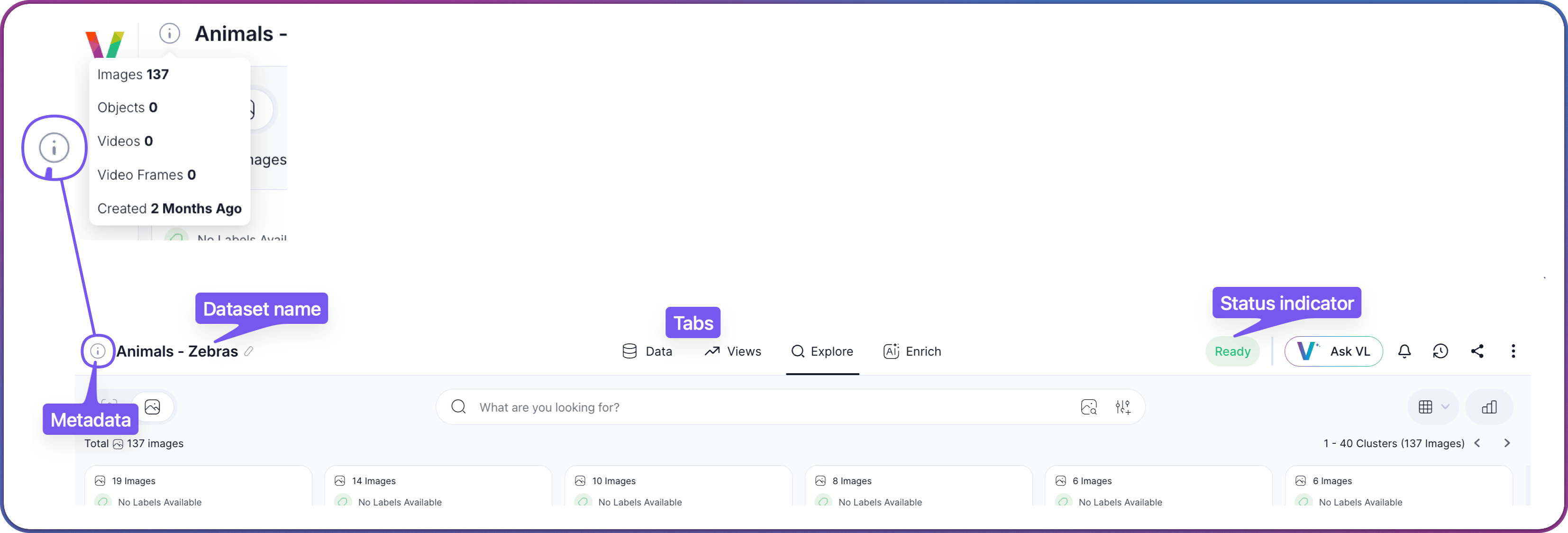
| **Dataset name** | The name given to the dataset at creation. See [Create a Dataset](/docs/quick-start/tutorial-create-dataset) for the creation flow. |
| **Tooltip with dataset metadata** | Hover the info icon next to the dataset name to reveal counts for images, objects, videos, and video frames, plus the creation date. |
| **Tabs** | The four top-level tabs that make up the dataset workspace: [**Data**](/docs/explore-and-search/dataset-interface-data-tab), [**Views**](/docs/explore-and-search/dataset-interface-views-tab), **Explore**, and [**Enrich**](/docs/explore-and-search/dataset-interface-enrich-tab). The currently active tab is underlined. |
Dataset-wide controls sit on the right side of the top header and are documented in [Dataset Actions](#dataset-actions) below.
## Filter & Search Area
The filter and search area is the horizontal row directly beneath the header. It holds the **Search Type Toggle** on the left, the **Layout Toggle** on the right, and the **Search box** and **Filter Menu** in the center.
The header contains the following elements:
| Element | Description |
| --------------------------------- | ----------------------------------------------------------------------------------------------------------------------------------------------------------------------------------------------------------------------------------------------------------------------------------------------------------------------------- |
| **Dataset name** | The name given to the dataset at creation. See [Create a Dataset](/docs/quick-start/tutorial-create-dataset) for the creation flow. |
| **Tooltip with dataset metadata** | Hover the info icon next to the dataset name to reveal counts for images, objects, videos, and video frames, plus the creation date. |
| **Tabs** | The four top-level tabs that make up the dataset workspace: [**Data**](/docs/explore-and-search/dataset-interface-data-tab), [**Views**](/docs/explore-and-search/dataset-interface-views-tab), **Explore**, and [**Enrich**](/docs/explore-and-search/dataset-interface-enrich-tab). The currently active tab is underlined. |
Dataset-wide controls sit on the right side of the top header and are documented in [Dataset Actions](#dataset-actions) below.
## Filter & Search Area
The filter and search area is the horizontal row directly beneath the header. It holds the **Search Type Toggle** on the left, the **Layout Toggle** on the right, and the **Search box** and **Filter Menu** in the center.
 ### Search Type Toggle
The **Search Type Toggle** on the left side of the filter and search area sets what you are searching against: **Images** or **Objects**. This is more than a cosmetic change — it determines which embeddings are used for search, which metadata appears in the workspace, and what every filter, search, and hover action operates on.
### Search Type Toggle
The **Search Type Toggle** on the left side of the filter and search area sets what you are searching against: **Images** or **Objects**. This is more than a cosmetic change — it determines which embeddings are used for search, which metadata appears in the workspace, and what every filter, search, and hover action operates on.
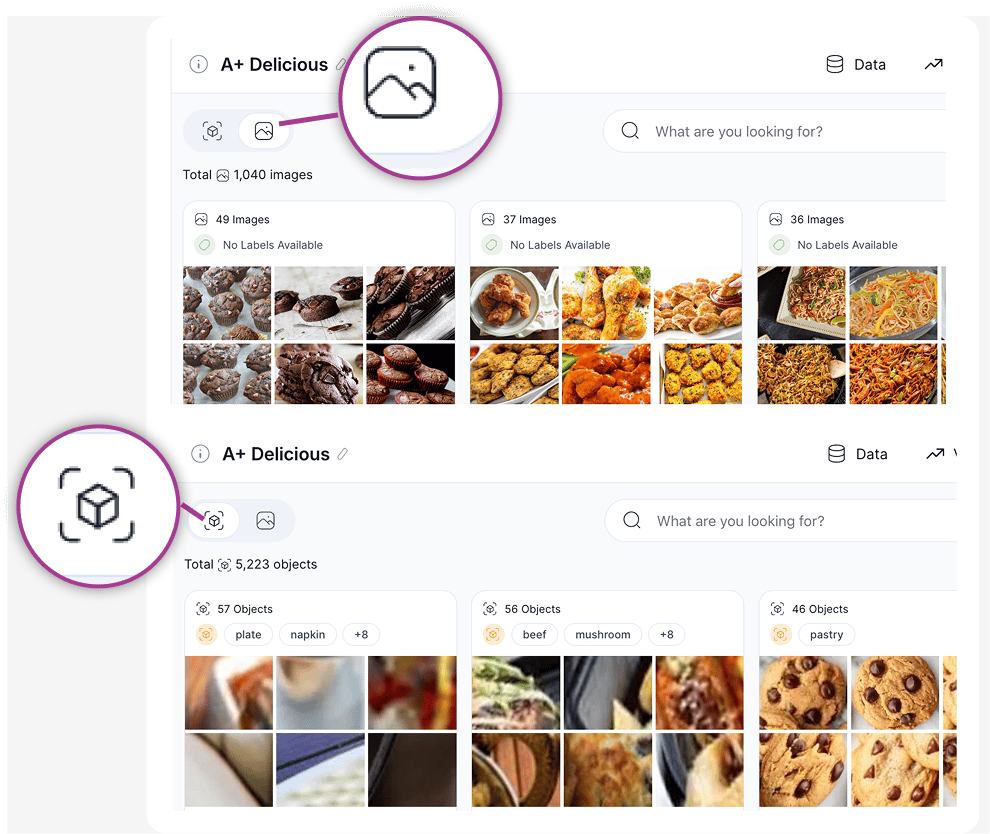 The **Objects** option is available once an object-detection model has run against the dataset. If the option is disabled, run a model such as **VL-Object-Detector** from the [Enrich tab](/docs/explore-and-search/dataset-interface-enrich-tab) first.
For what changes in the workspace when you flip between **Images** and **Objects**, see [Switching the Search Type](/docs/explore-and-search/using-search-filter#switching-the-search-type).
### Labels, Captions, and User Tags
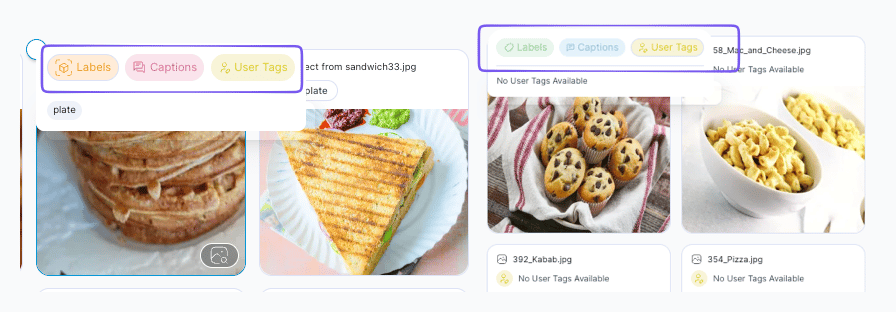
Each cluster card displays one metadata type at a time. Use the switch at the top of the cluster to change which metadata is shown.
The **Objects** option is available once an object-detection model has run against the dataset. If the option is disabled, run a model such as **VL-Object-Detector** from the [Enrich tab](/docs/explore-and-search/dataset-interface-enrich-tab) first.
For what changes in the workspace when you flip between **Images** and **Objects**, see [Switching the Search Type](/docs/explore-and-search/using-search-filter#switching-the-search-type).
### Labels, Captions, and User Tags
Each cluster card displays one metadata type at a time. Use the switch at the top of the cluster to change which metadata is shown.
 The three options answer different questions about the cluster:
| Option | Source | Question Answered |
| ------------- | -------------------------------------------------------------------------------------------------------------------------------------------------------------------------------------------------------------------------------------------------------------------------------------------------------------------------------------------------------------------------------------------------------------------------------------------------------------------------------- | ------------------------------------------- |
| **Labels** | Class names from annotations or detection models. Image labels come from image-level classification (for example, **VL-Image-Tagger**) or from annotation files imported at creation time. Object labels come from an object-detection model (for example, **VL-Object-Detector**) and describe each detected crop individually. The two label types are independent: an image can carry its own labels while the objects inside it carry different ones from a different model. | What class does the platform think this is? |
| **Captions** | Natural-language descriptions generated by a captioning model such as **VL-Image-Captioner**, **VL Advanced Captioner**, or **VL-Object-Captioner**. Captions power [Caption Search](/docs/explore-and-search/using-search-filter#caption-search-boolean-logic). | What is happening in this image or crop? |
| **User Tags** | Custom tags applied manually by users or teammates. User tags are independent of any model output. See [Tag Items](/docs/advanced-features/tag-iteams) for how tags are created and managed. | How does our team want to organize this? |
Which labels and captions appear on a cluster depends on which enrichment models have run against the dataset. For the full mapping of models to the metadata they produce, see the [Model Catalog](/docs/Dataset-Enrichment/model-catalog). To run or add models, go to the [Enrich tab](/docs/explore-and-search/dataset-interface-enrich-tab).
The three options answer different questions about the cluster:
| Option | Source | Question Answered |
| ------------- | -------------------------------------------------------------------------------------------------------------------------------------------------------------------------------------------------------------------------------------------------------------------------------------------------------------------------------------------------------------------------------------------------------------------------------------------------------------------------------- | ------------------------------------------- |
| **Labels** | Class names from annotations or detection models. Image labels come from image-level classification (for example, **VL-Image-Tagger**) or from annotation files imported at creation time. Object labels come from an object-detection model (for example, **VL-Object-Detector**) and describe each detected crop individually. The two label types are independent: an image can carry its own labels while the objects inside it carry different ones from a different model. | What class does the platform think this is? |
| **Captions** | Natural-language descriptions generated by a captioning model such as **VL-Image-Captioner**, **VL Advanced Captioner**, or **VL-Object-Captioner**. Captions power [Caption Search](/docs/explore-and-search/using-search-filter#caption-search-boolean-logic). | What is happening in this image or crop? |
| **User Tags** | Custom tags applied manually by users or teammates. User tags are independent of any model output. See [Tag Items](/docs/advanced-features/tag-iteams) for how tags are created and managed. | How does our team want to organize this? |
Which labels and captions appear on a cluster depends on which enrichment models have run against the dataset. For the full mapping of models to the metadata they produce, see the [Model Catalog](/docs/Dataset-Enrichment/model-catalog). To run or add models, go to the [Enrich tab](/docs/explore-and-search/dataset-interface-enrich-tab).
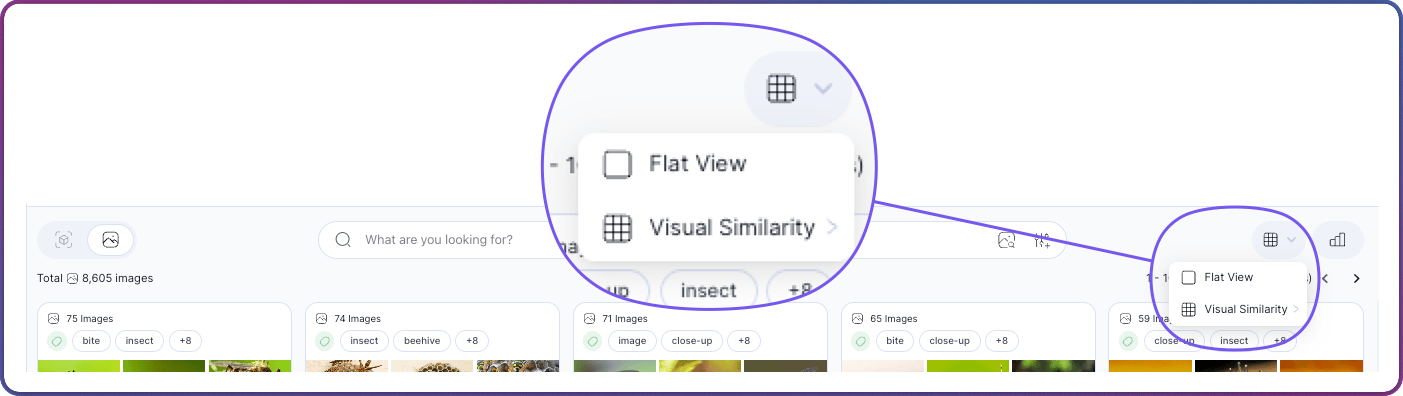 For what each layout displays, see [Content Grid](#content-grid) below. For step-by-step instructions on switching layouts, see [How to Search & Filter](/docs/explore-and-search/using-search-filter#switching-the-grid-layout).
### Search Box
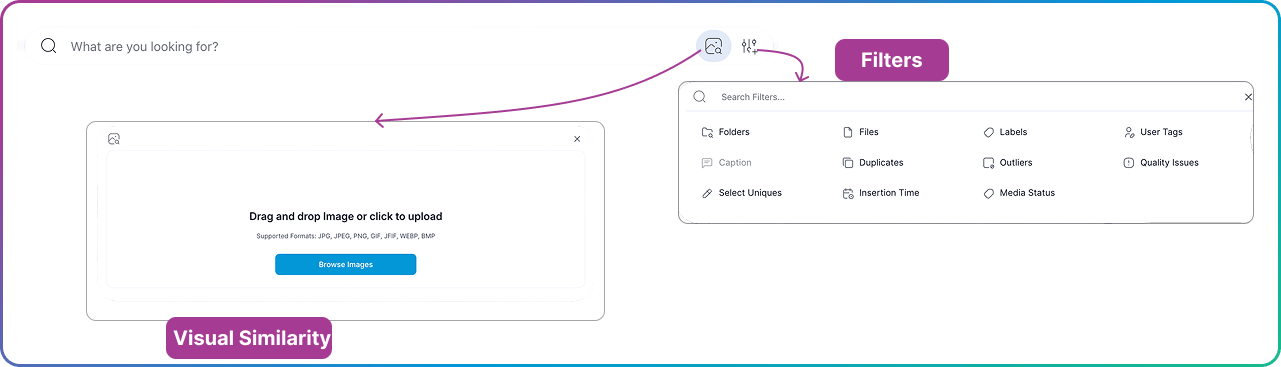
The center of the filter and search area contains the **Search box** and two adjacent buttons.
For what each layout displays, see [Content Grid](#content-grid) below. For step-by-step instructions on switching layouts, see [How to Search & Filter](/docs/explore-and-search/using-search-filter#switching-the-grid-layout).
### Search Box
The center of the filter and search area contains the **Search box** and two adjacent buttons.
 | Element | Description |
| ------------------------ | -------------------------------------------------------------------------------------------------------------------------------------------------------------------------------------------------------------------------------------------------------------------------------------------------------------------------------------- |
| **Search box** | Text field that drives both **Semantic Search** and **Caption Search**. Type a natural-language description to find conceptually matching content, or use boolean operators (`AND`, `OR`, `-`, `"phrase"`) when filtering by captions. See [How to Search & Filter](/docs/explore-and-search/using-search-filter) for the full syntax. |
| **Visual Search button** | Opens the external-image upload flow for finding visually similar content. Drag and drop an image into the dialog or click **Browse Images** to pick one from disk. See [Visual Search](/docs/explore-and-search/visual-search) for all four ways to trigger visual similarity. |
| **Filter Menu** | Opens the filter menu for building and managing active queries. See [Filter Controls](#filter-controls) below. |
### Filter Controls
The filter controls build and manage the active query. Click the **Filter Menu** icon next to the **Search box** to open the filters menu.
| Element | Description |
| ------------------------ | -------------------------------------------------------------------------------------------------------------------------------------------------------------------------------------------------------------------------------------------------------------------------------------------------------------------------------------- |
| **Search box** | Text field that drives both **Semantic Search** and **Caption Search**. Type a natural-language description to find conceptually matching content, or use boolean operators (`AND`, `OR`, `-`, `"phrase"`) when filtering by captions. See [How to Search & Filter](/docs/explore-and-search/using-search-filter) for the full syntax. |
| **Visual Search button** | Opens the external-image upload flow for finding visually similar content. Drag and drop an image into the dialog or click **Browse Images** to pick one from disk. See [Visual Search](/docs/explore-and-search/visual-search) for all four ways to trigger visual similarity. |
| **Filter Menu** | Opens the filter menu for building and managing active queries. See [Filter Controls](#filter-controls) below. |
### Filter Controls
The filter controls build and manage the active query. Click the **Filter Menu** icon next to the **Search box** to open the filters menu.
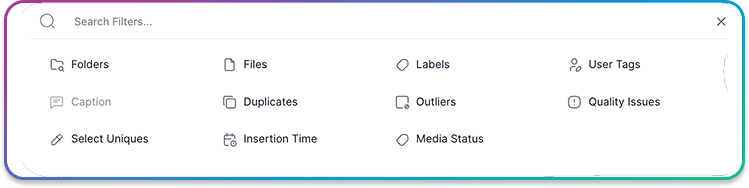 The filters menu offers the following options:
| Filter | Purpose |
| ------------------------------------------------------------------------------------------------------ | ------------------------------------------------------------------------------------------------------------------------------ |
| [**Folders**](/docs/explore-and-search/using-search-filter#filter-options-reference) | Filter by directory path or folder name |
| [**Files**](/docs/explore-and-search/using-search-filter#filter-options-reference) | Filter by filename patterns |
| [**Labels**](/docs/explore-and-search/using-search-filter#filter-options-reference) | Filter by assigned class labels or annotation status |
| [**User Tags**](/docs/explore-and-search/using-search-filter#filter-options-reference) | Filter by custom metadata tags applied to items. See [Tag Items](/docs/advanced-features/tag-iteams) for how tags are created. |
| [**Caption**](/docs/explore-and-search/using-search-filter#caption-search-boolean-logic) | Filter by image captions using boolean operators |
| [**Duplicates**](/docs/explore-and-search/using-search-filter#duplicates) | Find identical or near-identical items |
| [**Outliers**](/docs/explore-and-search/using-search-filter#filter-options-reference) | Surface anomalies that differ from the rest of the dataset |
| [**Quality Issues**](/docs/explore-and-search/using-search-filter#quality--confidence-thresholds) | Detect **Blurry**, **Dark**, or **Bright** images |
| [**Select Uniques**](/docs/explore-and-search/using-search-filter#select-uniques-redundancy-filtering) | Keep only visually distinct items |
| **Insertion Time** | Filter by when an item entered the dataset |
| **Media Status** | Filter by media state |
Selecting a filter opens the **Query Modal** for operator and threshold configuration. Active filters appear as chips in the **Query Panel** below the bar, combined with **AND** logic. A chip can be edited by clicking it, removed with **X**, or cleared entirely with **Clear All**. **Save View** stores the current filter combination as a named view, which then appears in both the **Save View** dropdown and the [**Views** tab](/docs/explore-and-search/dataset-interface-views-tab).
For every operator, threshold, and filter-specific workflow, see the [Filter Options Reference](/docs/explore-and-search/using-search-filter#filter-options-reference).
## Dataset Actions
Dataset Actions occupy the right side of the top header and apply to the entire dataset, regardless of which tab is open.
The filters menu offers the following options:
| Filter | Purpose |
| ------------------------------------------------------------------------------------------------------ | ------------------------------------------------------------------------------------------------------------------------------ |
| [**Folders**](/docs/explore-and-search/using-search-filter#filter-options-reference) | Filter by directory path or folder name |
| [**Files**](/docs/explore-and-search/using-search-filter#filter-options-reference) | Filter by filename patterns |
| [**Labels**](/docs/explore-and-search/using-search-filter#filter-options-reference) | Filter by assigned class labels or annotation status |
| [**User Tags**](/docs/explore-and-search/using-search-filter#filter-options-reference) | Filter by custom metadata tags applied to items. See [Tag Items](/docs/advanced-features/tag-iteams) for how tags are created. |
| [**Caption**](/docs/explore-and-search/using-search-filter#caption-search-boolean-logic) | Filter by image captions using boolean operators |
| [**Duplicates**](/docs/explore-and-search/using-search-filter#duplicates) | Find identical or near-identical items |
| [**Outliers**](/docs/explore-and-search/using-search-filter#filter-options-reference) | Surface anomalies that differ from the rest of the dataset |
| [**Quality Issues**](/docs/explore-and-search/using-search-filter#quality--confidence-thresholds) | Detect **Blurry**, **Dark**, or **Bright** images |
| [**Select Uniques**](/docs/explore-and-search/using-search-filter#select-uniques-redundancy-filtering) | Keep only visually distinct items |
| **Insertion Time** | Filter by when an item entered the dataset |
| **Media Status** | Filter by media state |
Selecting a filter opens the **Query Modal** for operator and threshold configuration. Active filters appear as chips in the **Query Panel** below the bar, combined with **AND** logic. A chip can be edited by clicking it, removed with **X**, or cleared entirely with **Clear All**. **Save View** stores the current filter combination as a named view, which then appears in both the **Save View** dropdown and the [**Views** tab](/docs/explore-and-search/dataset-interface-views-tab).
For every operator, threshold, and filter-specific workflow, see the [Filter Options Reference](/docs/explore-and-search/using-search-filter#filter-options-reference).
## Dataset Actions
Dataset Actions occupy the right side of the top header and apply to the entire dataset, regardless of which tab is open.
 | Control | Description |
| ---------------------- | ---------------------------------------------------------------------------------------------------------------------------------------------------------------------------------------------------------------------------------------------------------- |
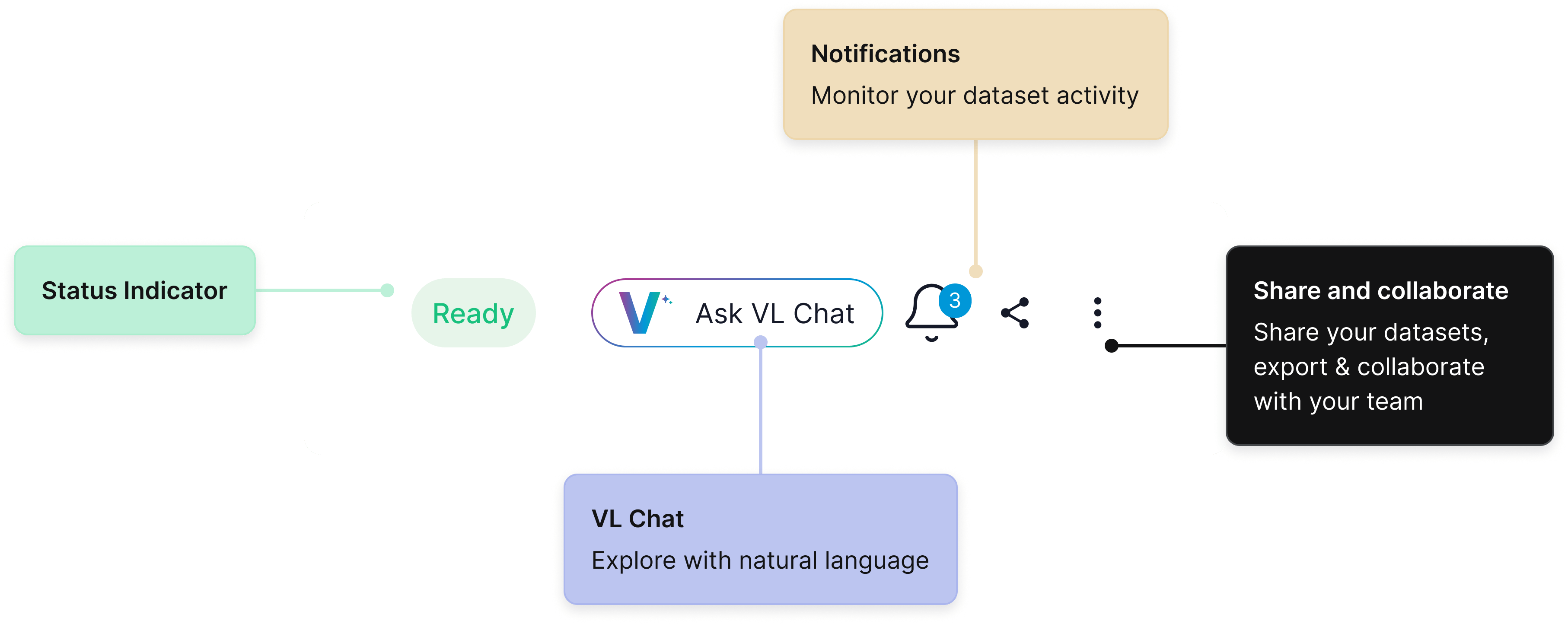
| **Status indicator** | The current dataset state (**Indexing**, **Ready**, and so on). A dataset must be **Ready** before its content appears in the **Explore** tab. Dataset status is also visible from the [Dataset Inventory](/docs/quick-start/dataset-inventory-ux). |
| **VL Chat** | Conversational launcher for building searches and filters from a natural-language prompt. See [VL Chat](/docs/explore-and-search/vl-chat). |
| **Notifications bell** | Opens the notifications panel for alerts on this dataset, including [saved-view alerts](/docs/collab-and-downstream/saved-views#monitoring-and-alerts) and enrichment-run completions. See [Monitoring and Alerts](/docs/advanced-features/notifications). |
| **Share** | Opens the [Share a Dataset](/docs/collab-and-downstream/share-dataset) flow for inviting collaborators. |
| **Three-dot menu** | Dataset-level actions such as rename, delete, and [snapshot](/docs/advanced-dataset-management/dataset-snapshots). |
## Content Grid
The content grid is the main display area and the source of all in-place actions. Its contents depend on the active layout selected from the [Layout Toggle](#layout-toggle) and the search type selected from the [Search Type Toggle](#search-type-toggle).
### Cluster View
In **Visual Similarity** mode, the grid displays cluster cards. Each card shows a representative thumbnail, the cluster size, and label coverage. When the [Search Type Toggle](#search-type-toggle) is set to **Objects**, each card groups detected object crops instead of full images.
| Control | Description |
| ---------------------- | ---------------------------------------------------------------------------------------------------------------------------------------------------------------------------------------------------------------------------------------------------------- |
| **Status indicator** | The current dataset state (**Indexing**, **Ready**, and so on). A dataset must be **Ready** before its content appears in the **Explore** tab. Dataset status is also visible from the [Dataset Inventory](/docs/quick-start/dataset-inventory-ux). |
| **VL Chat** | Conversational launcher for building searches and filters from a natural-language prompt. See [VL Chat](/docs/explore-and-search/vl-chat). |
| **Notifications bell** | Opens the notifications panel for alerts on this dataset, including [saved-view alerts](/docs/collab-and-downstream/saved-views#monitoring-and-alerts) and enrichment-run completions. See [Monitoring and Alerts](/docs/advanced-features/notifications). |
| **Share** | Opens the [Share a Dataset](/docs/collab-and-downstream/share-dataset) flow for inviting collaborators. |
| **Three-dot menu** | Dataset-level actions such as rename, delete, and [snapshot](/docs/advanced-dataset-management/dataset-snapshots). |
## Content Grid
The content grid is the main display area and the source of all in-place actions. Its contents depend on the active layout selected from the [Layout Toggle](#layout-toggle) and the search type selected from the [Search Type Toggle](#search-type-toggle).
### Cluster View
In **Visual Similarity** mode, the grid displays cluster cards. Each card shows a representative thumbnail, the cluster size, and label coverage. When the [Search Type Toggle](#search-type-toggle) is set to **Objects**, each card groups detected object crops instead of full images.
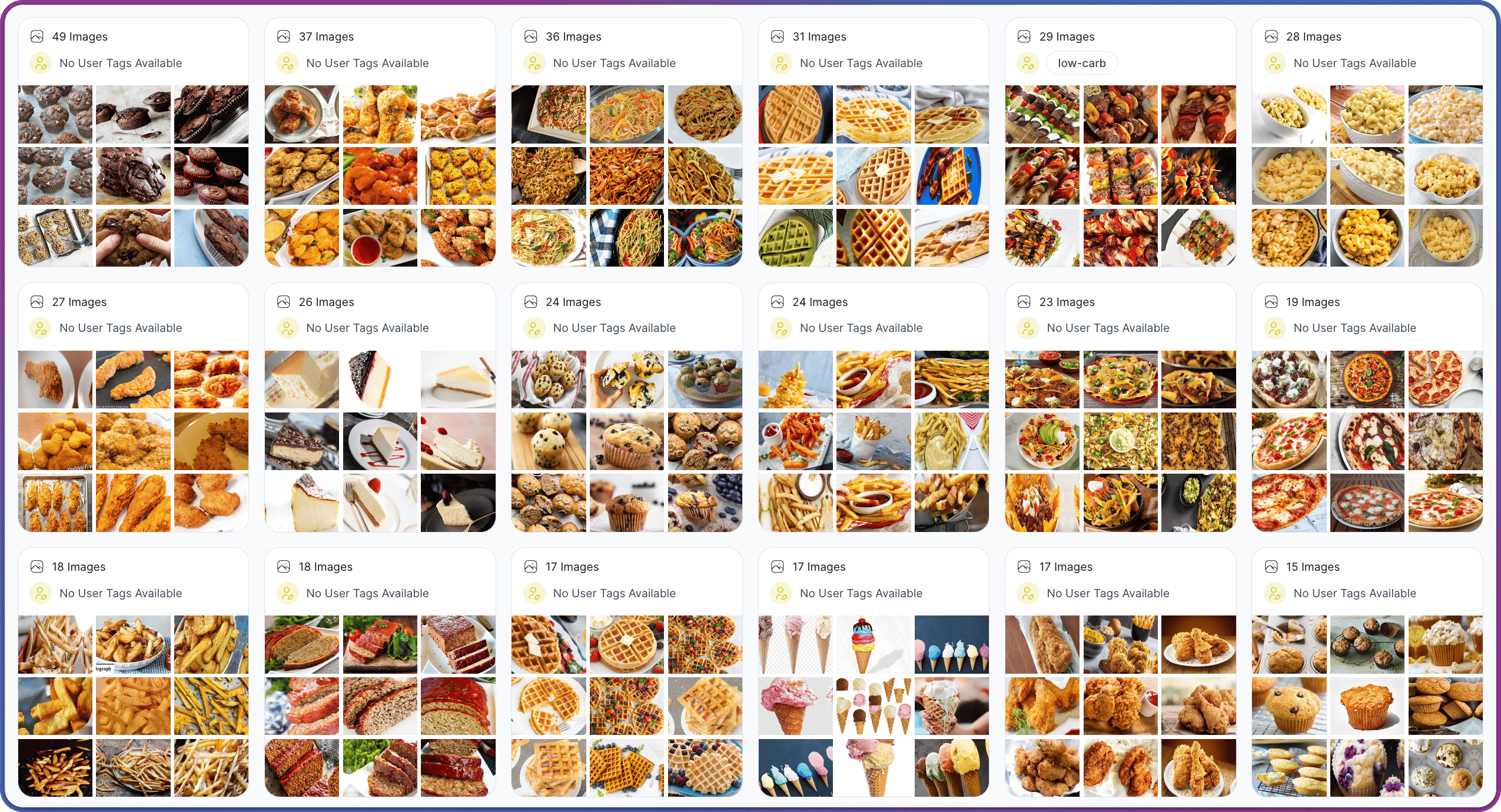 Hovering any cluster card reveals in-place actions:
| Action | Description |
| ---------------- | --------------------------------------------------------------------------------------------------------------------------------------------------------- |
| **Find Similar** | Launches a [Visual Search](/docs/explore-and-search/visual-search#similarity-search-on-a-cluster) using the cluster's representative image as the anchor. |
| **Open cluster** | Click the card to drill into its individual images or objects. |
For the concepts behind clustering and embeddings, see [How Search & Filter Work](/docs/explore-and-search/explore-theory). For cluster navigation tips and examples, see [Understanding Clusters](/docs/quick-start/understanding-clusters). For multi-step workflows that combine clusters with filters, see [Recipes](/docs/explore-and-search/recipes).
### Flat View
In **Flat View**, the grid displays every item in a single ungrouped layout. When the [Search Type Toggle](#search-type-toggle) is set to **Images**, each cell is a full image; when set to **Objects**, each cell is a detected object crop. Object-level browsing becomes available once an object-detection model has run against the dataset — see the [Enrich tab](/docs/explore-and-search/dataset-interface-enrich-tab) for the workflow.
Hovering any cluster card reveals in-place actions:
| Action | Description |
| ---------------- | --------------------------------------------------------------------------------------------------------------------------------------------------------- |
| **Find Similar** | Launches a [Visual Search](/docs/explore-and-search/visual-search#similarity-search-on-a-cluster) using the cluster's representative image as the anchor. |
| **Open cluster** | Click the card to drill into its individual images or objects. |
For the concepts behind clustering and embeddings, see [How Search & Filter Work](/docs/explore-and-search/explore-theory). For cluster navigation tips and examples, see [Understanding Clusters](/docs/quick-start/understanding-clusters). For multi-step workflows that combine clusters with filters, see [Recipes](/docs/explore-and-search/recipes).
### Flat View
In **Flat View**, the grid displays every item in a single ungrouped layout. When the [Search Type Toggle](#search-type-toggle) is set to **Images**, each cell is a full image; when set to **Objects**, each cell is a detected object crop. Object-level browsing becomes available once an object-detection model has run against the dataset — see the [Enrich tab](/docs/explore-and-search/dataset-interface-enrich-tab) for the workflow.
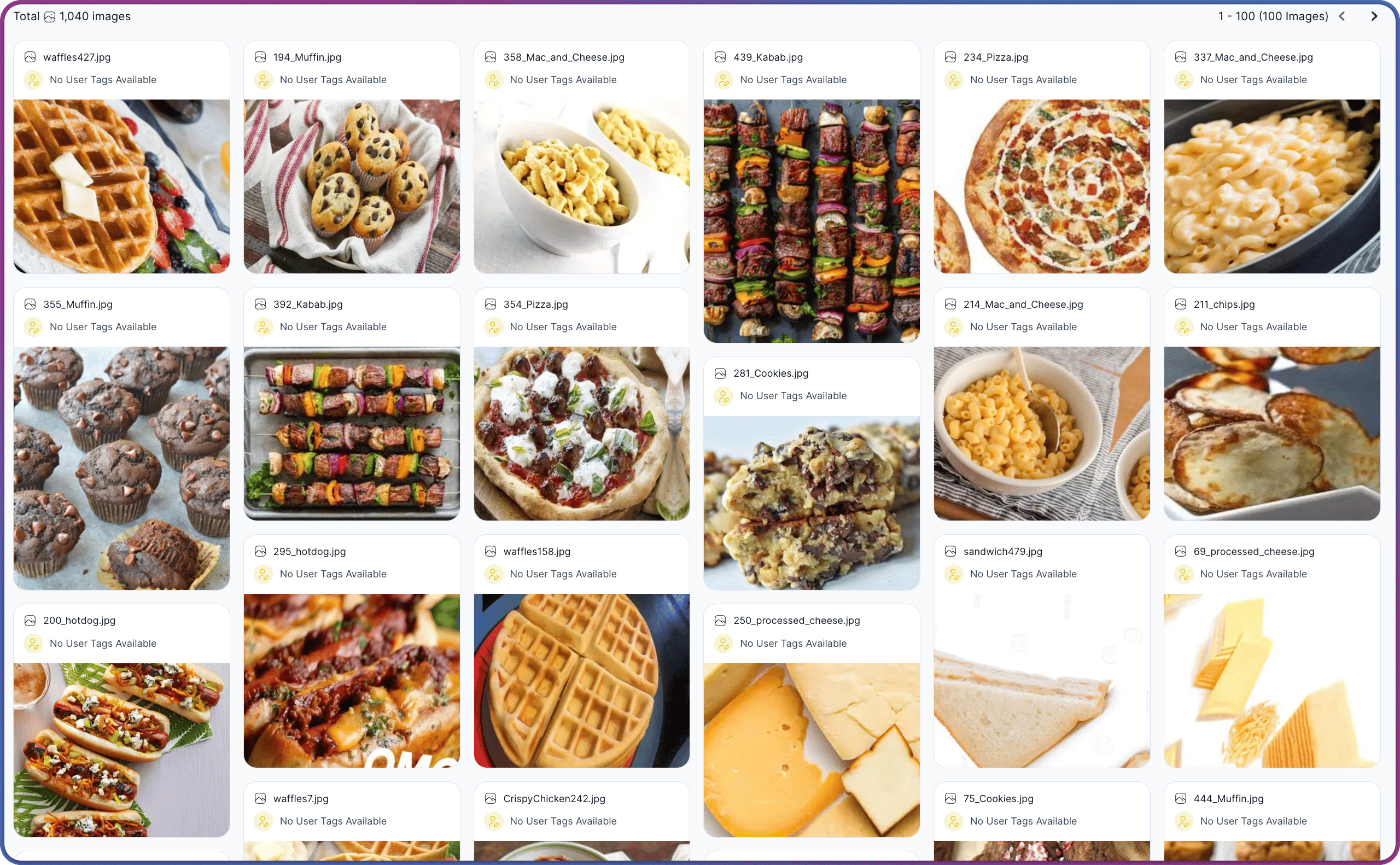 Hovering any item reveals in-place actions:
| Action | Description |
| -------------------------------------------------------------------------------------------------- | ---------------------------------------------------------------------------------------------------------------- |
| [**Find Similar**](/docs/explore-and-search/visual-search#similarity-search-from-an-image-preview) | Runs a [Visual Search](/docs/explore-and-search/visual-search) using the hovered item's embedding as the anchor. |
| **Select** | Toggles the item into the current selection. |
Clicking an image opens its details page, where a **Region of Interest** crop can launch a crop-based **Find Similar** search. See [Search Against a Region of Interest](/docs/explore-and-search/visual-search#search-against-a-region-of-interest) for the full flow.
## Insights Panel
The **Insights Panel** runs along the right edge of the workspace and shows insights about the current view or selection. Its panels update as filters change, views change, or items are selected.
Hovering any item reveals in-place actions:
| Action | Description |
| -------------------------------------------------------------------------------------------------- | ---------------------------------------------------------------------------------------------------------------- |
| [**Find Similar**](/docs/explore-and-search/visual-search#similarity-search-from-an-image-preview) | Runs a [Visual Search](/docs/explore-and-search/visual-search) using the hovered item's embedding as the anchor. |
| **Select** | Toggles the item into the current selection. |
Clicking an image opens its details page, where a **Region of Interest** crop can launch a crop-based **Find Similar** search. See [Search Against a Region of Interest](/docs/explore-and-search/visual-search#search-against-a-region-of-interest) for the full flow.
## Insights Panel
The **Insights Panel** runs along the right edge of the workspace and shows insights about the current view or selection. Its panels update as filters change, views change, or items are selected.
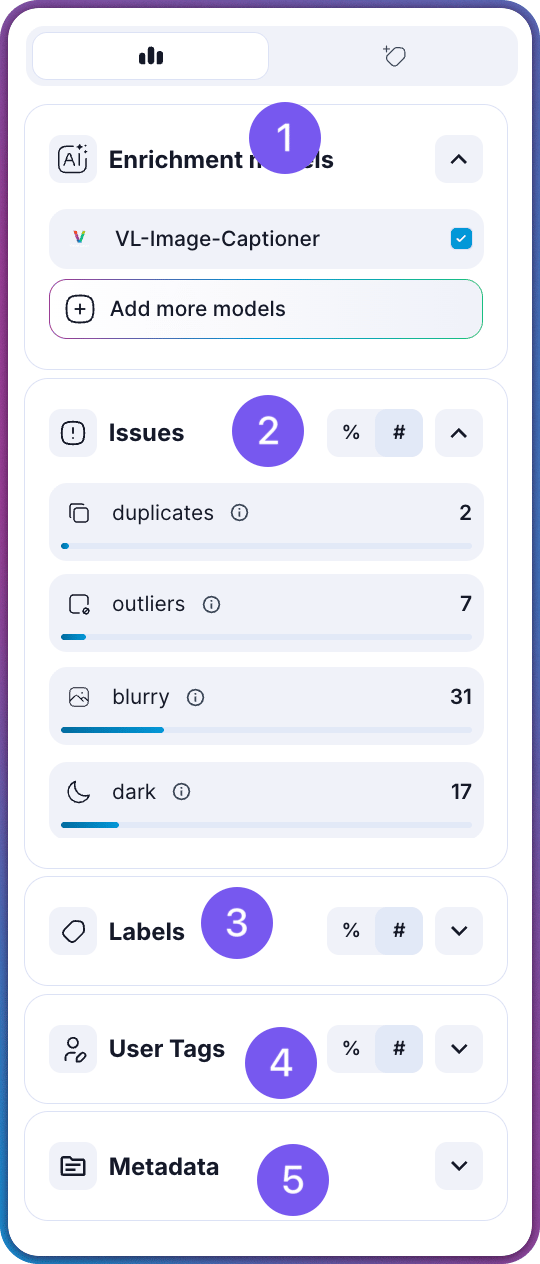 The panel exposes the following sections: