> ## Documentation Index
> Fetch the complete documentation index at: https://docs.visual-layer.com/llms.txt
> Use this file to discover all available pages before exploring further.
# How to Search & Filter
> Run searches and filters in Visual Layer using semantic search, visual similarity, and metadata filters, with a full list of available options.
Visual Layer provides a unified interface for discovering and narrowing down data through semantic search, visual similarity, and metadata filtering. This guide covers the interface components, specific execution steps, and a complete reference of available filter options.
## The Search & Filter Interface
The interface integrates search and filtering into a cohesive workspace. Before running queries, familiarize yourself with the three main components:
1. **Filter Menu**: A dropdown that dynamically adapts to your view to show relevant filter options based on your dataset context.
2. **Query Modal**: The configuration popup where you set specific conditions (like "IS" or "CONTAINS") and thresholds for a selected filter.
3. **Query Panel**: Displays all currently active filters. Multiple filters are always combined using **AND** logic.
***
## Switching the Grid Layout
The **Explore** tab has two grid layouts — **Visual Similarity** (clustered) and **Flat View** — plus a granularity control for clusters. The **Layout Toggle** sits on the right side of the filter and search area.
### Switch to Cluster View
1. Click the **Layout Toggle** on the right of the filter and search area.
2. Select **Visual Similarity**.
3. Adjust the granularity control next to the toggle to make clusters coarser (fewer, larger clusters) or finer (more, smaller clusters).
### Switch to Flat View
1. Click the **Layout Toggle** on the right of the filter and search area.
2. Select **Flat View**.
For the concepts behind clustering, see [How Search & Filter Work](/docs/explore-and-search/explore-theory#how-does-visual-similarity-find-nearest-neighbors). For cluster navigation tips, see [Understanding Clusters](/docs/quick-start/understanding-clusters).
***
## Switching the Search Type
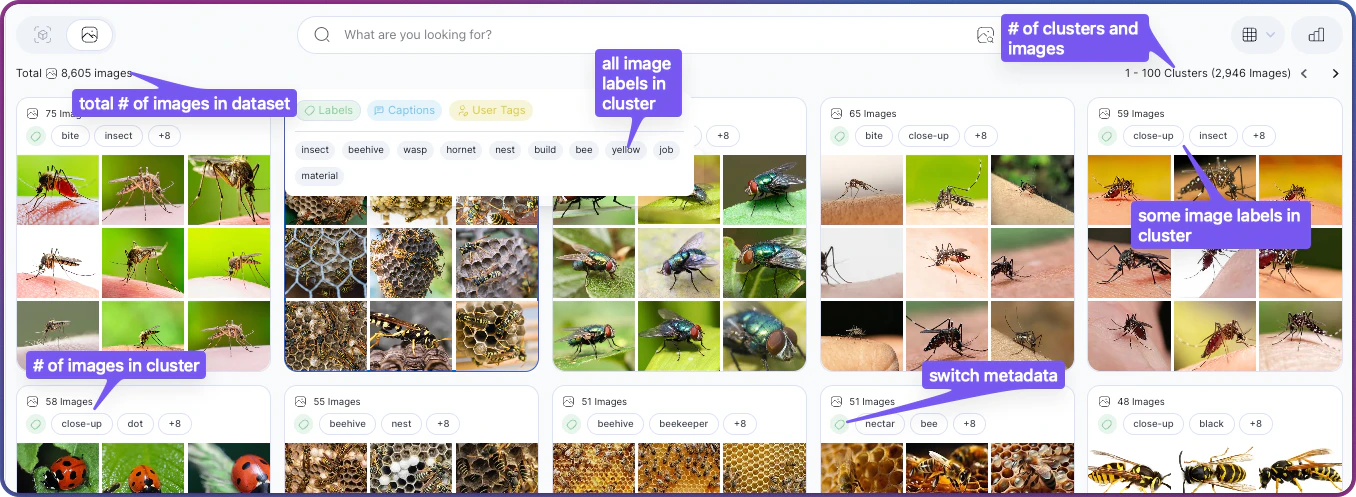
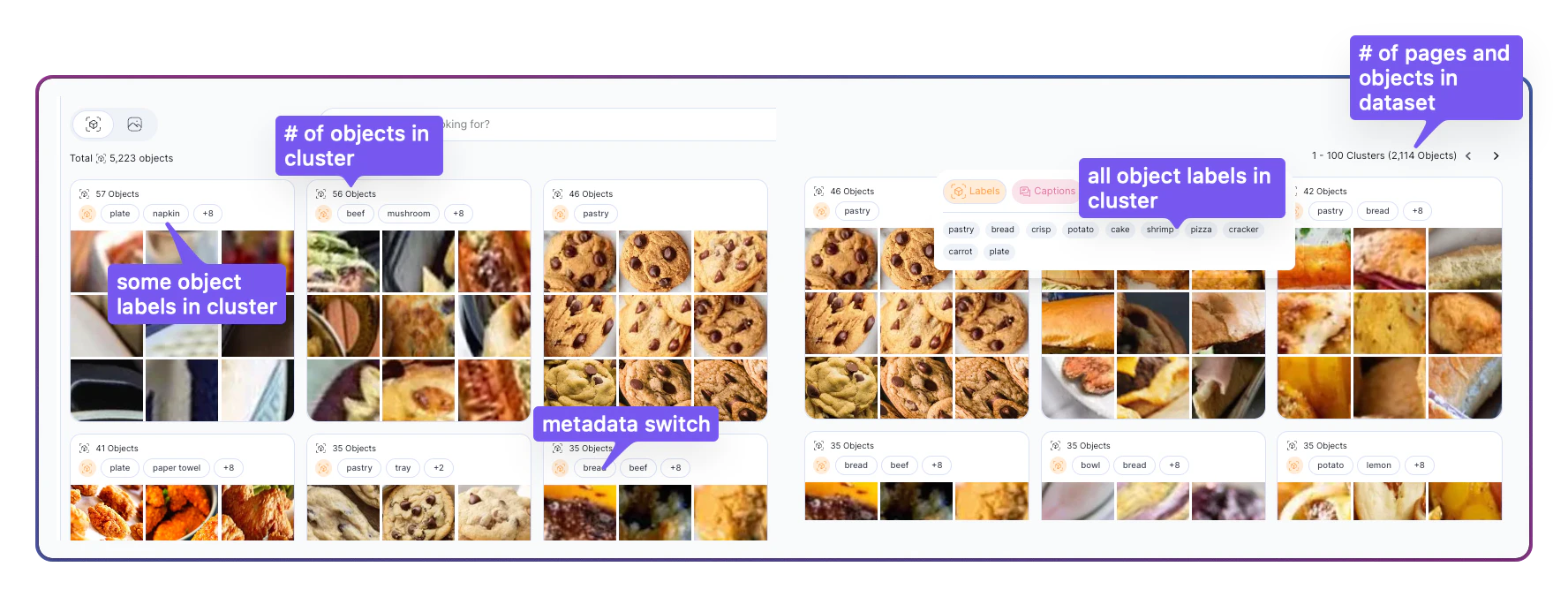
The **Search Type Toggle** on the left side of the filter and search area sets whether searches, filters, clusters, and hover actions operate on full **Images** or on detected **Objects**. Flipping it reshapes the **Explore** tab around the selected search type: clusters regroup, counts change, searches run against different embeddings, and the available metadata changes accordingly.
The **Objects** option becomes available once an object-detection model has run against the dataset. If it is disabled, run a model such as **VL-Object-Detector** from the [Enrich tab](/docs/explore-and-search/dataset-interface-enrich-tab) first.
### Search by Images
1. Click the **Search Type Toggle** on the left of the filter and search area.
2. Select **Images**.
In **Images** mode, clusters group full images. The dataset-level count shown at the bottom of the filter and search area is the total number of images, and every filter, search, and hover action operates on full images.
 ### Search by Objects
1. Click the **Search Type Toggle** on the left of the filter and search area.
2. Select **Objects**.
In **Objects** mode, clusters group detected object crops. The dataset-level count becomes the total number of objects across every image, and filters, searches, and hover actions operate on individual object bounding boxes.
### Search by Objects
1. Click the **Search Type Toggle** on the left of the filter and search area.
2. Select **Objects**.
In **Objects** mode, clusters group detected object crops. The dataset-level count becomes the total number of objects across every image, and filters, searches, and hover actions operate on individual object bounding boxes.
 ***
## Text & Semantic Search
The main search bar supports two distinct types of text queries.
### Semantic Search (Natural Language)
Use Semantic Search to find content based on meaning and context rather than exact keywords. This matches queries against generated semantic metadata.
* **How to use:** Type a natural description into the search bar (e.g., "sunset over mountains" or "blue sports car on city street").
* **Best Practice:** More detailed phrases often yield more focused results, but broad terms like "crowd" or "forest animals" are also effective.
### Caption Search (Boolean Logic)
If you are filtering by the **Captions** metadata field, you can use logical operators to build precise text queries.
| Operator | Syntax | Example | Function |
| :-------- | :---------------- | :---------------- | :------------------------------------ |
| **AND** | `term1 AND term2` | `black AND cat` | Finds results containing both terms. |
| **OR** | `term1 OR term2` | `cat OR dog` | Finds results containing either term. |
| **NOT** | `-term` | `dog -black` | Excludes results containing the term. |
| **Exact** | `"phrase"` | `"yellow flower"` | Matches the exact sequence of words. |
Use parentheses to group logic, for example: `(cat OR dog) AND "playing outside"`.
***
## Visual Search
Visual Search finds images or objects similar to a reference anchor. You can trigger this from four different locations in the UI.
### Method A: From a Cluster
1. Hover over a cluster card in the Dataset Exploration view.
2. Click the **Find Similar** icon (camera/magnifying glass) at the bottom of the card.
### Method B: From an Image or Object
1. Click into a cluster to view individual items.
2. Hover over any image or object bounding box.
3. Click the **Find Similar** icon.
### Method C: Using a Region of Interest (Crop)
1. Open an image to view the details page.
2. Click **Find Similar**.
3. Drag your mouse to draw a crop box around a specific detail (e.g., a specific defect or object).
4. Click the similarity icon again to launch the search based on that crop.
### Method D: External Image Upload
1. Click the **Visual Search icon** located inside or near the main search bar.
2. Upload an image from your local device.
3. (Optional) Crop the uploaded image to focus on a specific region before searching.
***
## Using Filters
### General Filter Workflow
1. Click **Add Filter** in the top filter bar.
2. Select a category from the **Filter Menu** (e.g., Labels, Folders, Quality Issue).
3. Configure criteria in the **Query Modal**:
* **IS / IS NOT:** Include or exclude specific values.
* **IS ONE OF:** Match any value from a list.
* **CONTAINS / STARTS WITH:** Match partial text patterns in filenames or folders.
4. Click **Apply**.
### Managing Active Filters
* **View Logic:** All filters in the Query Panel are combined via **AND** (an image must match *all* criteria).
* **Edit:** Click any active filter chip in the Query Panel to reopen its settings.
* **Remove:** Click the **X** on a specific chip or **Clear All** to reset.
### Configuring Special Filters
Some advanced filters use sliders or unique configuration steps.
#### Select Uniques (Redundancy Filtering)
1. Click the **Select Uniques** button next to the search bar.
2. Adjust the **Uniqueness Threshold slider** (0 to 1).
* **Lower values** include more redundancy.
* **Higher values** retain only the most distinctive images.
3. The filter appears in the Query Panel as an exclusion rule.
#### Quality & Confidence Thresholds
When using **Quality Issue** filters (Blurry, Dark, Bright), you must set a confidence threshold.
* **0.3 – 0.4 (Low):** Catches more potential issues but increases false positives. Best for comprehensive cleaning.
* **0.5 (Default):** A balanced approach.
* **0.6 – 0.8 (High):** Focuses only on severe, obvious issues.
#### Duplicates
1. Select **Duplicates** from the filter menu.
2. Adjust the **Similarity Level slider** (0 to 1).
* **0.9 - 1.0:** Finds exact or near-exact matches.
* **Lower values:** Catches looser matches, such as images with compression artifacts or slight crops.
#### Class Outliers
This filter identifies images that have a valid label but do not visually match the standard appearance of their class. Unlike a mislabel (which is wrong), a class outlier might be technically correct but visually anomalous.
**Common Scenarios:**
* **Unusual Visuals:** A drawing of a dog in a dataset of real dog photos.
* **No Matching Class:** A sheep labeled as "dog" because the dataset lacks a "sheep" class.
**Steps:**
1. Navigate to **Add Filter** → **Class Outlier**.
2. Set the **confidence threshold** (default is 1).
3. Apply the filter.
4. (Optional) To save these images for debugging, select **Export** → **Matching the applied filter**.
### Filter Options Reference
The table below provides a complete reference for every available filter tool, its supported operators, and usage notes.
| Option Name | Description | Operators & Controls | Notes / Limitations |
| :------------------ | :---------------------------------------------------------------------------- | :---------------------------------------------------------- | :------------------------------------------------------------------------------------------------ |
| **Semantic Search** | Search by meaning and context using natural language. | N/A (Natural Language Input) | Matches queries against generated semantic metadata rather than exact keywords. |
| **Caption Search** | Search for images based on textual descriptions. | **AND**, **OR**, **NOT**, **" "** (Exact Phrase) | Supports complex logic using parentheses. |
| **Visual Search** | Find images visually similar to a reference. | **Crop** (Region of Interest) | Can be triggered from a cluster, existing image, or external upload. |
| **Folders** | Filter by directory path or folder name. | **IS ONE OF**, **CONTAINS**, **STARTS WITH**, **ENDS WITH** | Useful for narrowing scope to specific batches or dataset partitions. |
| **Files** | Filter by specific filename patterns. | **IS ONE OF**, **CONTAINS**, **STARTS WITH**, **ENDS WITH** | Helps identify files following specific naming conventions. |
| **Labels** | Filter by assigned class labels or annotation status. | **IS**, **IS NOT**, **IS ONE OF**, **IS NOT ONE OF** | Can filter for specific classes (e.g., "cat") or find "Unlabeled" data. |
| **User Tags** | Filter by custom metadata tags applied to images. | **IS**, **IS NOT**, **IS ONE OF** | Enables retrieval based on your custom organizational structure. |
| **Mislabels** | Identify potentially incorrect annotations. | **IS** (with Confidence Threshold) | Detects likely errors at both image and object levels. |
| **Duplicates** | Find identical or near-identical images. | **Similarity Slider** (0 to 1) | Default is 1 (exact match). Lower values catch looser matches. |
| **Outliers** | Surface anomalies significantly different from the dataset. | **IS**, **IS NOT** | Useful for finding edge cases or removing unusual data. |
| **Class Outlier** | Identify images that have a valid label but do not visually match that class. | **Confidence Threshold** (Default: 1) | Helps find visual inconsistencies like drawings in a photo dataset. |
| **Select Uniques** | Filter for visually distinct images. | **Uniqueness Threshold Slider** (0 to 1) | Score of 0 is highly redundant; 1 is highly unique. |
| **Quality Issues** | Detect technical issues: **Blurry**, **Dark**, or **Bright**. | **IS**, **IS NOT**, **Confidence Threshold** (0 to 1) | Lower thresholds (0.3–0.4) catch more issues; higher thresholds (0.6–0.8) ensure high confidence. |
***
## Text & Semantic Search
The main search bar supports two distinct types of text queries.
### Semantic Search (Natural Language)
Use Semantic Search to find content based on meaning and context rather than exact keywords. This matches queries against generated semantic metadata.
* **How to use:** Type a natural description into the search bar (e.g., "sunset over mountains" or "blue sports car on city street").
* **Best Practice:** More detailed phrases often yield more focused results, but broad terms like "crowd" or "forest animals" are also effective.
### Caption Search (Boolean Logic)
If you are filtering by the **Captions** metadata field, you can use logical operators to build precise text queries.
| Operator | Syntax | Example | Function |
| :-------- | :---------------- | :---------------- | :------------------------------------ |
| **AND** | `term1 AND term2` | `black AND cat` | Finds results containing both terms. |
| **OR** | `term1 OR term2` | `cat OR dog` | Finds results containing either term. |
| **NOT** | `-term` | `dog -black` | Excludes results containing the term. |
| **Exact** | `"phrase"` | `"yellow flower"` | Matches the exact sequence of words. |
Use parentheses to group logic, for example: `(cat OR dog) AND "playing outside"`.
***
## Visual Search
Visual Search finds images or objects similar to a reference anchor. You can trigger this from four different locations in the UI.
### Method A: From a Cluster
1. Hover over a cluster card in the Dataset Exploration view.
2. Click the **Find Similar** icon (camera/magnifying glass) at the bottom of the card.
### Method B: From an Image or Object
1. Click into a cluster to view individual items.
2. Hover over any image or object bounding box.
3. Click the **Find Similar** icon.
### Method C: Using a Region of Interest (Crop)
1. Open an image to view the details page.
2. Click **Find Similar**.
3. Drag your mouse to draw a crop box around a specific detail (e.g., a specific defect or object).
4. Click the similarity icon again to launch the search based on that crop.
### Method D: External Image Upload
1. Click the **Visual Search icon** located inside or near the main search bar.
2. Upload an image from your local device.
3. (Optional) Crop the uploaded image to focus on a specific region before searching.
***
## Using Filters
### General Filter Workflow
1. Click **Add Filter** in the top filter bar.
2. Select a category from the **Filter Menu** (e.g., Labels, Folders, Quality Issue).
3. Configure criteria in the **Query Modal**:
* **IS / IS NOT:** Include or exclude specific values.
* **IS ONE OF:** Match any value from a list.
* **CONTAINS / STARTS WITH:** Match partial text patterns in filenames or folders.
4. Click **Apply**.
### Managing Active Filters
* **View Logic:** All filters in the Query Panel are combined via **AND** (an image must match *all* criteria).
* **Edit:** Click any active filter chip in the Query Panel to reopen its settings.
* **Remove:** Click the **X** on a specific chip or **Clear All** to reset.
### Configuring Special Filters
Some advanced filters use sliders or unique configuration steps.
#### Select Uniques (Redundancy Filtering)
1. Click the **Select Uniques** button next to the search bar.
2. Adjust the **Uniqueness Threshold slider** (0 to 1).
* **Lower values** include more redundancy.
* **Higher values** retain only the most distinctive images.
3. The filter appears in the Query Panel as an exclusion rule.
#### Quality & Confidence Thresholds
When using **Quality Issue** filters (Blurry, Dark, Bright), you must set a confidence threshold.
* **0.3 – 0.4 (Low):** Catches more potential issues but increases false positives. Best for comprehensive cleaning.
* **0.5 (Default):** A balanced approach.
* **0.6 – 0.8 (High):** Focuses only on severe, obvious issues.
#### Duplicates
1. Select **Duplicates** from the filter menu.
2. Adjust the **Similarity Level slider** (0 to 1).
* **0.9 - 1.0:** Finds exact or near-exact matches.
* **Lower values:** Catches looser matches, such as images with compression artifacts or slight crops.
#### Class Outliers
This filter identifies images that have a valid label but do not visually match the standard appearance of their class. Unlike a mislabel (which is wrong), a class outlier might be technically correct but visually anomalous.
**Common Scenarios:**
* **Unusual Visuals:** A drawing of a dog in a dataset of real dog photos.
* **No Matching Class:** A sheep labeled as "dog" because the dataset lacks a "sheep" class.
**Steps:**
1. Navigate to **Add Filter** → **Class Outlier**.
2. Set the **confidence threshold** (default is 1).
3. Apply the filter.
4. (Optional) To save these images for debugging, select **Export** → **Matching the applied filter**.
### Filter Options Reference
The table below provides a complete reference for every available filter tool, its supported operators, and usage notes.
| Option Name | Description | Operators & Controls | Notes / Limitations |
| :------------------ | :---------------------------------------------------------------------------- | :---------------------------------------------------------- | :------------------------------------------------------------------------------------------------ |
| **Semantic Search** | Search by meaning and context using natural language. | N/A (Natural Language Input) | Matches queries against generated semantic metadata rather than exact keywords. |
| **Caption Search** | Search for images based on textual descriptions. | **AND**, **OR**, **NOT**, **" "** (Exact Phrase) | Supports complex logic using parentheses. |
| **Visual Search** | Find images visually similar to a reference. | **Crop** (Region of Interest) | Can be triggered from a cluster, existing image, or external upload. |
| **Folders** | Filter by directory path or folder name. | **IS ONE OF**, **CONTAINS**, **STARTS WITH**, **ENDS WITH** | Useful for narrowing scope to specific batches or dataset partitions. |
| **Files** | Filter by specific filename patterns. | **IS ONE OF**, **CONTAINS**, **STARTS WITH**, **ENDS WITH** | Helps identify files following specific naming conventions. |
| **Labels** | Filter by assigned class labels or annotation status. | **IS**, **IS NOT**, **IS ONE OF**, **IS NOT ONE OF** | Can filter for specific classes (e.g., "cat") or find "Unlabeled" data. |
| **User Tags** | Filter by custom metadata tags applied to images. | **IS**, **IS NOT**, **IS ONE OF** | Enables retrieval based on your custom organizational structure. |
| **Mislabels** | Identify potentially incorrect annotations. | **IS** (with Confidence Threshold) | Detects likely errors at both image and object levels. |
| **Duplicates** | Find identical or near-identical images. | **Similarity Slider** (0 to 1) | Default is 1 (exact match). Lower values catch looser matches. |
| **Outliers** | Surface anomalies significantly different from the dataset. | **IS**, **IS NOT** | Useful for finding edge cases or removing unusual data. |
| **Class Outlier** | Identify images that have a valid label but do not visually match that class. | **Confidence Threshold** (Default: 1) | Helps find visual inconsistencies like drawings in a photo dataset. |
| **Select Uniques** | Filter for visually distinct images. | **Uniqueness Threshold Slider** (0 to 1) | Score of 0 is highly redundant; 1 is highly unique. |
| **Quality Issues** | Detect technical issues: **Blurry**, **Dark**, or **Bright**. | **IS**, **IS NOT**, **Confidence Threshold** (0 to 1) | Lower thresholds (0.3–0.4) catch more issues; higher thresholds (0.6–0.8) ensure high confidence. |