> ## Documentation Index
> Fetch the complete documentation index at: https://docs.visual-layer.com/llms.txt
> Use this file to discover all available pages before exploring further.
# Exploring Datasets
> Understand the Dataset Exploration View and use a systematic workflow to curate high-quality visual collections.
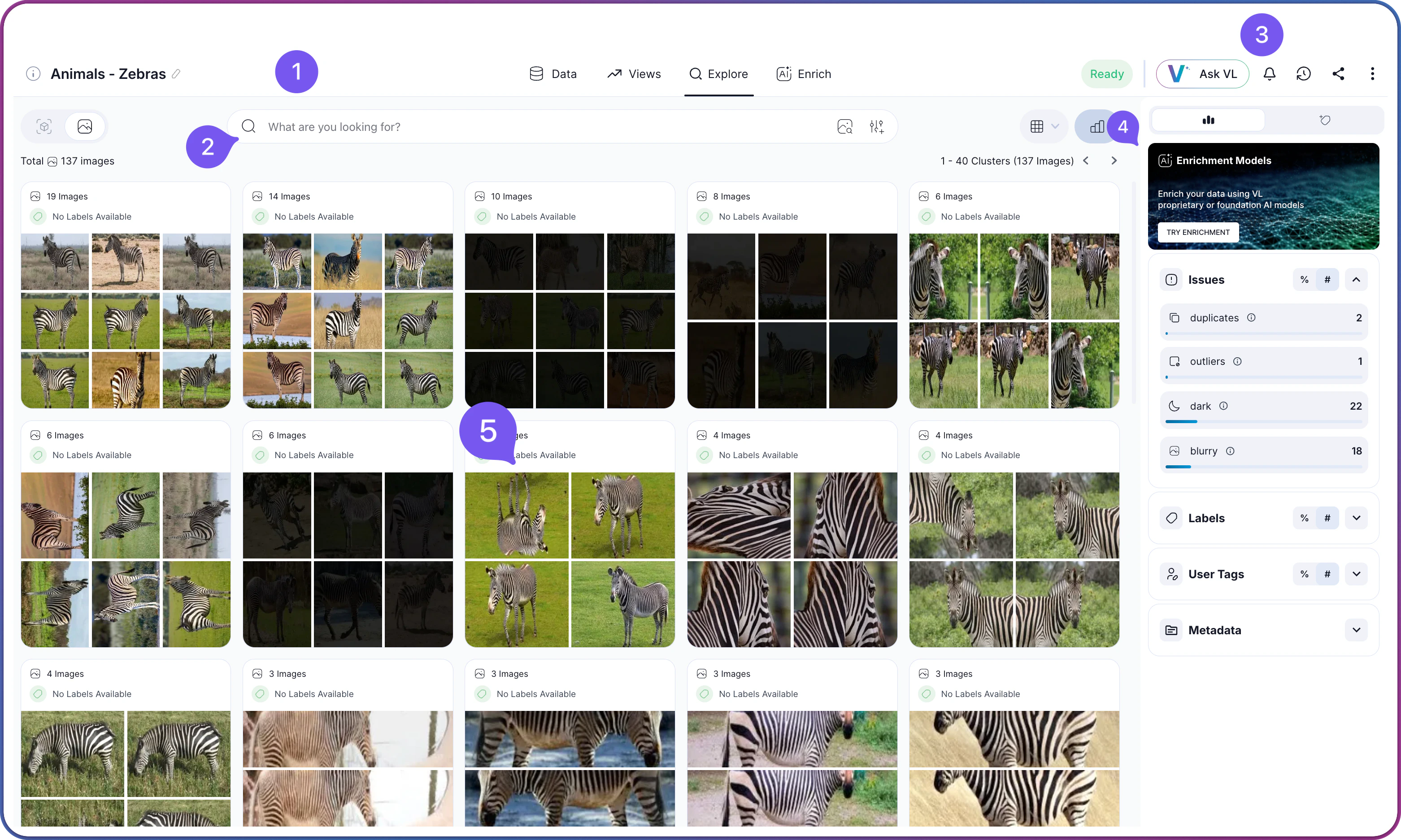
Click any dataset in the **Dataset Inventory** to open the **Dataset Exploration View**, your primary workspace for analyzing that dataset. Once inside, you have tools for search, filtering, cluster navigation, and quality analysis that work together in a systematic exploration workflow.
 ## Interface Layout
Once you are inside a dataset, the exploration interface loads with five main areas:
## Interface Layout
Once you are inside a dataset, the exploration interface loads with five main areas:
| Area | Component | Description |
| ----------------------------------------------------------------------------------------------------------------------------------------------------------------------------------------------------------------------------------------------------------------------------------------------------------------------------------------------------------------------------------------------------------------------------------------------------------------------------------------------------------------------------------------------------------------------------------------------------------------------------------------------------------------------------------------------------------------------------------------------------------------------------------------------------------------------------------------------------------------------------------------------------------------------------------------------------------------------------------------------------------------------------------------------------------------------------------------------------------------------------------------------------------------------------------------------------------------------------------------------------------------------------------------------------------------------------------------- | ------------------- | ------------------------------------------------------------------- |
|

| **Navigation Tabs** | Switch between Explore, Data, and Views |
|

| **Filter Panel** | Apply and combine search criteria to narrow your dataset |
|

| **Action Bar** | Access operations like export, share, and selected items management |
|

| **Insights Panel** | View metadata, insights, statistics, and access enrichment features |
|

| **Content Grid** | Visual representation of your data in clusters, images, or objects |
| Tab | Purpose | Use Cases |
| ----------- | --------------------------------------------------------------------------------------------------------------------------------------------------------------------------------- | --------------------------------------------------------------------------------------------------------- |
| **Explore** | The workspace for viewing and analyzing dataset content. All search, filtering, cluster navigation, and quality analysis happen here. | Browse clusters, run semantic or visual searches, apply filters, identify quality issues, make selections |
| **Data** | The dataset's setup and status page. Shows the creation checklist (data source, annotations, index type, upload, indexing), a preview of the uploaded media, and an activity log. | Confirm dataset creation completed, preview the uploaded media, review activity history |
| **Views** | Saved combinations of filters and search queries. | Reload a previously defined exploration, share analysis criteria with your team |
## Exploration Workflow
Effective dataset curation typically involves a multi-step process rather than a single query. These steps explain how to combine Visual Layer's tools to move from broad discovery to a precise, curated selection.
Start by casting a wide net to locate potential candidates.
* **Use Semantic Search** for conceptual queries (e.g., "damaged packaging" or "outdoor crowd").
* **Use Cluster Navigation** to browse high-level patterns without a specific query.
* **Use Visual Search** with an external image upload to find matches for a reference asset.
*Goal: Surface a broad set of results that includes your target data, accepting some initial false positives.*
Filter out irrelevant matches to focus on your specific criteria.
* **Apply Visual Similarity** on a specific search result. Crop a region (e.g., just the defect, not the background) to narrow the search visually.
* **Add Metadata Filters** (Folders, Labels, Dates) to restrict the search scope to relevant batches or sources.
*Goal: Reduce noise and focus on content that matches your specific visual or metadata requirements.*
Ensure your selection represents the diversity of your data, not just the most common examples.
* **Apply the Uniques Filter** to hide repetitive content. Increasing the threshold surfaces only visually distinct items, covering edge cases and varied angles rather than just the average.
* **Check Outliers** to find rare examples or anomalies that might be missing from the main clusters.
*Goal: Create a diverse selection that includes valuable edge cases.*
Polish the collection before finalizing.
* **Review Duplicates** to select single representative frames from burst sequences or near-identical backups.
* **Filter Quality Issues** (blur, dark, bright) to automatically exclude unusable or low-quality assets.
*Goal: Ensure the final dataset is lean, high-quality, and free of technical flaws.*
Preserve your work for the team.
* **Save as View** to capture the full combination of search queries, filters, and thresholds. Team members can access the dynamic collection without rebuilding the logic.
* **Export** the selection to JSON or CSV for downstream training or annotation workflows.
## Related Resources
Step-by-step guide to running searches and filters, plus the full list of available options.
Concepts behind semantic search and visual similarity
Find similar images using visual embeddings
How Visual Layer organizes images