> ## Documentation Index
> Fetch the complete documentation index at: https://docs.visual-layer.com/llms.txt
> Use this file to discover all available pages before exploring further.
# Understanding Clusters
> How Visual Layer automatically groups visually similar content to simplify exploration and analysis.
Managing large collections of images and videos can be time-consuming. To simplify exploration, Visual Layer automatically organizes your images into **Clusters** during dataset creation. When you open a dataset from the Dataset Inventory, clusters appear in the dataset exploration view as the primary way to browse and interact with your content.
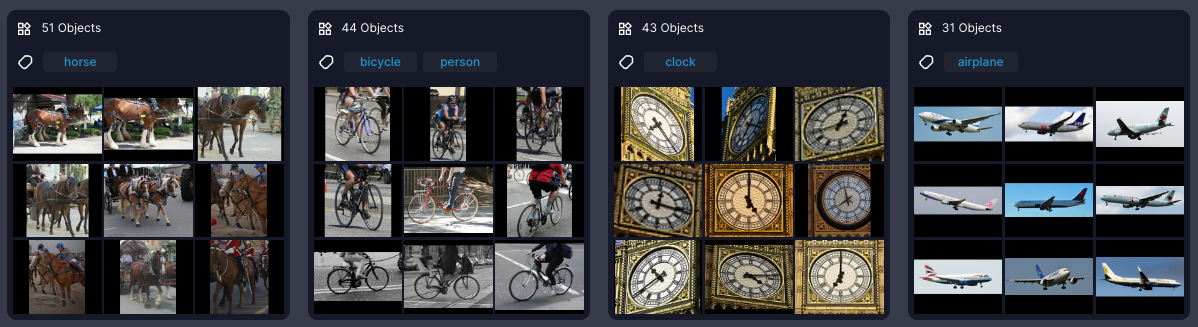
Clusters group similar **images** and **Core Frames** (extracted from videos) based on visual similarity. Clusters are structured based on the selected view—either as full images in **Image View**, or as annotated regions in **Object View**.
Clusters help you:
* **Explore** and **filter** vast amounts of visual data
* **Tag** and **sort** content based on similarity
* **Identify patterns** across groups of related images or objects
***
## Cluster Previews
Clusters are displayed as preview cards to help you quickly understand the structure of your data.
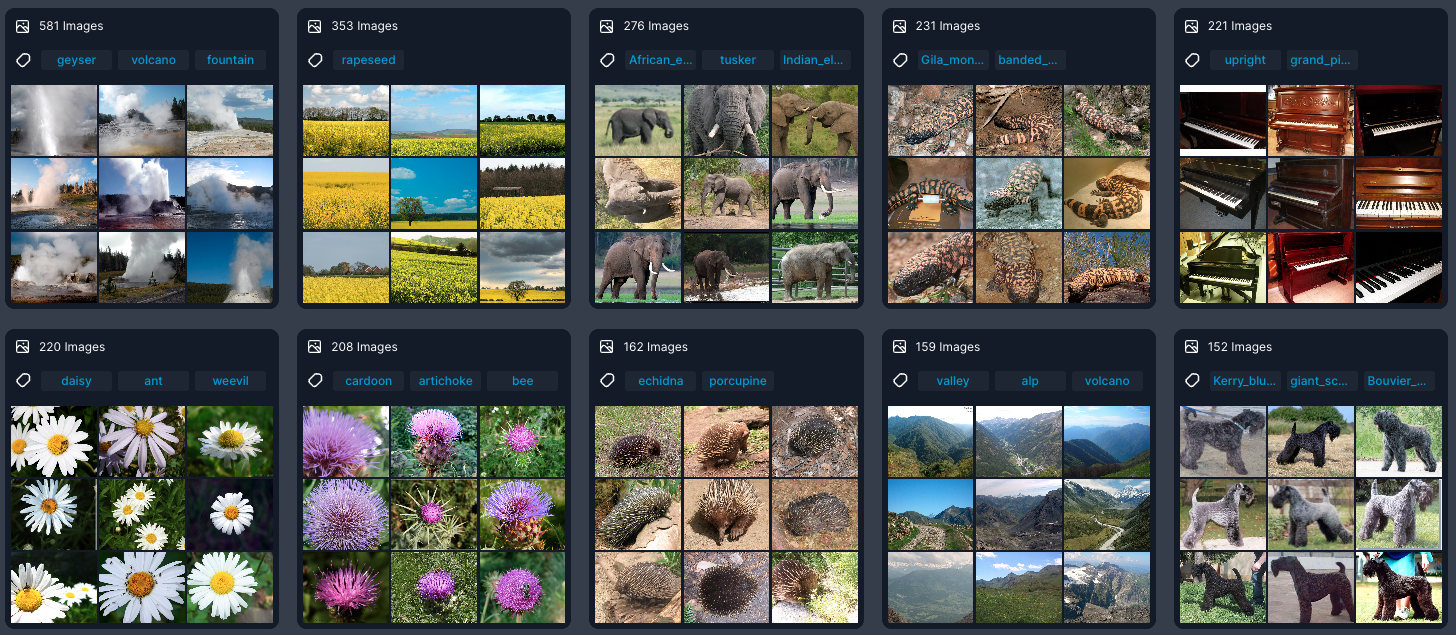 Each cluster preview includes:
| Element | Description |
| -------------------------- | ----------------------------------------------------------------------------------- |
| **Number of items** | The total number of items that match your current filters |
| **Prominent labels** | The most frequent labels within the cluster |
| **Representing images** | Thumbnails of key example images or Core Frames that visually summarize the cluster |
| **Visual Similarity Icon** | Hover over a cluster to access visual similarity search for finding similar content |
***
### Example Views
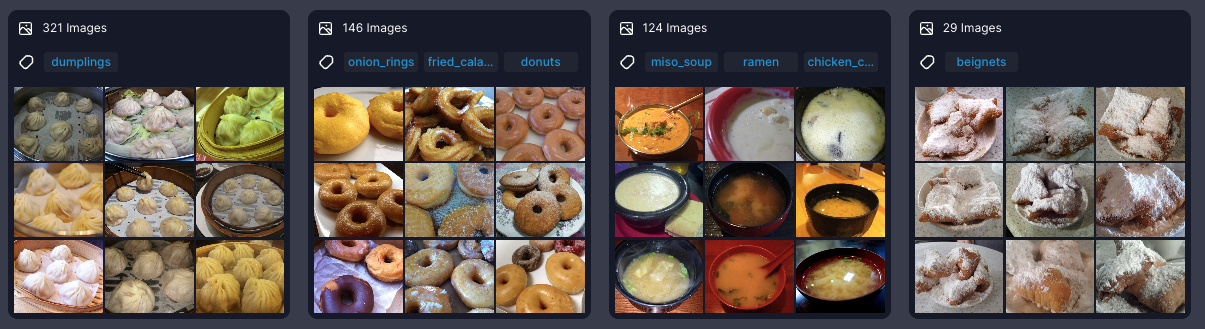
Clusters in **Image View**:
Each cluster preview includes:
| Element | Description |
| -------------------------- | ----------------------------------------------------------------------------------- |
| **Number of items** | The total number of items that match your current filters |
| **Prominent labels** | The most frequent labels within the cluster |
| **Representing images** | Thumbnails of key example images or Core Frames that visually summarize the cluster |
| **Visual Similarity Icon** | Hover over a cluster to access visual similarity search for finding similar content |
***
### Example Views
Clusters in **Image View**:
 Clusters in **Object View** (objects are cropped):
 ***
## Clustering Granularity
The **Granularity knob**, located in the bottom-right corner of the screen, lets you adjust the similarity threshold for clustering.
***
## Clustering Granularity
The **Granularity knob**, located in the bottom-right corner of the screen, lets you adjust the similarity threshold for clustering.
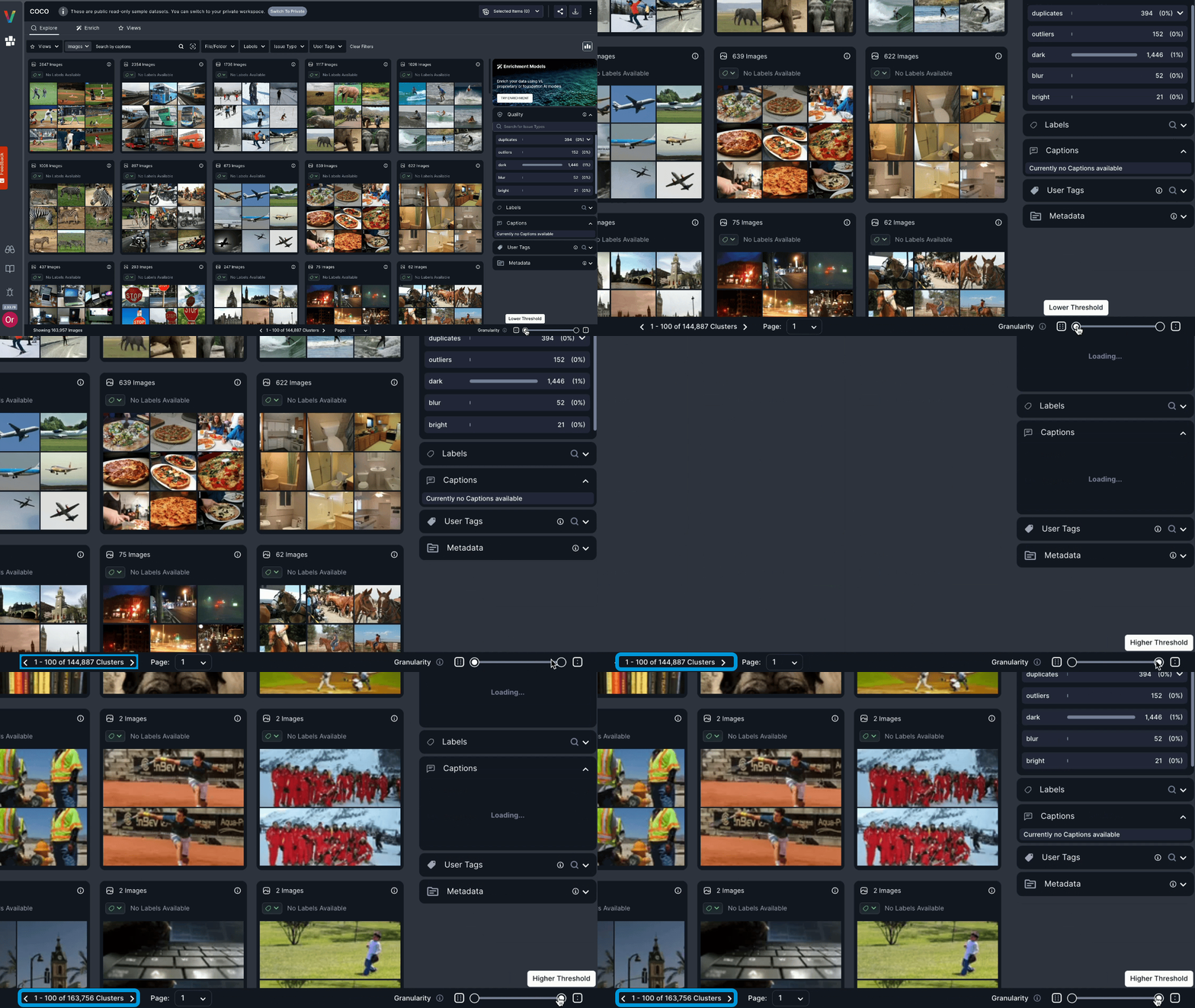 * Move the knob to the **left** for looser clusters — broader grouping with lower similarity thresholds *(default setting)*
* Move the knob to the **right** for stricter clusters — tighter grouping with higher similarity thresholds
* Move the knob to the **left** for looser clusters — broader grouping with lower similarity thresholds *(default setting)*
* Move the knob to the **right** for stricter clusters — tighter grouping with higher similarity thresholds