
- View detailed training results and performance metrics.
- Export model results and artifacts as ZIP files.
- Mark models as production-ready.
- Delete models from the catalog.
Accessing the Model Catalog
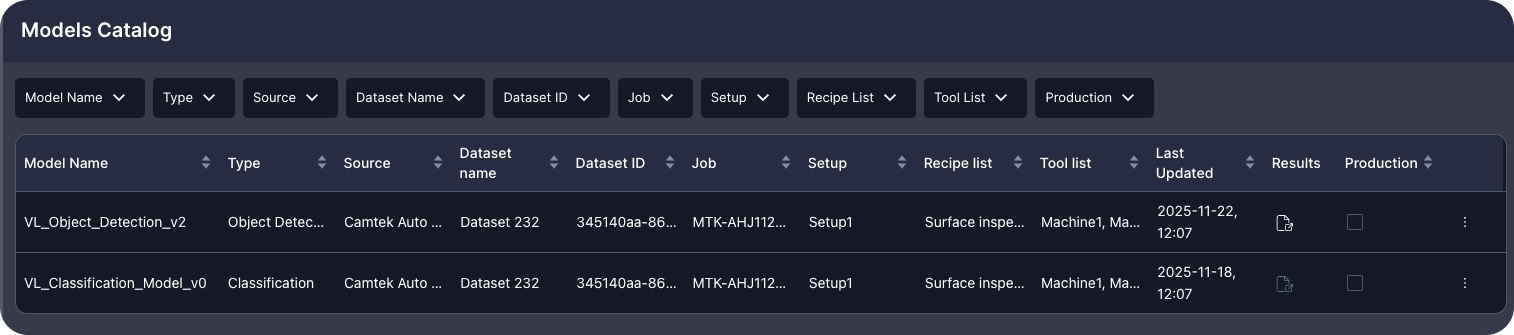
To access the Model Catalog, click the Model Catalog icon from the left Navigation Panel. The Model Catalog loads, displaying all your trained models.
Understanding the Catalog
The Model Catalog displays a table view of all trained models. All columns support filtering and ascending/descending sorting for easy navigation.| Column | Description |
|---|---|
| Model Name | The name assigned to the model during training |
| Type | The model type (Classification, Object Detection, etc.) |
| Source | The training platform or framework used |
| Dataset Name | The name of the Visual Layer dataset used for training |
| Dataset ID | The unique identifier of the training dataset |
| Last Updated | Timestamp when the model was last modified or trained |
| Results | Click the icon to view the training results report embedded within Visual Layer |
| Production | Check or uncheck to mark models as production-ready. Unchecking requires confirmation. |
| Three-Dot Menu | Access Export to download results as ZIP or Delete to remove the model from the catalog |
Managing Production Status
Use the Production checkbox to indicate which models are approved for deployment in production environments. To mark a model as production-ready, check the Production checkbox for the relevant model. The model is marked as production, making it easy to filter and identify deployment-ready models. To remove a model from production:- Uncheck the Production checkbox for the relevant model. A confirmation modal appears:

- Click Yes to confirm the removal (or Cancel to keep the production status). The model is unmarked as production.
Changing production status does not affect the model files or results. It only updates the catalog metadata for organizational purposes.
Viewing Training Results
Training results provide comprehensive insights into model performance, including validation metrics, confusion matrices, and per-sample predictions. To view training results, click the results icon in the Results column. The training results report opens embedded within Visual Layer, displaying:
- Model performance summary.
- Validation metrics and accuracy scores.
- Confusion matrix showing classification performance.
- Detailed per-image predictions and confidence scores.
Exporting Model Results
Export the complete model results package as a ZIP file for offline analysis, archival, or sharing with your team. To export model results:- Click the three-dot menu for the relevant model.
- Select Export. The entire results folder downloads as a ZIP file to your Downloads folder.
- Training and validation reports (HTML format).
- Performance metrics and confusion matrices (CSV format).
- Model predictions and confidence scores.
- Supporting data files and visualizations.
Exported reports remain fully functional offline. You can open the HTML files in any web browser without an internet connection.
Deleting Models
Remove models from the catalog when they are no longer needed. This action requires elevated user permissions. To delete a model:- Click the three-dot menu for the relevant model.
- Select Delete. A confirmation modal appears:
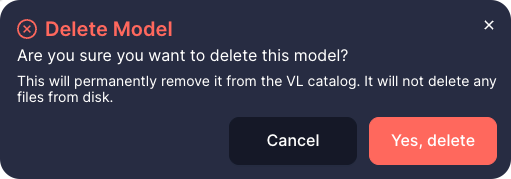
- Click Yes, delete to confirm (or Cancel to stop). The model entry is immediately removed from the catalog interface.
Filtering and Sorting Models
The Model Catalog supports powerful filtering and sorting to help you find specific models quickly.Filtering Models
Click the filter icon in any column header to filter by specific values: Common filter combinations:- Type = Classification to view only classification models.
- Production = Checked to see production-ready models.
- Dataset Name = [specific dataset] to find models trained on a particular dataset.
Sorting Models
Click any column header to sort models:- Last Updated: View most recently trained models first.
- Model Name: Alphabetically organize your models.
- Dataset Name: Group models by training dataset.
Understanding Model Results
Training results packages typically include multiple components that help you evaluate model performance:Validation Summary
The validation summary provides an overview of model performance on the validation dataset, including:- Overall accuracy and error rates.
- Per-class precision, recall, and F1 scores.
- Confusion matrix showing actual vs. predicted classifications.
- Misclassification patterns and common errors.
Confusion Matrix
The confusion matrix displays actual ground truth classes versus predicted classes, with color coding to highlight performance:- Diagonal cells (where actual equals predicted) represent correct classifications.
- Off-diagonal cells show misclassifications.
- Row metrics include False Positive Rate, Precision, Recall, Accuracy, and F1-Score.
Performance Metrics
Detailed metrics help you assess model quality:| Metric | Description |
|---|---|
| Precision | Percentage of predictions for each class that were correct |
| Recall | Percentage of actual instances of each class that were correctly identified |
| F1-Score | Balanced measure combining Precision and Recall |
| Accuracy | Overall percentage of correct classifications |
Model Catalog Best Practices
- Organize with naming conventions: Use consistent, descriptive model names that include dataset version, training date, or configuration details (e.g., “ProductX-v2-2024-12-15”).
- Mark production models clearly: Always use the Production checkbox to distinguish deployment-ready models from experimental or development models.
- Export important results: Download and archive results for models deployed to production for compliance and documentation purposes.
- Clean up regularly: Delete obsolete models to keep the catalog focused on current and relevant models.
- Compare models systematically: Use the validation reports to compare performance across different training runs and select the best-performing model.