
Prerequisites
Before you begin, make sure you have the following:- Browser Visual Layer currently supports Google Chrome only.
- Dataset ready Download our example dataset or prepare your own ZIP file of images or videos.
Tips for Efficient Dataset Management
Use descriptive names: Include dates, sources, or project names to make datasets easy to identify (e.g., “ProductX-Inspection-2024-Q1”) Monitor status regularly: Check the Task Manager for long-running operations or errors Organize with metadata: Add custom metadata fields during upload to enable powerful filtering later Archive completed projects: Delete datasets you no longer need to keep your inventory clean and stay within plan limits Save important queries as Views: Once inside a dataset, save filter combinations as Views for quick access to specific subsetsTo create your dataset
- Log into Visual Layer. The homepage is the Dataset Inventory, where all datasets are managed.
- Click New Dataset (or the + icon) to start creating your first dataset.
- Alternatively, change the name of the dataset. We called ours Cartoon Archive.
-
Choose ZIP file as the data source and upload the downloaded tutorial dataset ZIP file.
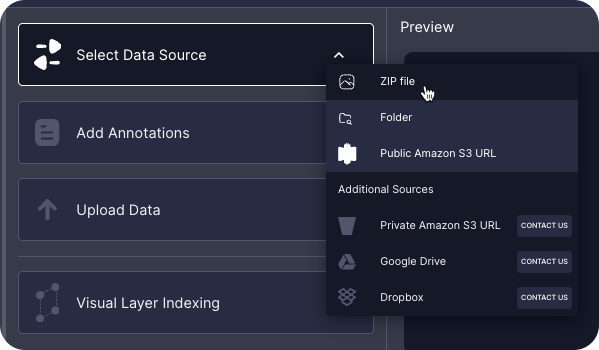
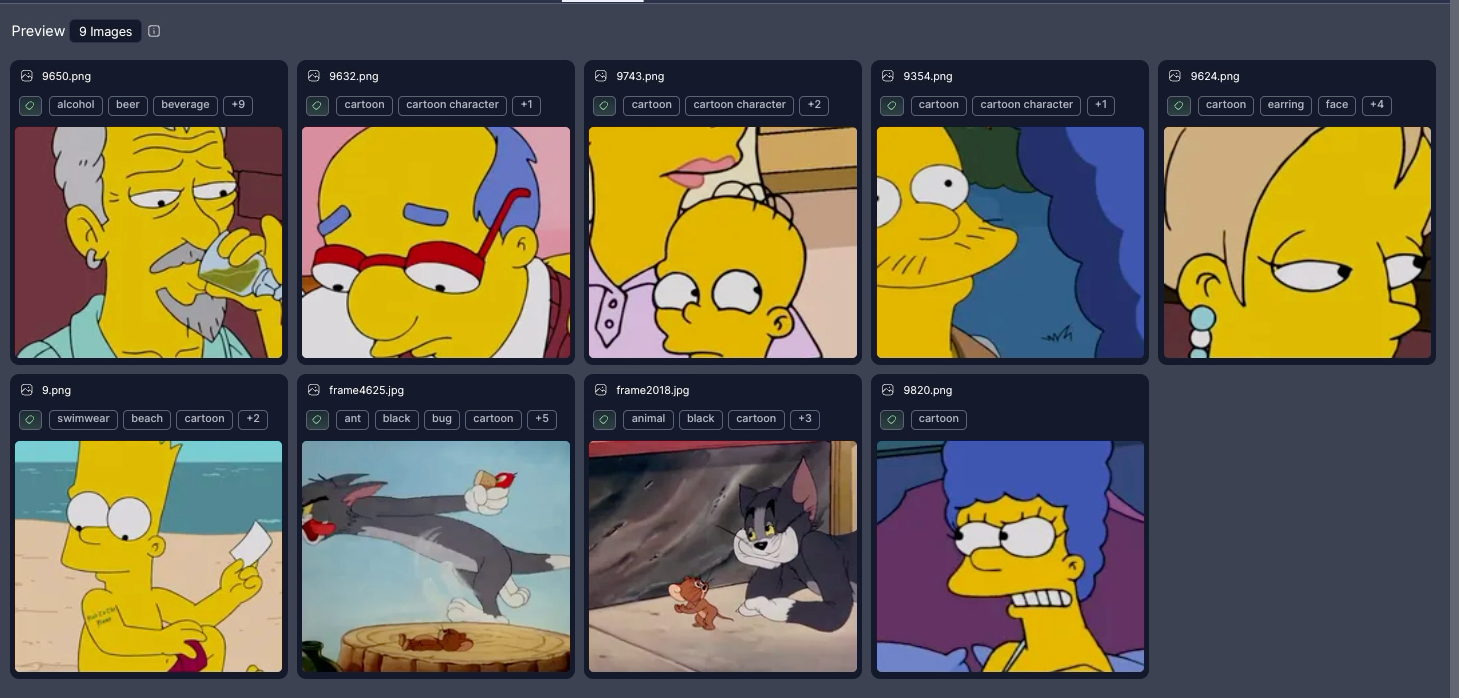
- After uploading the ZIP file, click Add Annotations. If you have no annotations to include, click Skip to proceed without adding annotations. Otherwise, add annotations and then continue. Visual Layer automatically generates a preview of the dataset.
-
Review a few sample images and videos to confirm that the data has uploaded correctly.
-
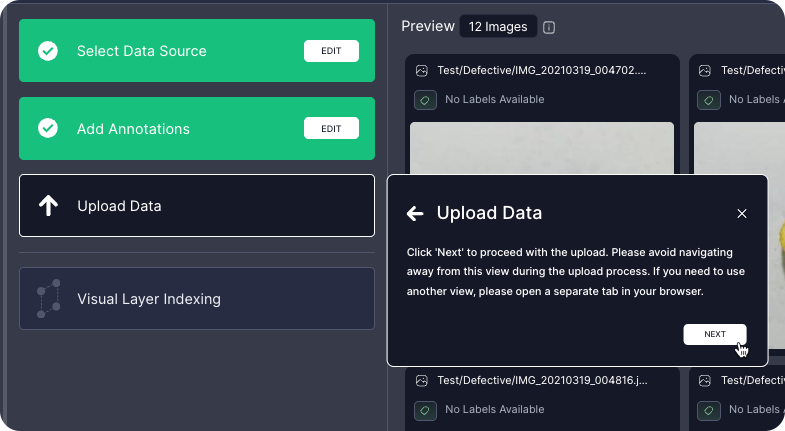
Click Next to upload and index the dataset.
-
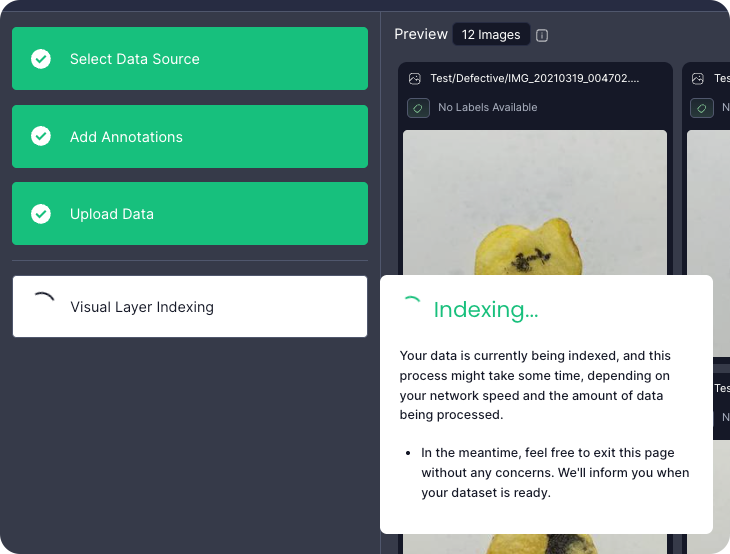
Indexing starts automatically after upload.
-
While indexing, the dataset appears in your inventory with an “Indexing” status and shows as empty.
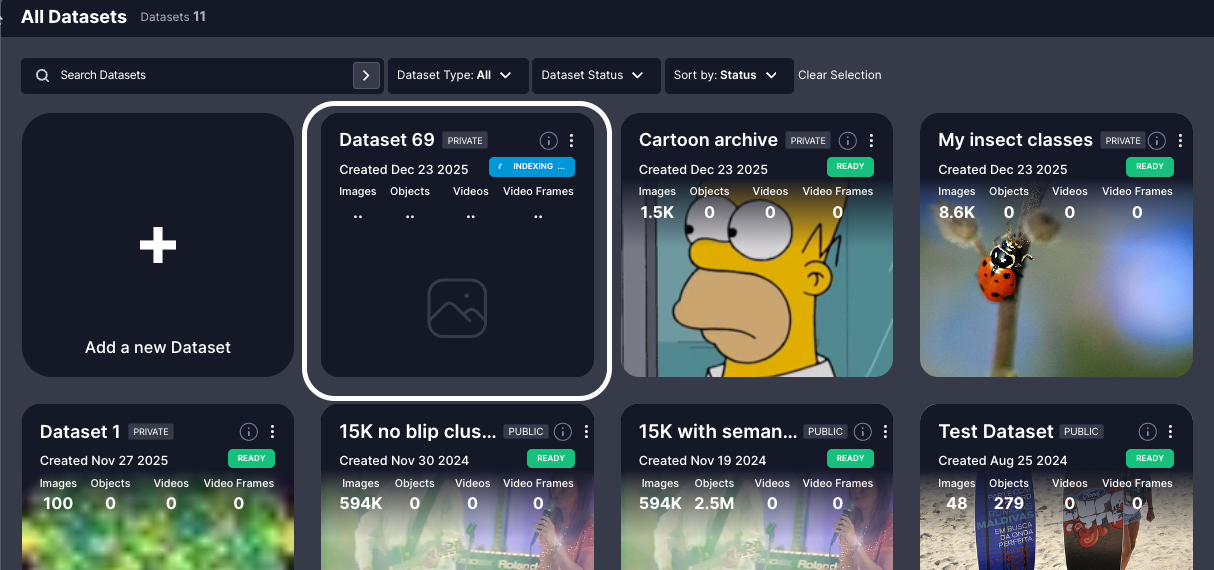
- You will receive an email when indexing completes.
Once indexing completes, the dataset status changes to Ready in the Dataset Inventory. The dataset is now fully accessible and ready to explore.Keep this browser tab open until indexing starts to ensure the dataset begins processing correctly.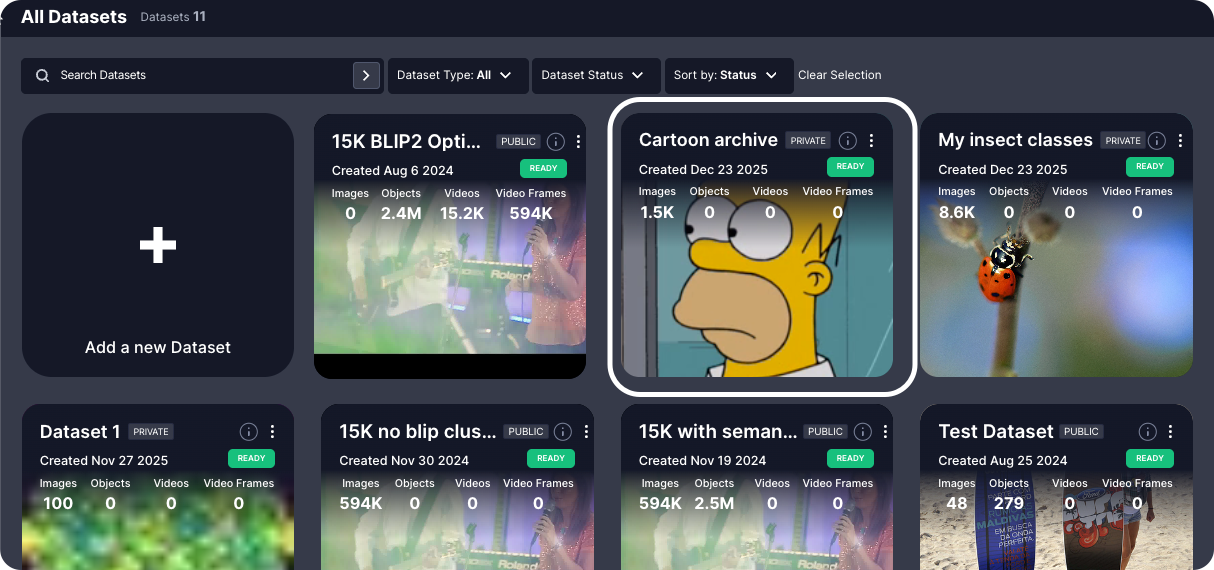
-
Indexing starts automatically after upload.