
How this Helps
Visual Search finds near-duplicates, repeated patterns, and conceptually similar content in your dataset at the image, object, or region level. Use it for anomaly investigation, pattern clustering, and accelerated QA review.
Overview
Visual Layer runs similarity search across your dataset using deep visual embeddings. You can compare against any of the following references:- An entire cluster representative
- An image preview, from any place an image appears in the UI
- A cropped region drawn directly on an image preview
- An object bounding box inside an image
- An external image uploaded from your device
- Find Similar — searches against the whole image.
- Crop to find similar — opens an inline cropper on the thumbnail so you can draw a Region of Interest and search against that specific area. This is the recommended path when you want to isolate a defect, object, or detail rather than match the full frame.
Similarity Search on a Cluster
Use this path to find clusters visually similar to one you already see.- Hover over the target cluster card in the Dataset Exploration view.
- Click Find Similar at the bottom of the card.
Similarity Search from an Image Preview
Any image thumbnail in the product surfaces the same two similarity actions. The entry points differ only in where you are when you reach for them.Entry points
Hover an image thumbnail in any of these locations:- On a cluster card in the exploration view. Cluster cards show a preview carousel of representative thumbnails. Hovering a single thumbnail reveals the similarity actions, so you can launch a search against that one image without opening the cluster first.
- Inside an opened cluster. Click into a cluster to view its full grid, then hover any thumbnail in the grid.
- On the image details page. Open an image to its details view and hover the main image.
Search against the whole image
- Hover the image thumbnail.
- Click Find Similar.
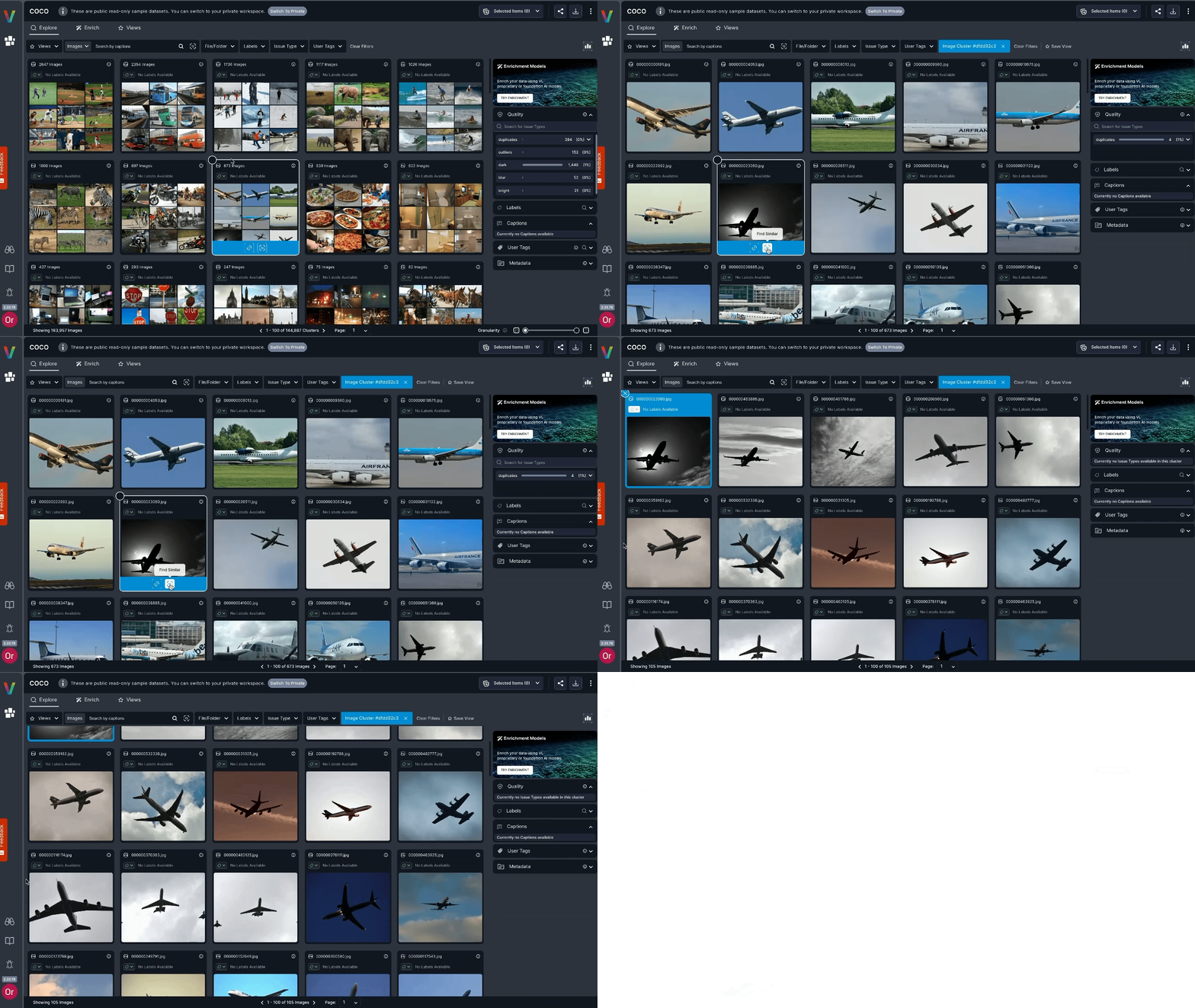
Search against a Region of Interest
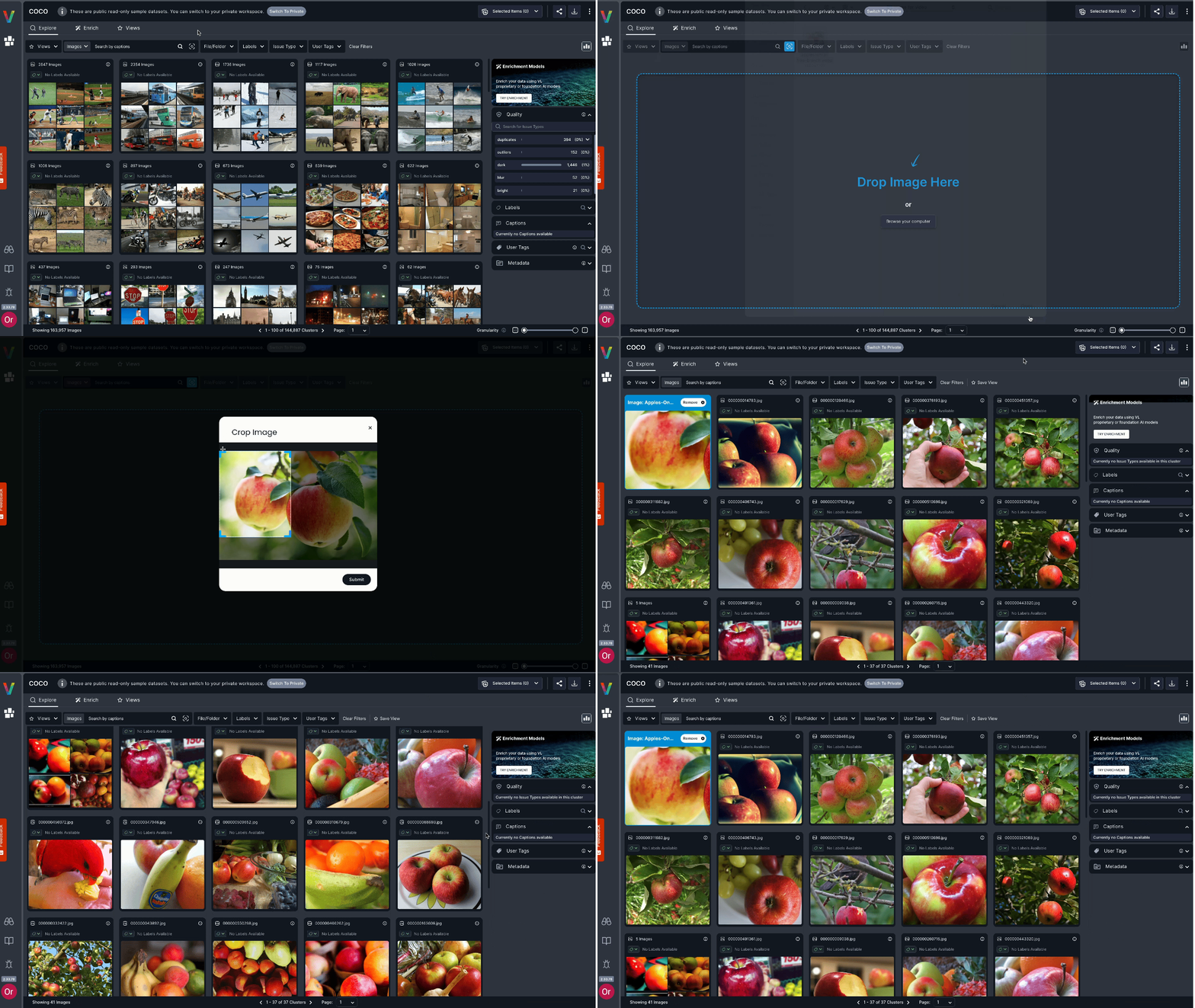
Region-of-interest search compares a cropped area of the reference against the dataset. Use it to isolate a specific defect, object, or pattern while ignoring background content.- Hover the image thumbnail.
- Click Crop to find similar. An inline cropper opens directly on the thumbnail.
- Drag to draw the region you want to search against.
- Click Find Similar inside the cropper overlay to run the search.
Similarity Search from an Object
When an image contains detected objects, each bounding box is its own similarity anchor.- Open a cluster or image that has object detections.
- Hover directly over the object’s bounding box.
- Click the Find Similar icon that appears on the box.
Similarity Search by External Image Upload
Use this path when your reference image is not already in the dataset.- On the Dataset page, click the Visual Search icon near the main search bar.
- Upload an image from your local device.
- (Optional) Drag to crop the uploaded image before searching.
- Click Find Similar to run the search against your dataset.
Related Resources
How Search and Filter Work
The embedding theory behind visual similarity and nearest-neighbor search.
How to Search & Filter
Step-by-step guide to running searches and filters, plus the full list of available options.
Exploration Recipes
Step-by-step workflows that combine visual search with filtering.
Saved Views
Persist a search so you and your team can return to it later.