
The Search & Filter Interface
The interface integrates search and filtering into a cohesive workspace. Before running queries, familiarize yourself with the three main components:- Filter Menu: A dropdown that dynamically adapts to your view to show relevant filter options based on your dataset context.
- Query Modal: The configuration popup where you set specific conditions (like “IS” or “CONTAINS”) and thresholds for a selected filter.
- Query Panel: Displays all currently active filters. Multiple filters are always combined using AND logic.
Switching the Grid Layout
The Explore tab has two grid layouts — Visual Similarity (clustered) and Flat View — plus a granularity control for clusters. The Layout Toggle sits on the right side of the filter and search area.Switch to Cluster View
- Click the Layout Toggle on the right of the filter and search area.
- Select Visual Similarity.
- Adjust the granularity control next to the toggle to make clusters coarser (fewer, larger clusters) or finer (more, smaller clusters).
Switch to Flat View
- Click the Layout Toggle on the right of the filter and search area.
- Select Flat View.
Switching the Search Type
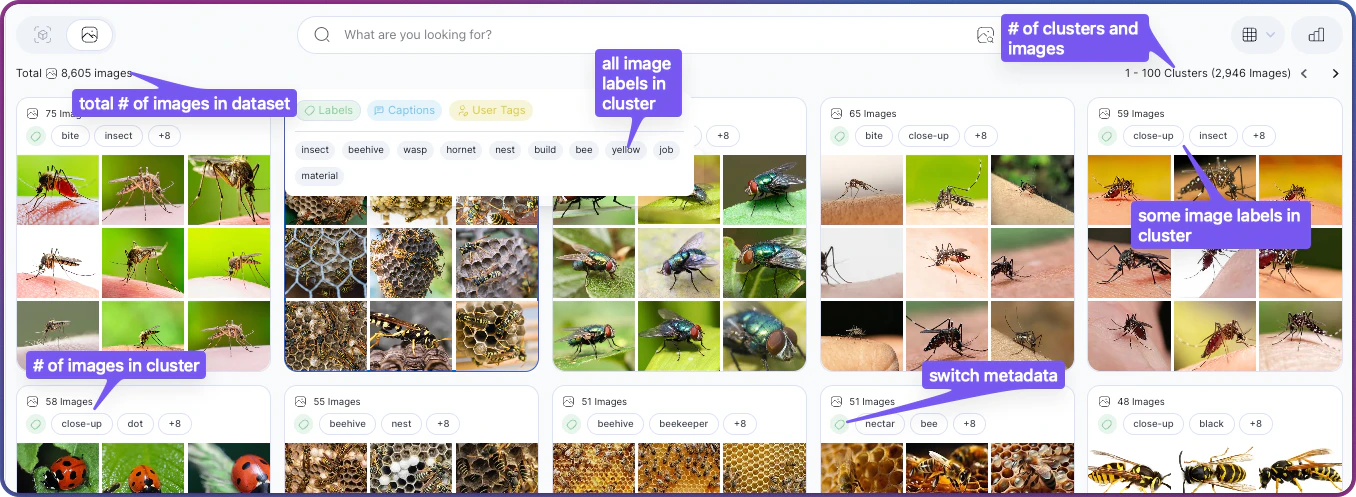
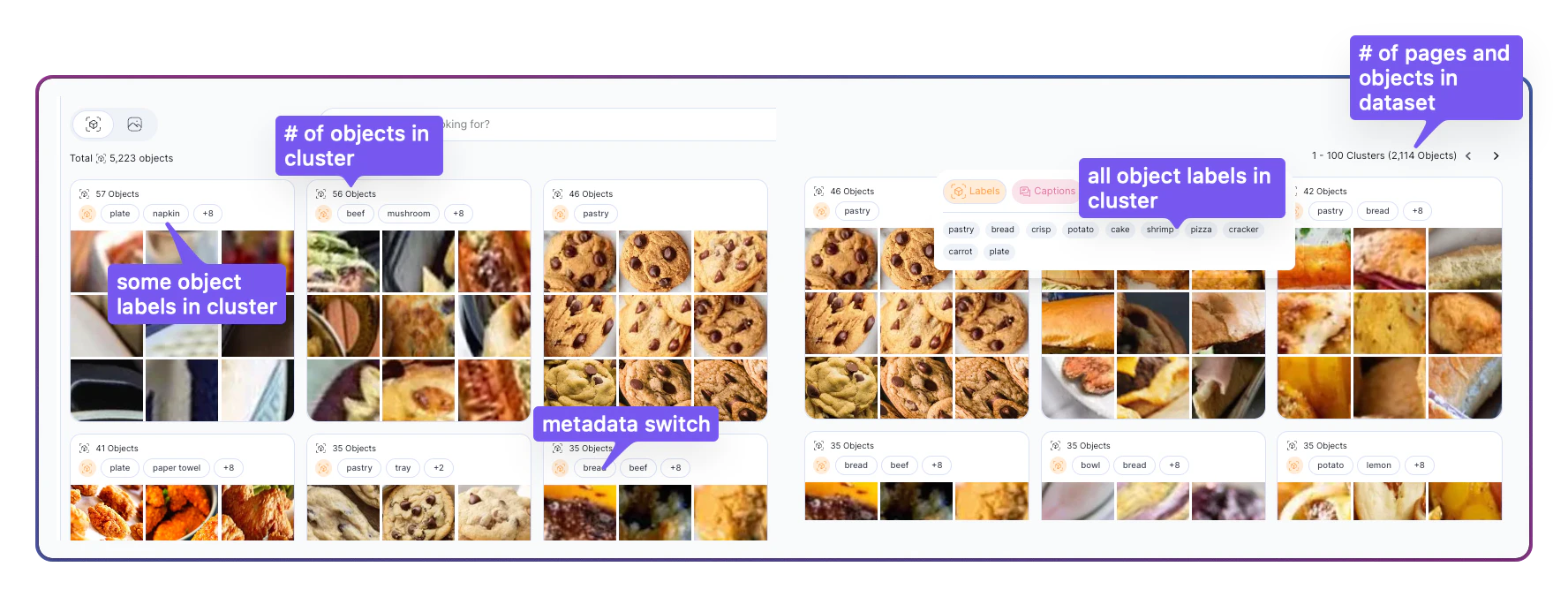
The Search Type Toggle on the left side of the filter and search area sets whether searches, filters, clusters, and hover actions operate on full Images or on detected Objects. Flipping it reshapes the Explore tab around the selected search type: clusters regroup, counts change, searches run against different embeddings, and the available metadata changes accordingly. The Objects option becomes available once an object-detection model has run against the dataset. If it is disabled, run a model such as VL-Object-Detector from the Enrich tab first.Search by Images
- Click the Search Type Toggle on the left of the filter and search area.
- Select Images.
Search by Objects
- Click the Search Type Toggle on the left of the filter and search area.
- Select Objects.
Text & Semantic Search
The main search bar supports two distinct types of text queries.Semantic Search (Natural Language)
Use Semantic Search to find content based on meaning and context rather than exact keywords. This matches queries against generated semantic metadata.- How to use: Type a natural description into the search bar (e.g., “sunset over mountains” or “blue sports car on city street”).
- Best Practice: More detailed phrases often yield more focused results, but broad terms like “crowd” or “forest animals” are also effective.
Caption Search (Boolean Logic)
If you are filtering by the Captions metadata field, you can use logical operators to build precise text queries.Visual Search
Visual Search finds images or objects similar to a reference anchor. You can trigger this from four different locations in the UI.Method A: From a Cluster
- Hover over a cluster card in the Dataset Exploration view.
- Click the Find Similar icon (camera/magnifying glass) at the bottom of the card.
Method B: From an Image or Object
- Click into a cluster to view individual items.
- Hover over any image or object bounding box.
- Click the Find Similar icon.
Method C: Using a Region of Interest (Crop)
- Open an image to view the details page.
- Click Find Similar.
- Drag your mouse to draw a crop box around a specific detail (e.g., a specific defect or object).
- Click the similarity icon again to launch the search based on that crop.
Method D: External Image Upload
- Click the Visual Search icon located inside or near the main search bar.
- Upload an image from your local device.
- (Optional) Crop the uploaded image to focus on a specific region before searching.
Using Filters
General Filter Workflow
- Click Add Filter in the top filter bar.
- Select a category from the Filter Menu (e.g., Labels, Folders, Quality Issue).
- Configure criteria in the Query Modal:
- IS / IS NOT: Include or exclude specific values.
- IS ONE OF: Match any value from a list.
- CONTAINS / STARTS WITH: Match partial text patterns in filenames or folders.
- Click Apply.
Managing Active Filters
- View Logic: All filters in the Query Panel are combined via AND (an image must match all criteria).
- Edit: Click any active filter chip in the Query Panel to reopen its settings.
- Remove: Click the X on a specific chip or Clear All to reset.
Configuring Special Filters
Some advanced filters use sliders or unique configuration steps.Select Uniques (Redundancy Filtering)
- Click the Select Uniques button next to the search bar.
- Adjust the Uniqueness Threshold slider (0 to 1).
- Lower values include more redundancy.
- Higher values retain only the most distinctive images.
- The filter appears in the Query Panel as an exclusion rule.
Quality & Confidence Thresholds
When using Quality Issue filters (Blurry, Dark, Bright), you must set a confidence threshold.- 0.3 – 0.4 (Low): Catches more potential issues but increases false positives. Best for comprehensive cleaning.
- 0.5 (Default): A balanced approach.
- 0.6 – 0.8 (High): Focuses only on severe, obvious issues.
Duplicates
- Select Duplicates from the filter menu.
- Adjust the Similarity Level slider (0 to 1).
- 0.9 - 1.0: Finds exact or near-exact matches.
- Lower values: Catches looser matches, such as images with compression artifacts or slight crops.
Class Outliers
This filter identifies images that have a valid label but do not visually match the standard appearance of their class. Unlike a mislabel (which is wrong), a class outlier might be technically correct but visually anomalous. Common Scenarios:- Unusual Visuals: A drawing of a dog in a dataset of real dog photos.
- No Matching Class: A sheep labeled as “dog” because the dataset lacks a “sheep” class.
- Navigate to Add Filter → Class Outlier.
- Set the confidence threshold (default is 1).
- Apply the filter.
- (Optional) To save these images for debugging, select Export → Matching the applied filter.