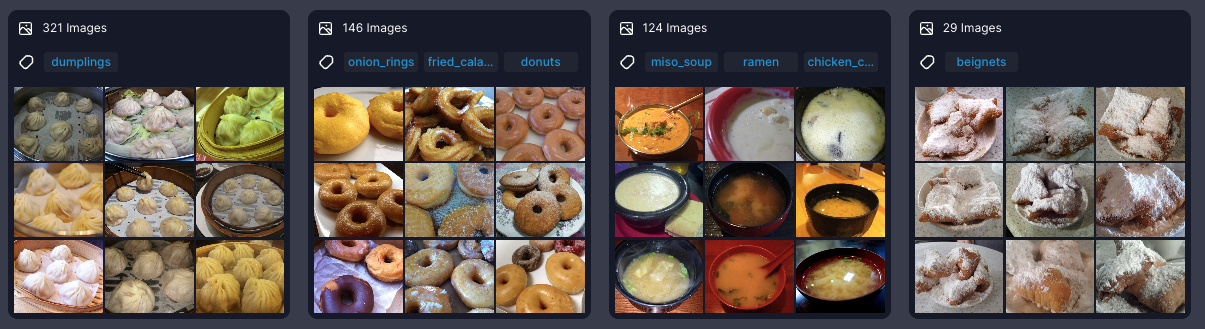
Managing large collections of images and videos can be time-consuming. To simplify exploration, Visual Layer automatically organizes your images into Clusters during dataset creation. When you open a dataset from the Dataset Inventory, clusters appear in the dataset exploration view as the primary way to browse and interact with your content. Clusters group similar images and Core Frames (extracted from videos) based on visual similarity. Clusters are structured based on the selected view—either as full images in Image View, or as annotated regions in Object View. Clusters help you:
  • Explore and filter vast amounts of visual data
  • Tag and sort content based on similarity
  • Identify patterns across groups of related images or objects

Cluster Previews

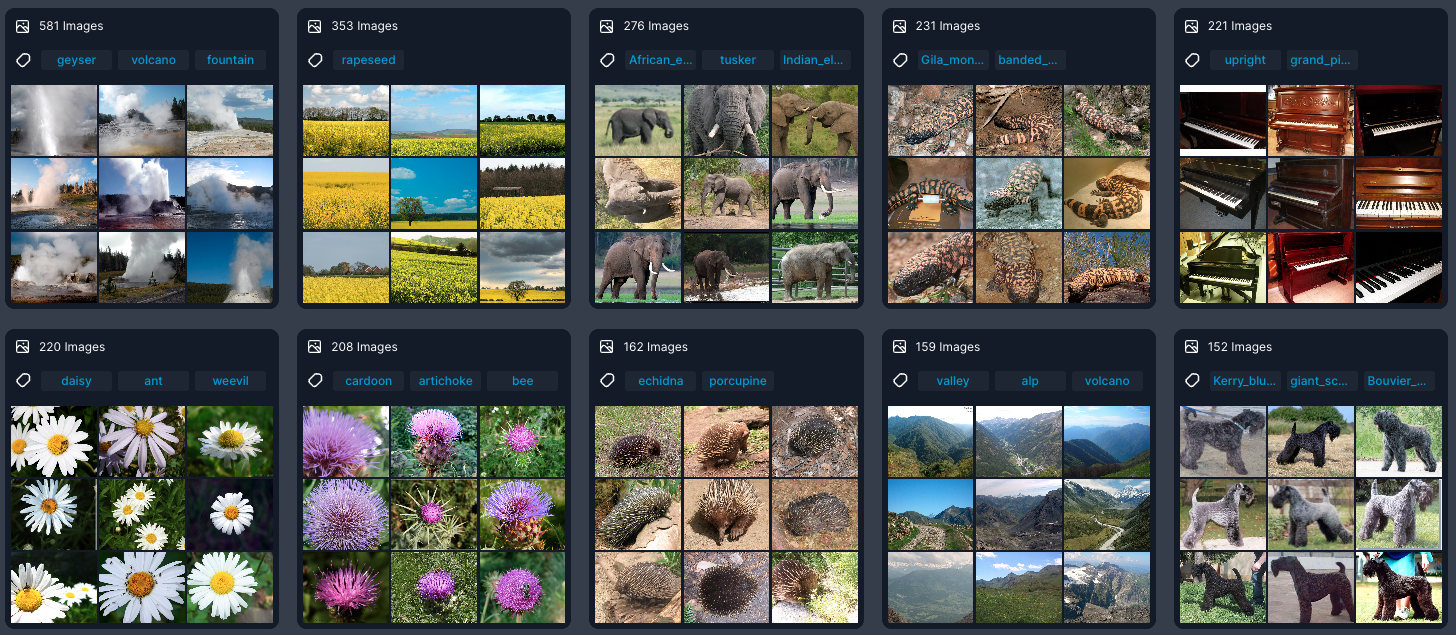
Clusters are displayed as preview cards to help you quickly understand the structure of your data. Cluster preview Each cluster preview includes:
ElementDescription
Number of itemsThe total number of items that match your current filters
Prominent labelsThe most frequent labels within the cluster
Representing imagesThumbnails of key example images or Core Frames that visually summarize the cluster
Visual Similarity IconHover over a cluster to access visual similarity search for finding similar content

Example Views

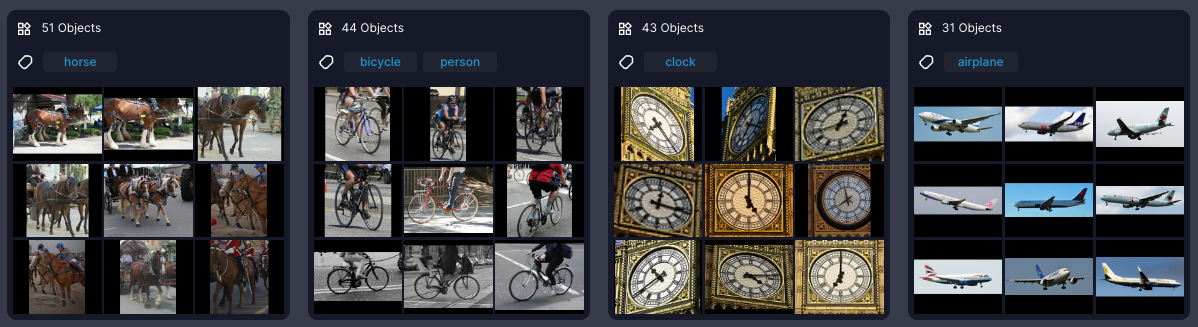
Clusters in Image View: Images view Clusters in Object View (objects are cropped): Objects view
Clustering Granularity

The Granularity knob, located in the bottom-right corner of the screen, lets you adjust the similarity threshold for clustering. Granularity knob
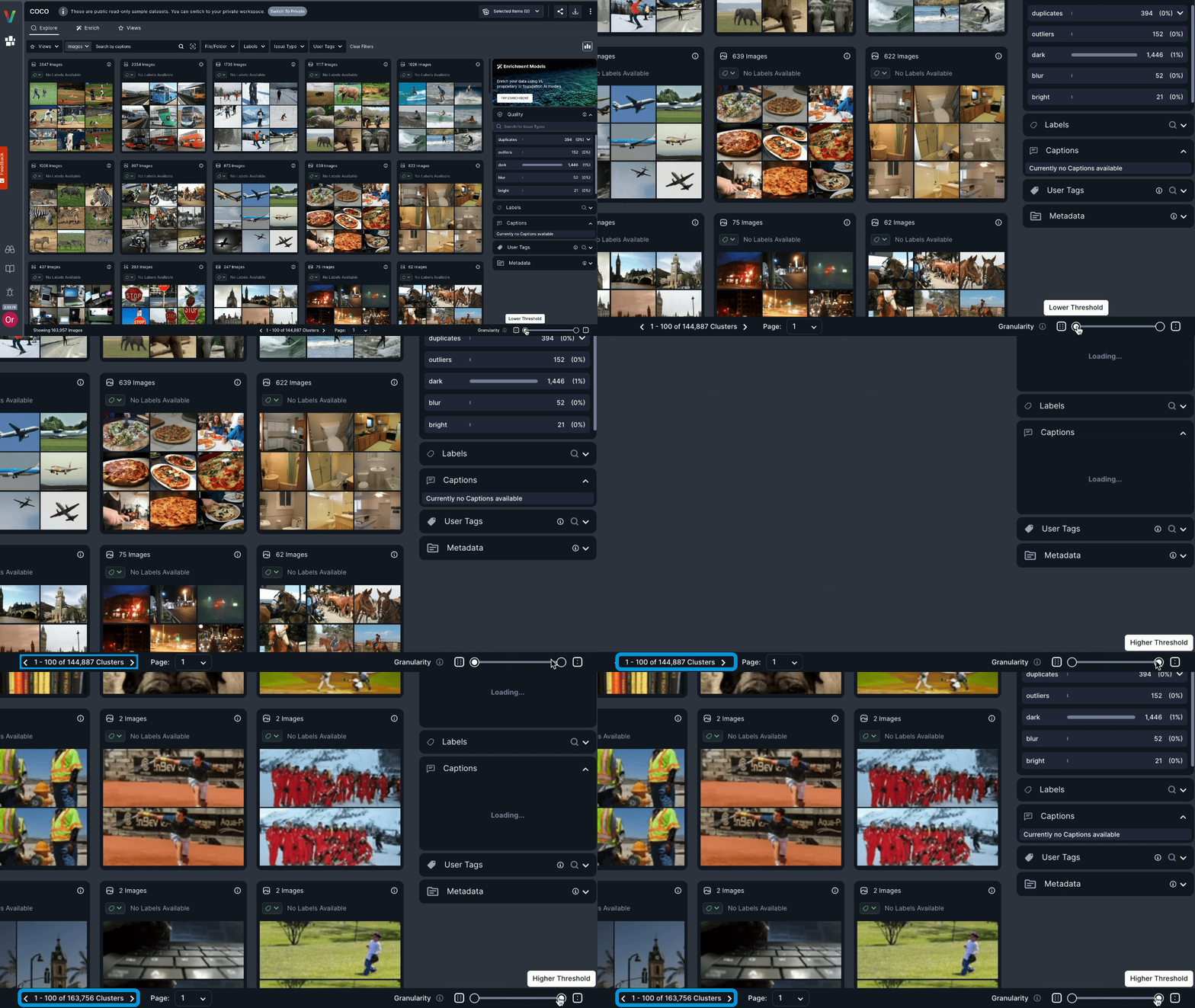
  • Move the knob to the left for looser clusters — broader grouping with lower similarity thresholds (default setting)
  • Move the knob to the right for stricter clusters — tighter grouping with higher similarity thresholds