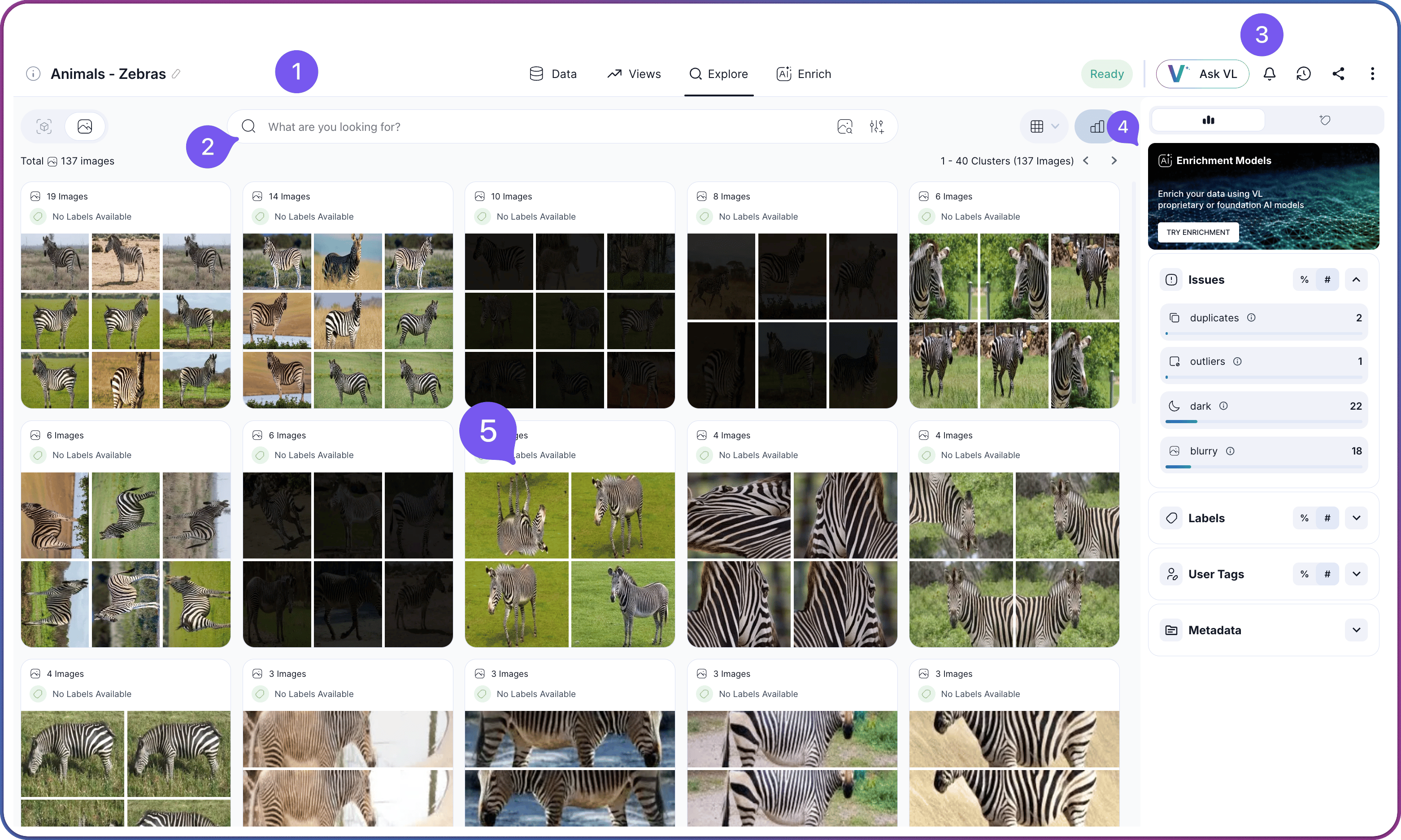
The Explore tab is the primary workspace inside a dataset. All viewing, search, filtering, cluster navigation, quality analysis, and selection happen here. For a task-oriented walk-through of the workflow this tab supports, see Exploring Datasets.
Explore tab of the dataset workspace

Layout Overview

The Explore tab is organized into four numbered regions that stay in place as you navigate, plus the Insights Panel on the right.
#RegionPurpose
1Top HeaderDataset title, dataset-level stats, status indicator, and the tab row for Data, Views, Explore, and Enrich
2Filter & Search AreaSearch Type Toggle, Layout Toggle, Search box, and Filter Menu
3Dataset ActionsDataset-wide controls on the right side of the top header: status, VL Chat, notifications, share, and the three-dot menu
4Content GridThe main display area showing clusters, images, or objects
The Insights Panel on the right of the workspace hosts insights, quality issues, labels, user tags, and metadata for the current view or selection. It stays visible alongside the numbered regions.

Top Header

The top header is the orientation strip across the very top of the workspace. It identifies the dataset and hosts the tab row.
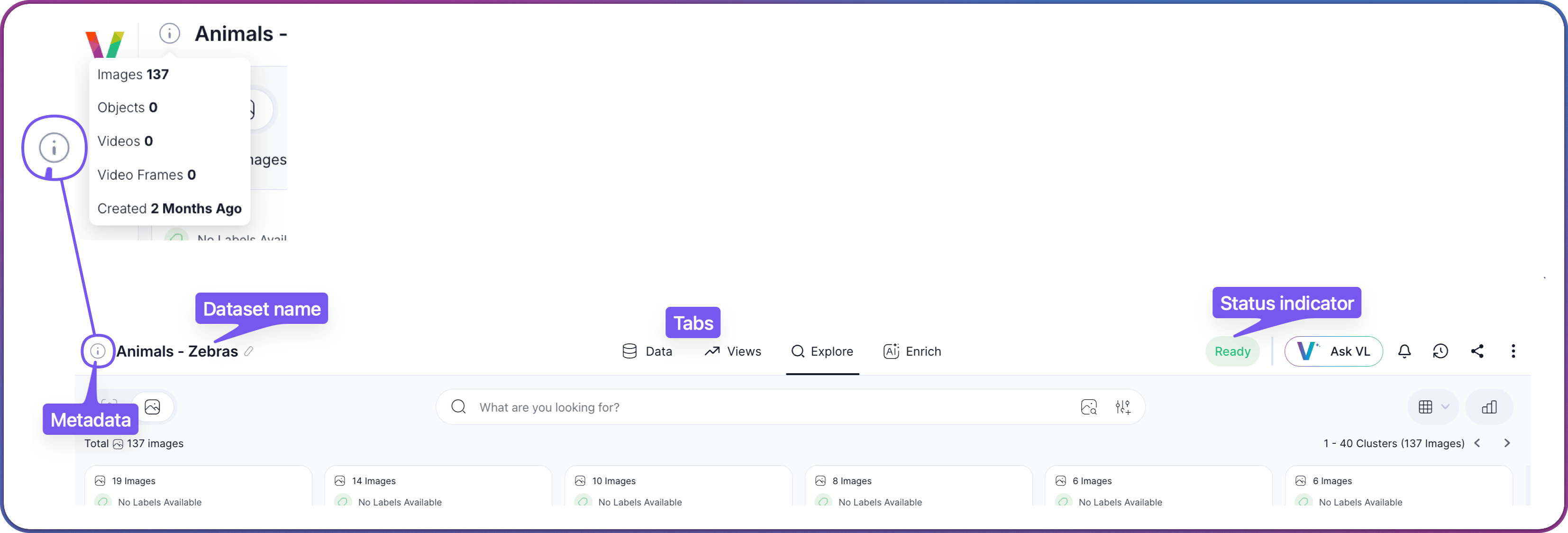
Top header of the dataset workspace with dataset name, metadata tooltip, and tabs
The header contains the following elements:
ElementDescription
Dataset nameThe name given to the dataset at creation. See Create a Dataset for the creation flow.
Tooltip with dataset metadataHover the info icon next to the dataset name to reveal counts for images, objects, videos, and video frames, plus the creation date.
TabsThe four top-level tabs that make up the dataset workspace: Data, Views, Explore, and Enrich. The currently active tab is underlined.
Dataset-wide controls sit on the right side of the top header and are documented in Dataset Actions below.

Filter & Search Area

The filter and search area is the horizontal row directly beneath the header. It holds the Search Type Toggle on the left, the Layout Toggle on the right, and the Search box and Filter Menu in the center.

Filter and search area with the Search Type Toggle on the left, Search box in the center, and Layout Toggle on the right

Search Type Toggle

The Search Type Toggle on the left side of the filter and search area sets what you are searching against: Images or Objects. This is more than a cosmetic change — it determines which embeddings are used for search, which metadata appears in the workspace, and what every filter, search, and hover action operates on.
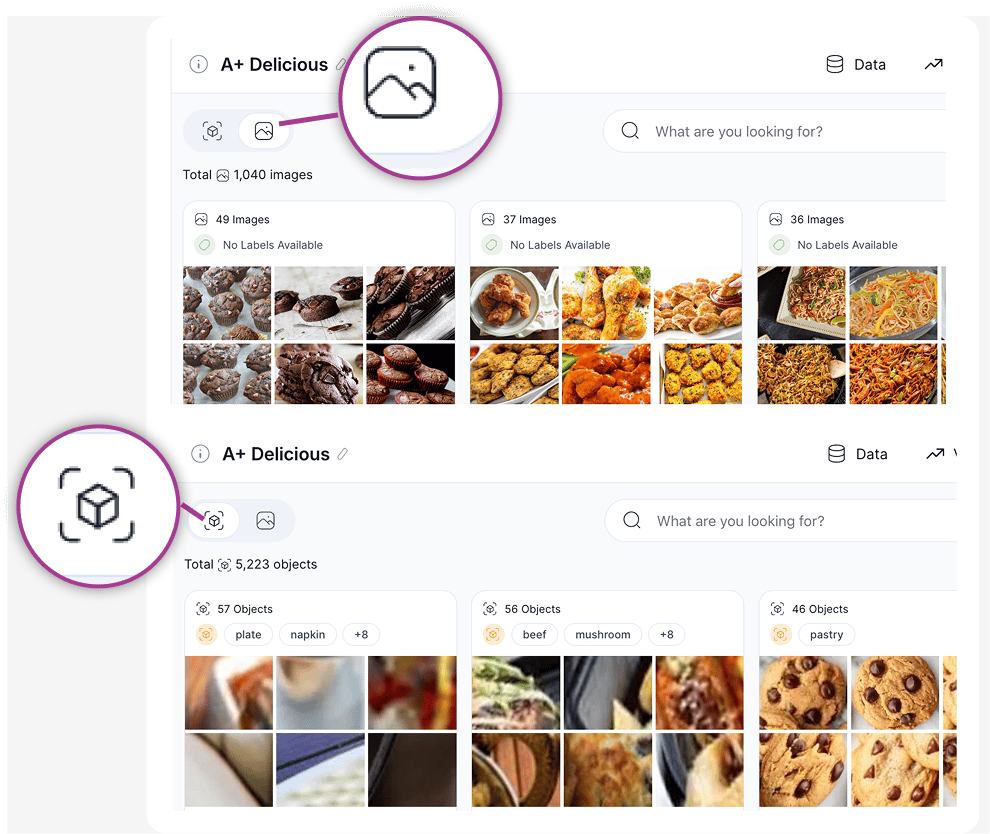
Search Type Toggle switching a dataset between Images search and Objects search
The Objects option is available once an object-detection model has run against the dataset. If the option is disabled, run a model such as VL-Object-Detector from the Enrich tab first. For what changes in the workspace when you flip between Images and Objects, see Switching the Search Type.

Labels, Captions, and User Tags

Each cluster card displays one metadata type at a time. Use the switch at the top of the cluster to change which metadata is shown.
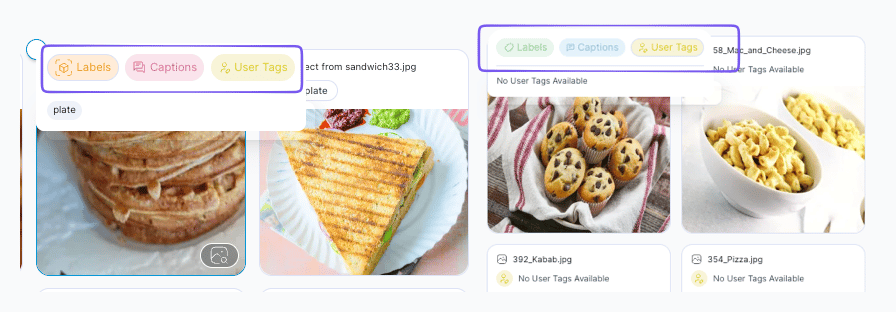
Metadata switch on a cluster card toggling between Labels, Captions, and User Tags
The three options answer different questions about the cluster:
OptionSourceQuestion Answered
LabelsClass names from annotations or detection models. Image labels come from image-level classification (for example, VL-Image-Tagger) or from annotation files imported at creation time. Object labels come from an object-detection model (for example, VL-Object-Detector) and describe each detected crop individually. The two label types are independent: an image can carry its own labels while the objects inside it carry different ones from a different model.What class does the platform think this is?
CaptionsNatural-language descriptions generated by a captioning model such as VL-Image-Captioner, VL Advanced Captioner, or VL-Object-Captioner. Captions power Caption Search.What is happening in this image or crop?
User TagsCustom tags applied manually by users or teammates. User tags are independent of any model output. See Tag Items for how tags are created and managed.How does our team want to organize this?
Which labels and captions appear on a cluster depends on which enrichment models have run against the dataset. For the full mapping of models to the metadata they produce, see the Model Catalog. To run or add models, go to the Enrich tab.
Click any label, caption term, or user tag in a cluster card to apply it as a filter across the dataset.

Layout Toggle

The Layout Toggle on the right side of the filter and search area switches between Visual Similarity (clustered) and Flat View. It controls how the content grid is arranged, not what appears in it, so it combines with the Search Type Toggle to produce clustered images, clustered objects, a flat image grid, or a flat object grid.
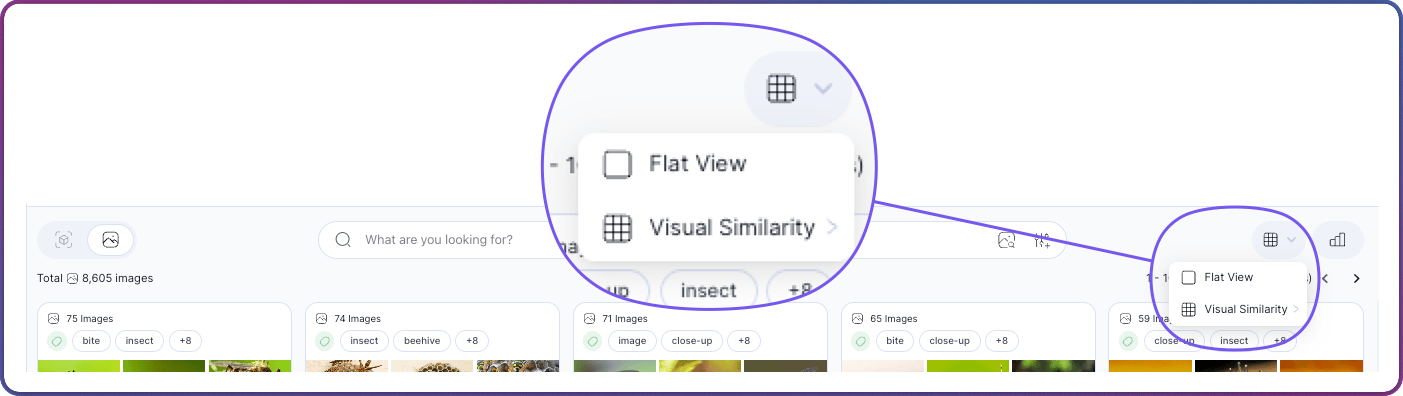
Layout Toggle dropdown showing Flat View and Visual Similarity options
For what each layout displays, see Content Grid below. For step-by-step instructions on switching layouts, see How to Search & Filter. The center of the filter and search area contains the Search box and two adjacent buttons.
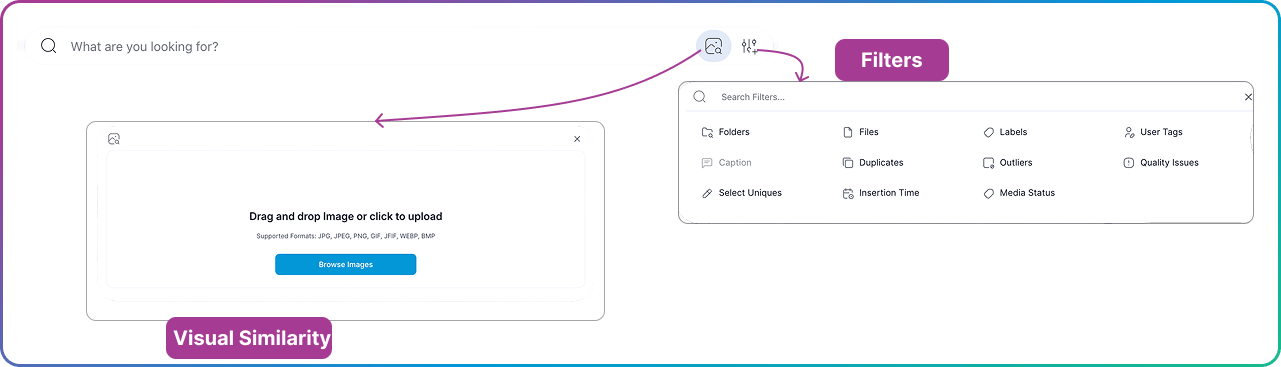
Search box with visual search upload dialog and filter menu
ElementDescription
Search boxText field that drives both Semantic Search and Caption Search. Type a natural-language description to find conceptually matching content, or use boolean operators (AND, OR, -, "phrase") when filtering by captions. See How to Search & Filter for the full syntax.
Visual Search buttonOpens the external-image upload flow for finding visually similar content. Drag and drop an image into the dialog or click Browse Images to pick one from disk. See Visual Search for all four ways to trigger visual similarity.
Filter MenuOpens the filter menu for building and managing active queries. See Filter Controls below.

Filter Controls

The filter controls build and manage the active query. Click the Filter Menu icon next to the Search box to open the filters menu.
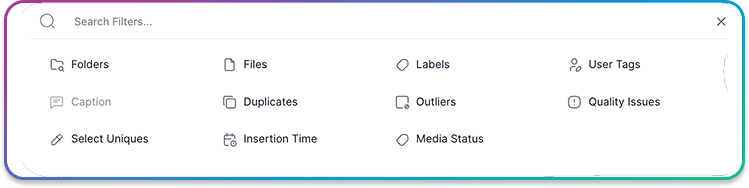
Filters menu with folders, files, labels, user tags, caption, duplicates, outliers, quality issues, select uniques, insertion time, and media status
The filters menu offers the following options:
FilterPurpose
FoldersFilter by directory path or folder name
FilesFilter by filename patterns
LabelsFilter by assigned class labels or annotation status
User TagsFilter by custom metadata tags applied to items. See Tag Items for how tags are created.
CaptionFilter by image captions using boolean operators
DuplicatesFind identical or near-identical items
OutliersSurface anomalies that differ from the rest of the dataset
Quality IssuesDetect Blurry, Dark, or Bright images
Select UniquesKeep only visually distinct items
Insertion TimeFilter by when an item entered the dataset
Media StatusFilter by media state
Selecting a filter opens the Query Modal for operator and threshold configuration. Active filters appear as chips in the Query Panel below the bar, combined with AND logic. A chip can be edited by clicking it, removed with X, or cleared entirely with Clear All. Save View stores the current filter combination as a named view, which then appears in both the Save View dropdown and the Views tab. For every operator, threshold, and filter-specific workflow, see the Filter Options Reference.

Dataset Actions

Dataset Actions occupy the right side of the top header and apply to the entire dataset, regardless of which tab is open.
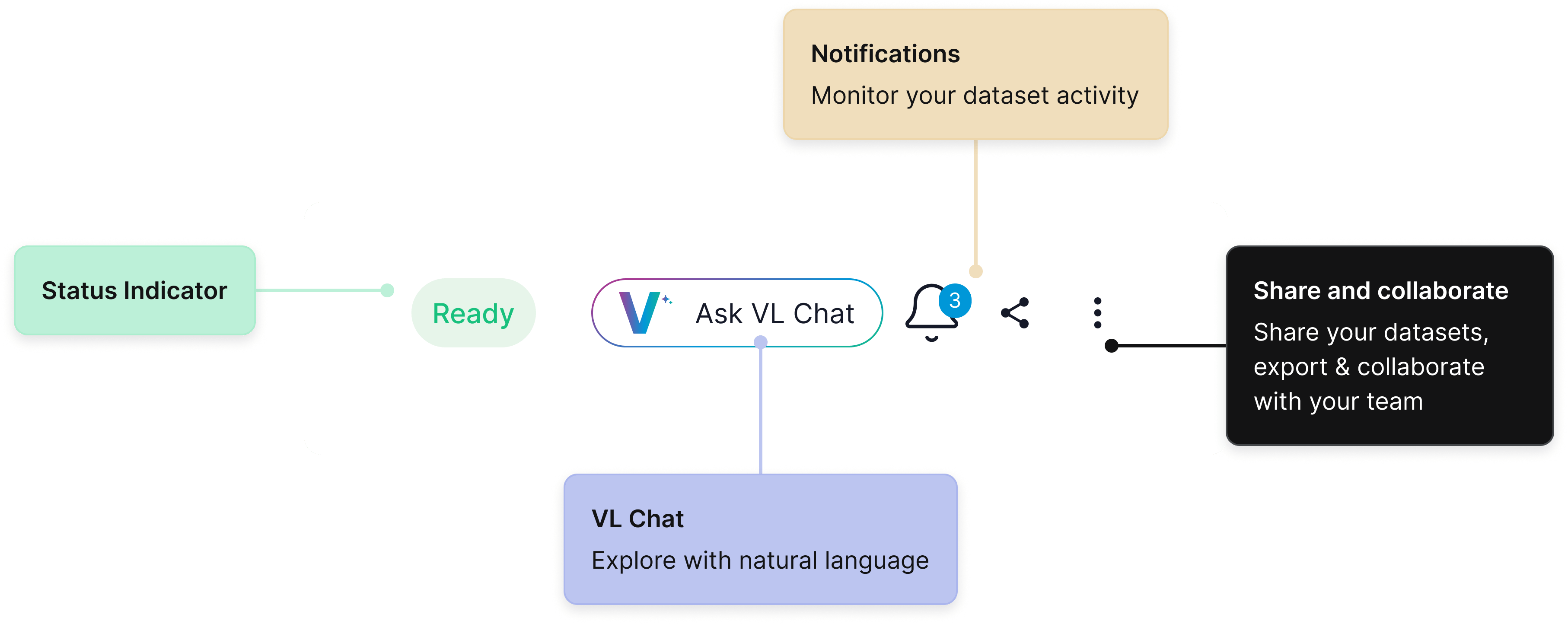
Dataset actions: status indicator, VL Chat, notifications bell, share, and three-dot menu
ControlDescription
Status indicatorThe current dataset state (Indexing, Ready, and so on). A dataset must be Ready before its content appears in the Explore tab. Dataset status is also visible from the Dataset Inventory.
VL ChatConversational launcher for building searches and filters from a natural-language prompt. See VL Chat.
Notifications bellOpens the notifications panel for alerts on this dataset, including saved-view alerts and enrichment-run completions. See Monitoring and Alerts.
ShareOpens the Share a Dataset flow for inviting collaborators.
Three-dot menuDataset-level actions such as rename, delete, and snapshot.

Content Grid

The content grid is the main display area and the source of all in-place actions. Its contents depend on the active layout selected from the Layout Toggle and the search type selected from the Search Type Toggle.

Cluster View

In Visual Similarity mode, the grid displays cluster cards. Each card shows a representative thumbnail, the cluster size, and label coverage. When the Search Type Toggle is set to Objects, each card groups detected object crops instead of full images.
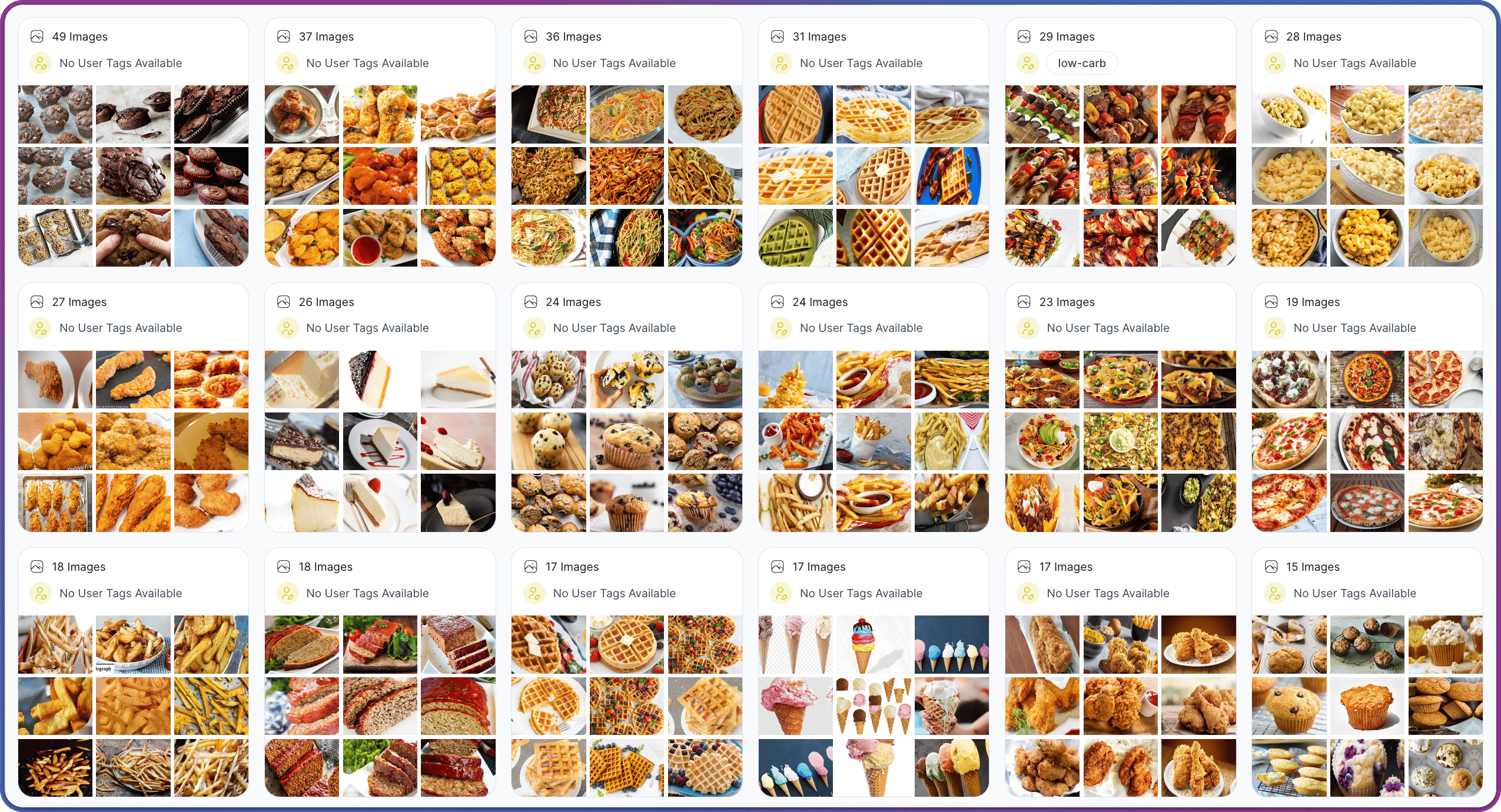
Cluster view of a dataset with cluster cards arranged in a grid
Hovering any cluster card reveals in-place actions:
ActionDescription
Find SimilarLaunches a Visual Search using the cluster’s representative image as the anchor.
Open clusterClick the card to drill into its individual images or objects.
For the concepts behind clustering and embeddings, see How Search & Filter Work. For cluster navigation tips and examples, see Understanding Clusters. For multi-step workflows that combine clusters with filters, see Recipes.

Flat View

In Flat View, the grid displays every item in a single ungrouped layout. When the Search Type Toggle is set to Images, each cell is a full image; when set to Objects, each cell is a detected object crop. Object-level browsing becomes available once an object-detection model has run against the dataset — see the Enrich tab for the workflow.
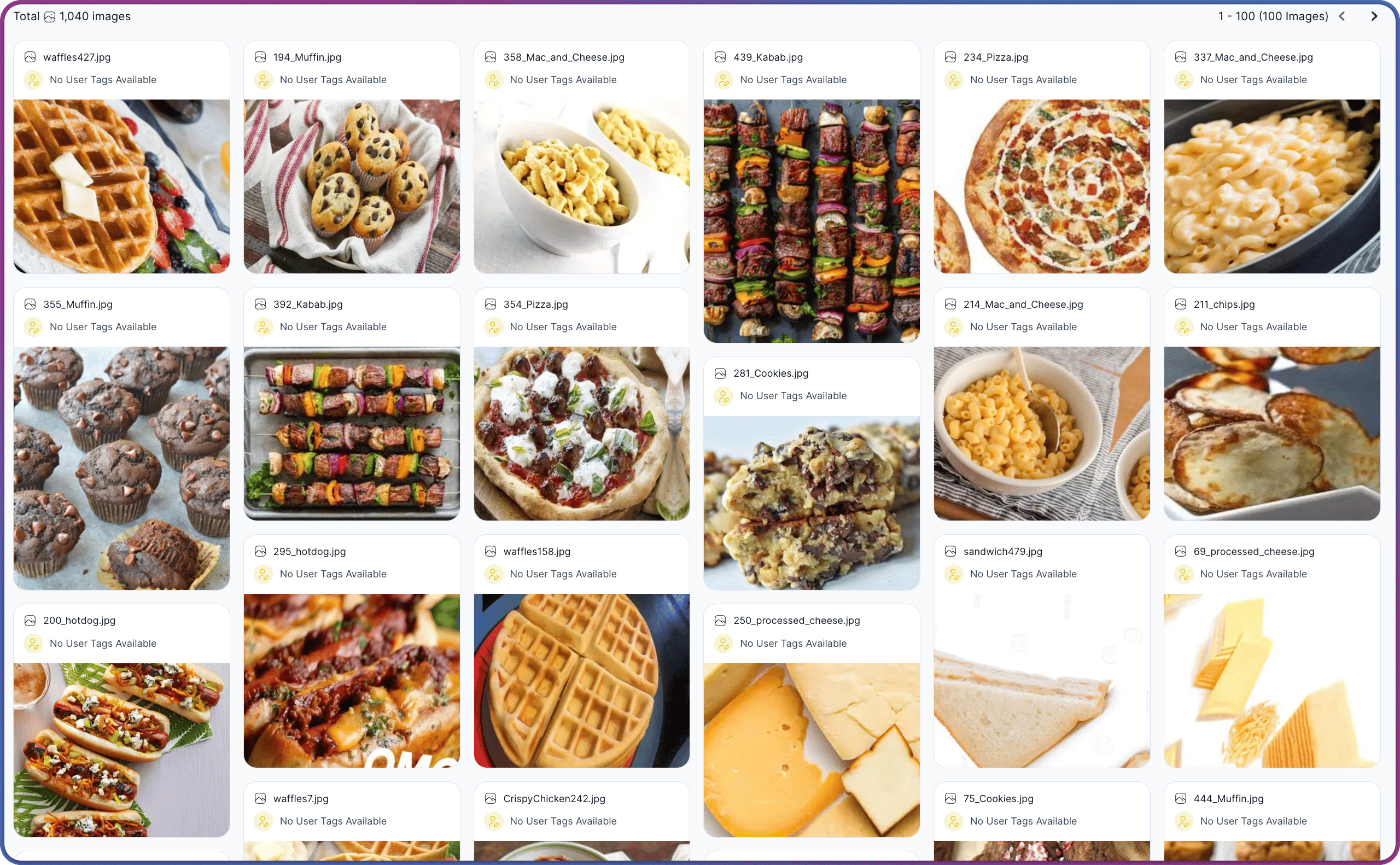
Flat view of a dataset showing every item in a single ungrouped grid
Hovering any item reveals in-place actions:
ActionDescription
Find SimilarRuns a Visual Search using the hovered item’s embedding as the anchor.
SelectToggles the item into the current selection.
Clicking an image opens its details page, where a Region of Interest crop can launch a crop-based Find Similar search. See Search Against a Region of Interest for the full flow.

Insights Panel

The Insights Panel runs along the right edge of the workspace and shows insights about the current view or selection. Its panels update as filters change, views change, or items are selected.
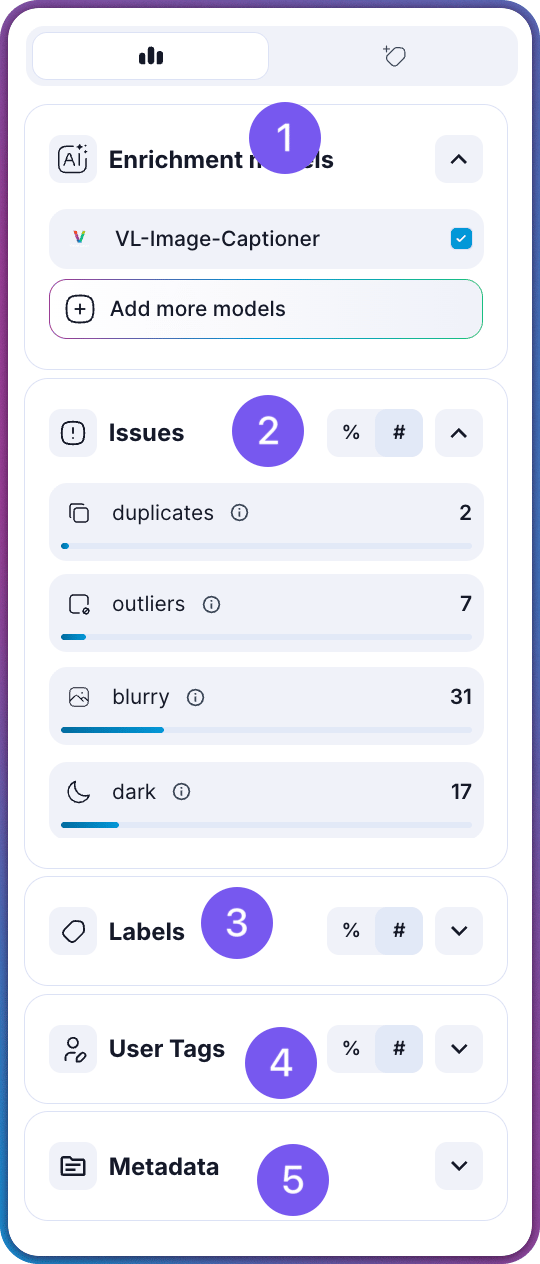
Insights Panel showing enrichment models, quality issues, labels, user tags, and metadata for the current view
The panel exposes the following sections:
#PanelDescription
1Enrichment ModelsThe models that have run against the dataset and any available preview shortcuts. See Enrich Your Datasets for the run flow and the Model Catalog for every available model.
2IssuesQuality-issue counts with drill-in links for each category: Duplicates, Outliers, Dark, and Blurry. Clicking any row applies the corresponding filter. For the signal-quality concepts behind these categories, see How Signal Quality Is Measured.
3LabelsThe label distribution for the current view. Clicking a label filters by it. To bring labels in from an external annotation file, see Importing Annotations.
4User TagsThe user tags applied to items in the current view. Clicking a tag filters by it. See Tag Items for how tags are created and managed.
5MetadataThe custom metadata fields available for filtering. See Custom Metadata for how to attach metadata at creation time or via the API.

Dataset Interface Reference

Overview of the full dataset workspace and the four tabs

How to Search & Filter

Step-by-step guide to running searches and filters

Views Tab

Saved combinations of filters and search queries

Enrich Tab

Model selection and enrichment progress tracking