

Dataset Card Components
Each dataset card displays essential information: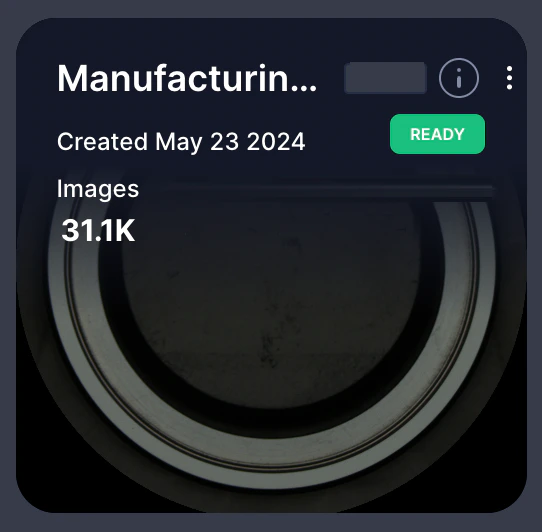
| Field | Description |
|---|---|
| Dataset Name | The title assigned during dataset creation for easy identification |
| Creation Date | When the dataset was created and added to your inventory |
| Dataset Status | Current state: Ready, Processing, Uploading, Indexing, Failed, Resume, or Enriching |
| Image Count | Total number of images in the dataset |
| Object Count | Number of annotated objects (if metadata or enrichment includes object detection) |
| Video Count | Number of videos in the dataset (if applicable) |
| Video Frame Count | Number of frames extracted from videos (if applicable) |
Info Icon  | Hover to view additional metadata such as associated folder paths, upload source, or custom fields |
| Three-Dot Menu | Access dataset actions including Copy URL, Duplicate, and Delete |
Dataset Status Indicators
Understanding status helps you know when datasets are ready for exploration:Datasets can show Ready status even when background tasks like training or enrichment are running, since these operations don’t block dataset access.
Card Actions
Click a dataset card to open the Dataset Exploration View and begin working with your data. The three-dot menu provides additional actions:- Copy URL: Copy a direct link to share with users who already have access to the dataset.
- Duplicate: Create a new, cloned dataset from the existing one.
- Delete: Permanently remove the dataset (requires confirmation).
Related Resources
About the Dataset Inventory
Overview of the Dataset Inventory interface
Dataset Exploration Interface
Navigate and analyze datasets
Upload Data
Step-by-step dataset creation guide